
How to Download and Use Free Offline Crossword Puzzles in Your Classroom (No Internet Required)
You can get free offline crossword puzzles by downloading printable PDFs from educational websites, saving browser-based puzzle generators to your device, or creating your own using free crossword maker tools. Once downloaded, these puzzles work perfectly in any classroom setting without needing Wi-Fi, making them ideal backup activities, brain breaks, or vocabulary reinforcement exercises that never depend on your internet connection holding steady.
Teachers love offline crosswords because they solve the perennial problem of technology failure right when you need it most. That moment when your Wi-Fi drops during a lesson plan built around digital activities? Having a folder of ready-to-go crossword puzzles on your computer or a stack of printed copies in your desk drawer means you’re always prepared. These puzzles engage students in critical thinking and vocabulary practice while you troubleshoot the tech issue or simply give kids a screen-free challenge that sharpens their minds.
The beauty of offline crosswords lies in their flexibility. You can customize them to match your current unit, print batches for substitute teacher folders, or save digital versions to classroom computers that students can access anytime. Whether you’re teaching elementary spelling words, middle school science terms, or high school literature vocabulary, free tools let you build exactly what your students need and deploy it instantly, no login required.
What You’ll Need to Get Started
Good news: you probably already have most of what you need to get started with free offline crossword puzzles. The initial setup requires internet access just once to find and download your materials, but after that, your students can enjoy the puzzles completely offline.
Here’s what you’ll need:
- A computer, tablet, or smartphone with internet access for browsing and downloading puzzle files
- A printer with paper if you plan to create physical copies for students
- PDF reader software like Adobe Reader or your device’s built-in viewer (most devices come with this already installed)
- Storage space on your computer or device to save downloaded puzzle files
- Optional: lamination sheets and a laminator for creating reusable puzzle sets
- Optional: dry-erase markers if you’re making laminated versions
- Optional: USB drives or tablets for distributing digital versions to students
The beauty of this approach is its simplicity. Once you’ve downloaded your chosen crossword and word search games to your device or printed them out, you’re completely free from internet dependency. Your students won’t need any devices or connectivity during class time. They can work with good old-fashioned paper and pencil, which also means zero distractions from notifications or connectivity issues. If you do choose the laminated route, you’ll create a resource you can use again and again with different classes, making it both economical and environmentally friendly.
Important Considerations Before You Download
Before you start downloading puzzles, take a few minutes to protect yourself and your students. A quick safety check now prevents headaches later.
First, verify the copyright and terms of use on any site you download from. Most educational sites explicitly allow classroom printing, but some restrict commercial use or require attribution. Look for a “Terms of Use” or “License” link at the bottom of the website. If you can’t find clear permission for classroom distribution, contact the site owner or choose a different source. Teachers have faced copyright issues by assuming all free materials are okay to share with students.
Stick with reputable sources you recognize. Educational websites, established teacher platforms, and school district resources are your safest bets. Unknown sites offering “free downloads” can bundle malware with puzzle files. If a site looks sketchy or bombards you with pop-ups, move on. Your school’s IT department will thank you.
Check that puzzles match your students’ age and maturity level. A high school vocabulary crossword won’t work for third graders, and some general-audience puzzles include references inappropriate for younger students. Solve at least one puzzle yourself before printing copies. This lets you catch any confusing clues, verify the difficulty level, and ensure the answer key is correct.
Finally, confirm file compatibility with your devices. Most puzzles come as PDFs, which work everywhere, but some sites offer Word documents or images. Make sure you have the right software to open and print them. Test opening files on any tablets or laptops students will use offline before the lesson begins.
Step-by-Step: How to Download Free Offline Crossword Puzzles
Step 1: Find Reputable Free Crossword Puzzle Sources
Start with educational websites that cater specifically to teachers. Sites like, Teachers Pay Teachers (filter for free resources), and Scholastic often have dedicated puzzle sections where you can browse by grade level and subject area. Look for filters that let you narrow results by topic, so you’re not scrolling through hundreds of unrelated puzzles.
Teacher resource platforms are goldmines for curriculum-aligned content. Many districts already subscribe to services that include downloadable puzzle packs. Check your school’s existing subscriptions first, you might have access you didn’t know about.
Don’t overlook your local library’s website. Many public libraries offer free educational resource databases through their digital portals, including puzzle collections you can download with just a library card number.
Puzzle generator tools give you the most control. Websites like Puzzlemaker from Discovery Education or Crossword Labs let you create custom puzzles using your own vocabulary lists. You’ll often find these generators bundle both crossword and word search games in a single PDF download, giving you multiple activity options from one source.
When browsing any site, use the search filters for grade-appropriate difficulty and subject matter that matches your current unit.
Step 2: Select and Customize Your Puzzles
Start by reviewing your current lesson plans and vocabulary lists, the best crossword puzzles reinforce what students are already learning. Look for puzzles that directly connect to your unit topics, whether that’s multiplication facts, state capitals, or science terminology. This immediate relevance keeps students engaged and turns puzzle time into meaningful review rather than just filler.
Most puzzle generator sites let you create custom crosswords from scratch using your own word list. Type in your vocabulary terms, add definitions or clues that match how you’ve taught the material, and the generator builds a puzzle tailored to your classroom. You can typically adjust the grid size (smaller for younger students or shorter activities, larger for advanced learners), control difficulty by limiting word count, and even choose puzzle shapes or themes that appeal to different age groups.
Don’t overlook pre-made puzzles if they fit your needs, they save time and often include professional clue writing. Just preview them carefully to ensure the language and difficulty match your students’ reading levels. Many sites categorize puzzles by grade or subject, making it easier to find appropriate matches. Remember, a well-chosen puzzle should challenge students without frustrating them, hitting that sweet spot where they feel accomplished after solving it.
Step 3: Download the Puzzle Files to Your Device
Once you’ve selected your perfect puzzles, downloading them is straightforward. Most sites offer a clearly labeled “Download” or “Print” button near the puzzle preview. Click it, and your browser will either open a new tab with the file or prompt you to save it directly.
Here’s the cleanest process for downloading and organizing your puzzle files:
- Click the download button and immediately check the file name, rename it right away if it’s something generic like “puzzle_123.pdf” to something useful like “5th_grade_science_vocab_crossword.pdf”
- Choose your save location deliberately instead of accepting the default Downloads folder, create a dedicated “Classroom Puzzles” folder with subfolders by subject or grade level
- Note the file format as it downloads, PDF files are universal and maintain formatting, Word documents allow editing but require compatible software, and PNG images work great for projecting but can’t be easily modified
- If downloading multiple puzzles for a unit, grab them all at once and save to the same subfolder so you’re not hunting later
PDF format is your most reliable choice for printing and offline access since it looks identical on any device and doesn’t require special software. Word files give you editing flexibility if you want to adjust clues, while image files (PNG or JPG) are perfect for displaying on a smartboard but harder to print clearly.
Keep your naming system consistent, something like “Grade_Subject_Topic_Type” makes finding the right puzzle in a rush much easier than digging through files named “crossword1” through “crossword47.”
Step 4: Prepare the Puzzles for Offline Classroom Use
Once you’ve downloaded your puzzles, you have several deployment options depending on your classroom setup and student needs.
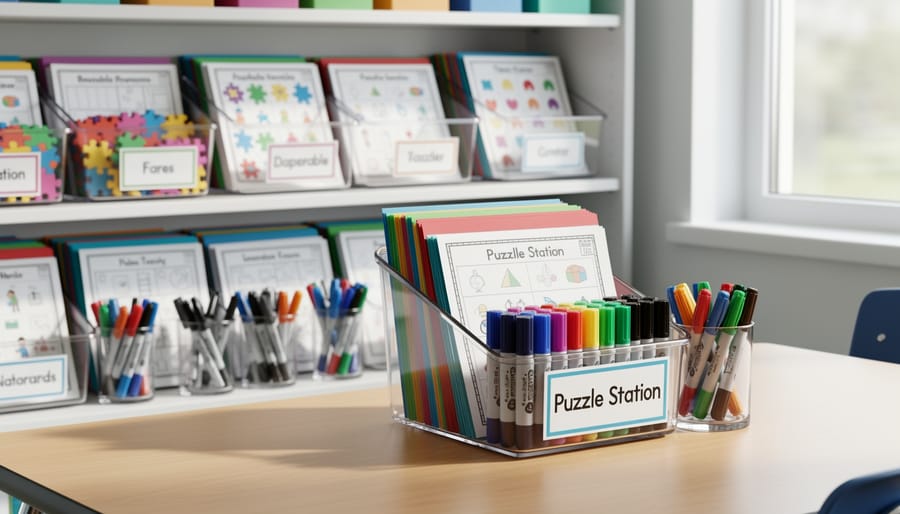
Printing remains the most reliable offline method. Print enough copies for individuals or small groups, and consider running extras for absent students or damaged sheets. Store printed puzzles in labeled folders organized by subject or difficulty level, a simple filing system saves precious prep time later.
Digital offline access works brilliantly if students have tablets or laptops. Transfer puzzle PDFs to each device before class while you still have internet. Students can view and solve them using built-in apps without any connectivity required. Just verify files open correctly on student devices beforehand.
Laminated versions offer fantastic reusability. Print puzzles on cardstock, laminate them, and let students solve using dry-erase markers. They wipe clean instantly for the next group. Store laminated puzzles flat in magazine holders or hanging file folders to prevent curling.
Projector display transforms individual puzzles into whole-class activities. Project the crossword while students work together or compete in teams, calling out answers.
Keep answer keys separate from student copies, clip them to the back of your folder or store digitally on your device. This prevents accidental reveals and makes grading quick when needed.
Step 5: Test Everything Before Class
Before handing out your free offline crossword puzzles, run a quick test to avoid classroom hiccups. Solve at least one puzzle yourself to gauge difficulty and ensure clues make sense for your students’ level. Check that printed copies are crisp and readable, fuzzy grids or cut-off clues frustrate learners fast.
If using devices, open the puzzle files offline to confirm they display properly without internet. Count your copies against class size and add a few extras for mistakes or absent students returning.
Common glitches? Formatting issues often stem from incompatible PDF readers. Try a different app if grids appear misaligned. Unclear clues usually mean you’ve grabbed a puzzle for the wrong age group. When in doubt, swap it for something simpler or add hints. This five-minute check saves 20 minutes of classroom confusion.
Making Sure Your Offline Puzzles Work in Class
Before you roll out crossword puzzles to your whole class, try them with a test group of three to five students during a free period or lunch. Watch how long it takes them to complete the puzzle and whether they need extra hints or get frustrated. If most finish within your planned timeframe and stay engaged, you’ve got a winner. If they’re done in two minutes or still stuck after twenty, adjust the difficulty for the next round.
Pay attention to which puzzle types generate the most excitement. Some classes love themed crosswords tied to current lessons, while others prefer general vocabulary challenges. Keep notes on what works for each grade level or subject, and don’t hesitate to ask students directly what they enjoyed or found confusing. Their feedback reveals whether clues are too vague or if the grid layout is hard to read.
Start building your personal puzzle library by saving successful activities in clearly labeled folders on your computer. Create categories like “Science Vocabulary Grade 5,” “Early Finishers Math Terms,” or “Rainy Day General Knowledge.” When you find a reliable free source that consistently delivers quality puzzles, bookmark it and check back regularly for new content. Over time, you’ll develop a go-to collection that saves prep time and guarantees classroom success, even when the internet’s down and you need an engaging backup plan fast.
Creative Ways to Use Offline Crosswords and Word Searches in Your Classroom
Offline crossword puzzles and word search games fit into almost every corner of your teaching day. Keep a ready supply, and you’ll have reliable backup when lesson plans shift or technology fails.
Start class with a five-minute vocabulary warm-up puzzle tied to your current unit. Students arrive, grab a puzzle, and settle into learning mode while you handle attendance and morning logistics. It beats staring at screens or chaotic chatter, and it primes their brains for the lesson ahead.
Early finishers need meaningful work, not busywork. Stock a folder with subject-specific puzzles at varying difficulty levels. Students who race through assignments can challenge themselves with advanced vocabulary or review concepts independently while you support classmates who need more time.
Substitute teacher plans often fall apart without internet access. Leave a packet of offline puzzles alongside your lesson plans. They’re self-explanatory, require zero setup, and keep students engaged in curriculum-relevant content even when your sub can’t access digital resources.
Here are more practical scenarios where offline puzzles shine:
- Rainy-day indoor recess when students need quiet, focused activity
- Team-building challenges where pairs or small groups race to complete puzzles together
- Formative assessment alternatives that feel less intimidating than traditional tests
- Brain breaks between demanding lessons to refresh attention spans
- Homework assignments that don’t require family internet access
Offline puzzles work beautifully alongside offline Wi-Fi-free games and other unplugged classroom activities to diversify your review toolkit. Rotate between a printable review game interactive digital activities, and individual puzzles throughout the week. This variety keeps students engaged and accommodates different learning preferences. You can even combine tutoring and games by using customized puzzles during small-group intervention sessions, targeting specific vocabulary gaps while keeping the atmosphere light and motivating.
Common Questions About Free Offline Classroom Crossword Puzzles
You’ve probably got a few lingering questions about incorporating free offline puzzles into your teaching routine. Here are the answers to what teachers ask most often.
Is it legal to print free crossword puzzles for my entire class?
Yes, as long as the puzzles are explicitly offered as free resources for educational use. Always check the terms of use on the website you’re downloading from, most educational sites specifically permit classroom distribution, but commercial puzzle books with copyright restrictions are a different story.
What file format works best for offline crossword puzzles?
PDF is your most reliable option because it preserves formatting across all devices and prints consistently. Word documents work well if you want to edit clues or adjust the layout, while PNG or JPEG images are perfect for displaying on a projector but less ideal for printing at scale.
How do I adapt puzzles for different grade levels?
Look for adjustable grid sizes (smaller grids for younger students, larger for older ones) and customize the vocabulary to match reading levels. Many generator tools let you input your own word lists, so you can create age-appropriate versions of the same topic, third graders get simpler science terms while fifth graders tackle more complex ones.
What’s the best way to organize my downloaded puzzle collection?
Create folders on your computer organized by subject and grade level, then use descriptive file names like “Grade4-Math-Fractions-Crossword.pdf” for quick searches. Keep a simple spreadsheet or document listing your favorites with notes about difficulty and what worked well in class.
If your printer is giving you trouble with formatting, try adjusting the page scaling to “fit to page” in your print settings, or save the file as a lower-resolution PDF before printing. Many teachers find that printing in grayscale instead of color not only saves ink but also prevents distracting backgrounds that make puzzles harder to read.
Remember, you can absolutely combine offline crosswords with your digital classroom tools. Print puzzles work great as homework or independent work time, while your interactive PowerPoint games handle whole-group review sessions. Having both options in your teaching toolkit means you’re ready for anything the school day throws at you.
Building a collection of free offline crossword puzzles gives you a reliable backup plan that works every single time. No buffering, no login issues, no surprises. Just print-and-go learning that keeps students engaged whether your Wi-Fi cooperates or not.
Start small by downloading a few puzzles for your most-taught topics, then gradually expand your library as you discover what resonates with your students. Label folders by subject and grade level so you can grab exactly what you need in seconds.
These simple word puzzles do something special: they make students slow down, think critically, and really wrestle with vocabulary in context. That kind of deep processing sticks with them long after the bell rings. Plus, there’s genuine satisfaction in completing a puzzle without any digital assistance.
Keep a stack ready in your desk drawer. You’ll thank yourself when you need them most.