How to Run a Hybrid Video Game in Your Classroom (Live + Remote Players)
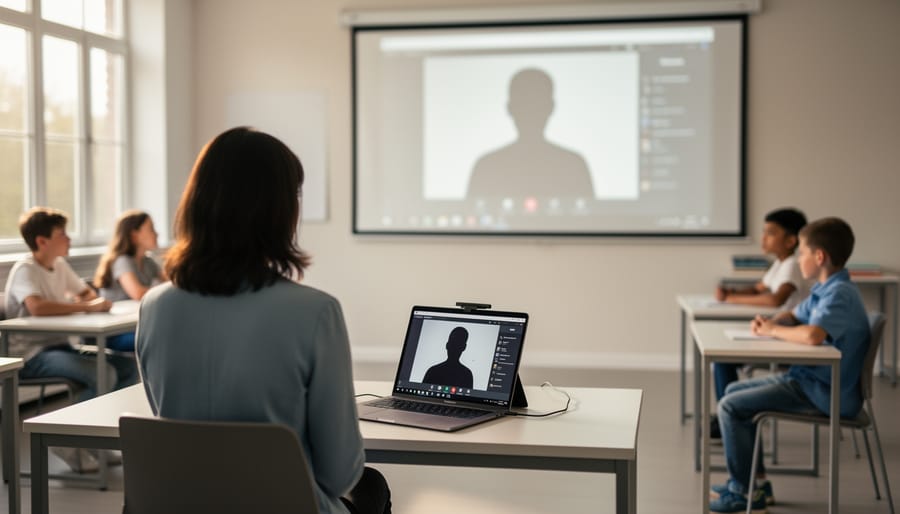
Running a hybrid video game in your classroom means connecting in-person and remote students in the same live activity at the same time. It’s more challenging than teaching to one group or the other separately, but absolutely doable when you tackle three core technical concerns: audio clarity so everyone can hear and be heard, latency management to keep gameplay fair and synchronized, and backup plans for when tech fails mid-session. The payoff is worth it. Your remote learners stay engaged and included, your in-room students experience collaboration beyond their four walls, and you create a dynamic learning environment that reflects how students already connect outside school.
The key isn’t perfect technology. Most teachers succeed with basic tools: a laptop, a projector or screen share, and a reliable video conferencing setup. What matters is your preparation. You need to test your audio configuration before students arrive, design game mechanics that account for a few seconds of delay, and have a non-digital fallback ready when the internet drops. This guide walks you through each technical pillar with practical strategies you can implement tomorrow, whether you’re running a vocabulary race, a trivia showdown, or a collaborative puzzle challenge.
Hybrid games require more upfront planning than in-person activities, but once you’ve run through the process a few times, setup becomes routine. You’ll know exactly which students to position near the microphone, how to phrase questions so remote participants have equal response time, and when to pivot to your backup plan without missing a beat.
What You’ll Need to Run a Hybrid Classroom Game
Good news: you probably already have most of what you need to run a hybrid classroom game. The goal isn’t a professional broadcast studio, it’s making sure every student, whether sitting in front of you or joining from home, can participate fully. Let’s walk through the essentials.
- Teacher laptop or computer with a reliable processor and webcam
- Student devices (laptops, tablets, or computers for remote learners)
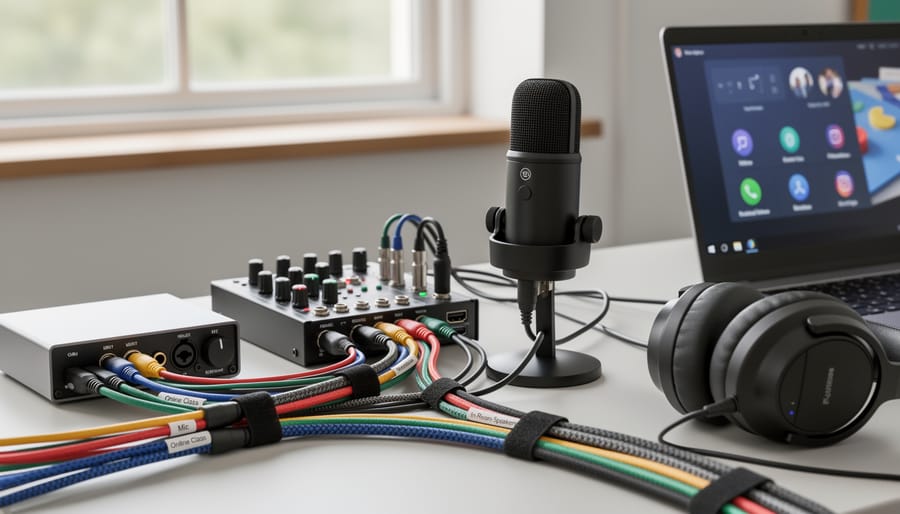
- External microphone and speaker system that picks up in-room voices
- Stable internet connection with sufficient bandwidth for video streaming
- Video conferencing platform (Zoom, Google Meet, or Microsoft Teams)
- Your PowerPoint game template ready to share on screen
- Headphones or earbuds as a backup for audio troubleshooting
The single most important piece is your audio setup. Remote students need to hear questions clearly, and in-person students need to hear remote answers without echo or feedback. An external microphone placed strategically in your classroom works far better than your laptop’s built-in mic. Pair it with decent speakers, and you’ve solved half the hybrid challenge right there.
Your internet connection should handle multiple video streams without constant buffering. If your school WiFi struggles during peak hours, consider scheduling games during less crowded times or using a wired ethernet connection for your teacher device.
Don’t forget the simple stuff: charge all devices beforehand, fix cable chaos around your desk, and keep your PowerPoint game file saved in an easy-to-access folder. You’ll also want your video platform account set up with the right permissions so students can join quickly without waiting in a virtual lobby.
Before You Start: Key Setup and Safety Checks
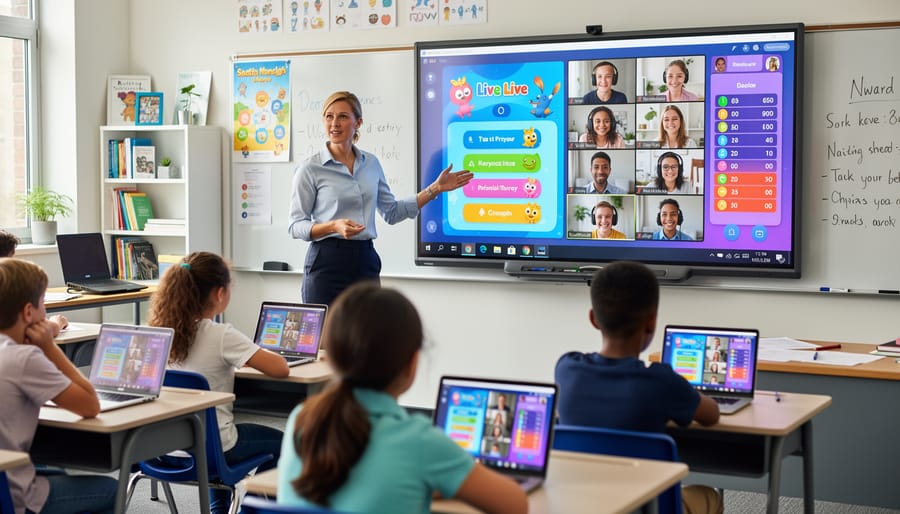
Before you dive into game day, a solid preparation checklist will save you from mid-game panic. Start with an audio test at least 15 minutes before your session begins. Ask a remote student to join early and speak into their mic while you check the in-room sound levels. Can your classroom speaker carry their voice clearly to the back row? Can they hear students answering from the front? If not, adjust speaker placement or volume now, not when 30 kids are waiting.
Next, establish your communication ground rules. Decide whether remote students stay muted until called on or can unmute freely (muted works better for larger groups). Tell in-person students to speak toward the microphone when answering. Write these expectations on the board so everyone sees them from the start.
Run a quick internet speed test on your teacher device. You need stable upload speed (at least 3-5 Mbps) to share your screen smoothly. If bandwidth is tight, close unnecessary browser tabs and apps. Ask students to turn off cameras if lag becomes an issue, audio and screen-sharing matter more than video for game play.
Share your screen in a practice run and confirm every student, both remote and in-room, can see the PowerPoint slides clearly. Check that remote students aren’t seeing a tiny window buried in gallery view. They should see your game screen filling most of their display.
Finally, have a backup plan ready. Keep your game file where you can save progress anywhere in case you need to switch devices mid-session. Know how to pivot to chat-only answers if audio fails completely. Testing these pieces beforehand turns potential disasters into minor bumps you handle with confidence.
Step-by-Step: Facilitating Your Hybrid Game Session
Step 1: Launch Your Video Platform and Share Your Screen
Open your video platform (Zoom, Google Meet, or Microsoft Teams) at least five minutes before your scheduled game time. This buffer lets you troubleshoot any login issues without cutting into your activity.
Start the meeting and admit remote students as they join. Pin or spotlight your own video so students see you clearly throughout the game. Position your in-person students where your computer microphone can pick up their voices, usually within six feet of your laptop works well.
Now share your screen. Click the share button and select the PowerPoint window showing your game template. Choose “optimize for video clip” or “optimize for full-screen video” if your platform offers it; this setting reduces lag when advancing slides. Share only the specific PowerPoint window rather than your entire desktop to avoid accidentally displaying personal notifications or other open tabs.
Before diving in, do a quick confirmation check. Ask remote students to type “yes” in the chat if they can see your game board clearly. Have an in-person student speak and ask remote learners to give a thumbs-up reaction if they heard it. This 30-second check catches most audio and visual problems before they derail your game.
Step 2: Set Up Audio So Everyone Participates
Audio is the make-or-break piece of hybrid games. If remote students can’t hear in-class answers or your in-room students can’t hear online participants, the whole session falls apart.
Start with your microphone. Place it close enough to capture student voices, about three to four feet from where in-person students will be answering works well. If you’re using a laptop’s built-in mic, position yourself near the students who are speaking. A USB conference microphone in the center of the room is even better because it picks up voices from all directions.
Next, adjust your speaker volume so remote students can actually hear what’s happening in the classroom. Turn it up higher than you think you need, background classroom noise will compete with online voices. Do a quick test by asking a remote student to speak while you’re standing at the back of your room. If you can’t hear them clearly from there, your in-person students won’t either.
Now open your video platform’s audio settings. Enable “original sound” or turn off noise suppression if your platform has it, these features often cut out student responses because they sound like background chatter. Check that your microphone input levels are in the green zone, not red.
Finally, test two-way communication before the game starts. Have an in-person student say something and ask a remote student to confirm they heard it. Then reverse it. This 30-second check prevents frustration later and helps you scale up safely when you’re ready to run bigger hybrid sessions.
Step 3: Explain the Rules and Team Structure
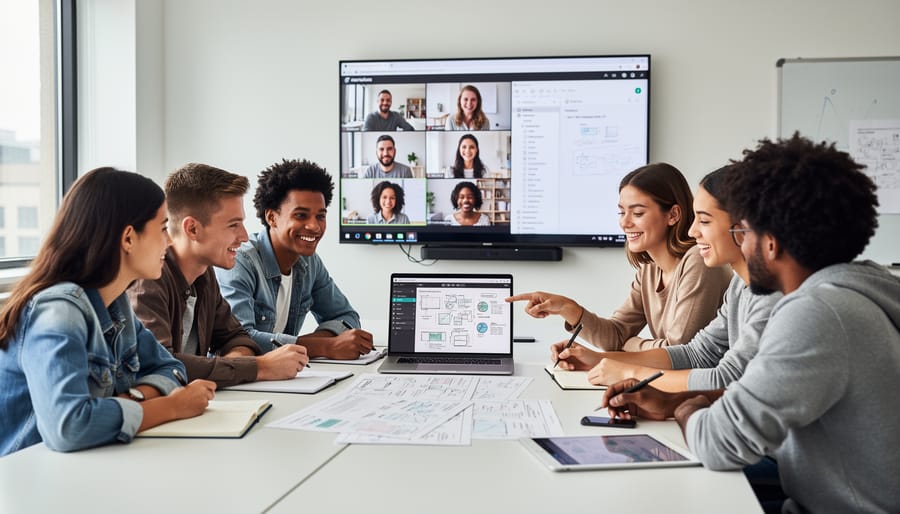
With everyone connected and hearing each other, it’s time to set the stage for fair play. Don’t assume students will intuitively know how hybrid participation works, spell it out clearly.
Start by organizing your teams. Mix in-person and remote students together rather than separating them by location. Announce team rosters verbally and post them in the chat so everyone sees the same information. If you’re using breakout features, assign mixed groups now.
Next, explain exactly how remote students will respond. Will they unmute to shout answers? Type in the chat? Use reaction buttons or raise-hand features? Pick one primary method and one backup (like “unmute first, but if there’s lag, type your answer”). Demonstrate each method with a quick practice round.
Set turn-taking rules that account for latency. Remote students might need three extra seconds to process the question and respond. Consider rotating who answers first each round, or use a “remote team gets first chance, then in-person” alternating pattern.
Make fairness visible. Tell students you’ll watch the chat for raised hands and that talking over someone on the screen counts as interrupting. When everyone understands the structure, participation becomes smoother and more equitable.
Step 4: Run the Game and Manage Latency
Once your game is rolling, your main job is to keep the pace lively without leaving anyone behind. Remote students often experience a one-to-three-second delay, so build that into your rhythm. After you reveal a question, count silently to three before calling on anyone. This tiny pause feels natural to in-person students but gives remote participants crucial catch-up time.
Watch for lag indicators on your screen. If a remote student’s video freezes or their audio cuts out momentarily, they’re probably experiencing connection issues. Don’t rush the next question until you see they’re back.
Use the chat as your safety net. Tell students they can type answers there if their audio isn’t cooperating or if they’re nervous about speaking up. Check the chat between questions and acknowledge typed responses just as enthusiastically as verbal ones. This keeps quieter students engaged and provides a backup when someone’s microphone glitches.
Keep your energy up even when waiting those extra seconds. Fill brief pauses with encouragement: “Great thinking, everyone!” or “Let’s see who’s got this one!” Your enthusiasm is contagious and masks any technical awkwardness.
If you notice one group consistently answering first, gently adjust. Try calling on remote students by name occasionally, or alternate between in-person and online respondents. Fair participation matters more than speed.
Step 5: Keep Your Backup Plan Ready
Technology will fail. Not might, will. Accept that now and you’ll breeze through it when your internet hiccups or the video platform freezes mid-question.
Keep a mobile hotspot charged and ready. If your main internet drops, you can tether your laptop to your phone’s data in under 30 seconds. This single backup has saved countless game sessions. Test it once before game day so you’re not fumbling when students are staring at a frozen screen.
Have a chat-only version ready. If audio cuts out completely, announce that all answers go in the chat for the next few questions. You read them aloud for the in-person students. It’s slower but keeps everyone playing.
Print a simplified paper version of your game questions. If the entire video connection dies, you can continue with your in-class students while you troubleshoot, then catch remote students up when they reconnect. Send them a quick email with the questions they missed so they don’t feel left behind.
If remote connections are consistently failing for multiple students, don’t force it. Pivot gracefully: “We’re going to finish this round in-person today, but I’ll share the slides and questions with our online friends right after class.” Reschedule the hybrid attempt rather than slogging through a frustrating experience.
Stay calm, smile, and remind students that technical problems happen to everyone. Your flexibility teaches resilience better than any perfectly executed game ever could.
How to Know Your Hybrid Game Worked (and What to Do Next)
The best indicator that your hybrid game worked is simple: both your in-person and remote students stayed engaged and participated actively throughout. If you noticed hands raised in the classroom while chat messages flew in from remote learners, and transitions between questions felt smooth rather than awkward, you’ve nailed it. Look for energy in the room and on screen, students leaning forward, volunteering answers, and genuinely reacting to the game rather than zoning out.
Gather feedback right after the game while the experience is fresh. A quick poll works beautifully: ask students to rate the experience on a scale of one to five, or use a simple exit ticket with two questions: “What worked well?” and “What would make this better?” Remote students can type responses in chat or submit a Google Form, while in-person students can give thumbs up or down. This takes two minutes and gives you concrete data about what resonated and what flopped.
Pay attention to warning signs too. If remote students stopped responding halfway through, your audio setup might need work. If in-person students grew restless during lag pauses, you’ll want to tighten your pacing next time. Maybe the teams were unbalanced, or the questions moved too fast for remote learners to keep up. Identify one specific element to improve rather than overhauling everything at once.
For your next hybrid game, try building on what worked. Rotate team roles so different students lead, introduce a slightly more complex game format like Jeopardy with multiple categories, or add a collaborative element where teams must work together across the in-person and remote divide. Each session teaches you something new about managing hybrid participation. The goal is progress, not perfection, and every game you run makes the next one smoother.
Customizing Your Hybrid Game Experience
Your PowerPoint game templates can work brilliantly in hybrid settings with a few smart tweaks. Start by adding clear, on-screen text instructions that remote students can read independently, think “Type your answer in the chat!” or “Team A, unmute to respond” directly on your slides. This keeps everyone on the same page even if audio cuts out momentarily.
High-contrast color schemes and large fonts matter more in hybrid games because remote students view your slides through compressed video. Aim for 28-point font minimum and avoid light text on light backgrounds. Your PowerPoint escape room or trivia game should be readable on a small laptop screen from across someone’s bedroom.
Design questions that work well in chat format. Multiple choice and true/false questions are perfect because remote students can type “B” or “True” quickly. Open-ended questions take longer to type, creating awkward pauses that kill momentum.
Add audio cues that benefit both audiences, a timer sound alerts in-person students while remote players see the visual countdown. Embed short music clips to signal transitions or celebrate correct answers. These dual signals keep everyone engaged regardless of their connection quality.
Consider creating a separate “remote student guide” slide at the beginning that explains exactly how they’ll participate. This one-minute investment prevents confusion and makes hybrid games feel inclusive rather than bolted together.
Common Questions About Hybrid Classroom Games
Running hybrid games can feel overwhelming at first, and you’re not alone if you have questions. Below are the most common concerns teachers share, and practical answers to help you move forward with confidence.
What if my remote students are in different time zones?
Schedule your game during the overlap that works for the majority, and record the session for students who can’t attend live. You can also run asynchronous versions where students submit answers via a shared document during their available hours.
How do I handle students with slow or unreliable internet?
Use the chat as the primary input method for remote students instead of relying on video or voice. Lower your screen-sharing resolution to reduce bandwidth demands, and allow extra response time so no one feels rushed by connectivity issues.
What should I do about students who don’t have cameras or won’t turn them on?
Focus on participation, not visibility. Students can contribute through chat, reactions, or audio without video. Make it clear that engagement matters more than being on camera.
How do I keep in-person students engaged when technology slows things down?
Give them specific roles during tech pauses, team captain, scorekeeper, or chat monitor. Quick physical movement breaks or bonus challenge questions keep energy up while you troubleshoot.
Another frequent worry is balancing participation so remote students don’t get overshadowed. Rotate which group answers first, call on remote students by name, and celebrate chat responses with the same enthusiasm you give in-room answers. The key is intentional inclusion, not equal screen time.
Remember, facilitation beats lecturing precisely because it adapts to your students’ needs in real time. Hybrid games aren’t about flawless execution, they’re about creating moments where every student, regardless of location, feels like part of the learning community. Start with one game, learn from it, and adjust. You’ll be surprised how quickly this becomes second nature.
Running a hybrid classroom game isn’t about mastering complicated technology. It’s about creating an inclusive, engaging experience where every student, whether sitting in front of you or joining from home, feels part of the action. You’ve now got the roadmap: prioritize clear audio so everyone hears and participates, account for latency by building in small pauses and using chat as backup, and keep a simple Plan B ready for when (not if) something glitches.
Start small. Pick one game you already love, test your setup with a few volunteers, and run it. You’ll learn more from one hybrid session than from reading a dozen guides. Did the remote students struggle to hear? Adjust your microphone placement next time. Was there awkward lag? Build in slightly longer wait times. Each game you facilitate teaches you something new about your specific classroom setup.
Remember, your students aren’t expecting a flawless broadcast-quality production. They want to review material in a way that doesn’t feel like memorizing notes. They want to laugh, compete, and learn together, even if some are learning from their kitchen table and others from Row 3, Seat 4. The occasional technical hiccup won’t ruin that. Your flexibility, encouragement, and willingness to roll with the bumps will.
So grab your PowerPoint template, fire up that video call, and bring your whole class together for a game. You’ve got this.