
How to Choose and Apply PowerPoint Layout Examples for Adaptive Template Design
Creating adaptive PowerPoint layouts for classroom games means building flexible slide structures that let you swap in fresh content without redesigning from scratch every time. The key is designing modular zones for questions, answers, visuals, and scorekeeping that remain consistent across slides, so you can quickly update text and images while preserving interactive elements like click-to-reveal animations or timer placeholders.
Teachers need templates that work across different subjects, grade levels, and game formats. A well-designed adaptive layout saves hours of prep time because you’re not rebuilding Jeopardy boards or quiz show slides from zero each week. Instead, you create the framework once and customize content in minutes, whether you’re teaching multiplication tables or reviewing vocabulary.
The difference between a rigid template and an adaptive one comes down to how you structure placeholder zones and formatting controls. Adaptive layouts use master slides, consistent text boxes, and smart positioning so that when you duplicate a slide and change the question, everything stays aligned and functional. You’re essentially creating your own reusable game engine.
This guide walks you through proven layout patterns that work for popular classroom game formats, shows you exactly how to build them using PowerPoint’s built-in tools, and gives you customization strategies to match your teaching style. You’ll learn to set up question-and-answer grids, spinner wheels, countdown timers, and scoreboard layouts that adapt to any subject matter. By the end, you’ll have a collection of go-to templates ready to energize your lessons without eating into planning time.
What You’ll Need: Tools and Materials for Building Adaptive Layouts

Before you dive into building your adaptive PowerPoint layouts, let’s gather what you’ll need. The good news? You probably already have the main tool sitting on your computer right now.
Software Requirements
You’ll need Microsoft PowerPoint 2021 or newer, or an active Microsoft 365 subscription. While older versions technically work, the 2021 and 365 versions offer smoother transitions, better alignment tools, and improved master slide features that make creating adaptive layouts much easier. If you’re on a tight budget, PowerPoint Online (the free web version) can handle basic layout creation, though you’ll miss some advanced features like custom animation triggers and certain design tools.
Essential Tools and Materials
- PowerPoint software (2021, 365, or Online version)
- Your game content outline: question topics, categories, or review material you plan to include
- A list of your classroom tech specs: projector resolution, screen size, and student device types if they’ll interact
- Sample content in different lengths to test your layout flexibility
- Basic image editing software or access to free image resources if you’re adding graphics
Optional Add-Ons That Help
Consider grabbing a wireless presenter remote if you’ll be moving around the classroom during games. Free PowerPoint add-ins like Pear Deck or ClassPoint can add polling features directly into your slides. A color palette tool or the built-in PowerPoint color picker helps maintain consistent, readable color schemes across your layouts.
Preparation Steps
Sketch out your game structure on paper first. How many questions? How many teams? Will students answer individually or in groups? Understanding your classroom flow before you start building prevents frustrating redesigns later. Also, measure your projection screen or check your display settings so you can design with your actual classroom dimensions in mind. If students will see your game on individual devices, test what your layout looks like on a tablet or laptop screen, not just your desktop monitor.
Having everything ready before you open PowerPoint saves hours of mid-design scrambling and helps you create layouts that actually work when game day arrives.
Important Layout Considerations Before You Start
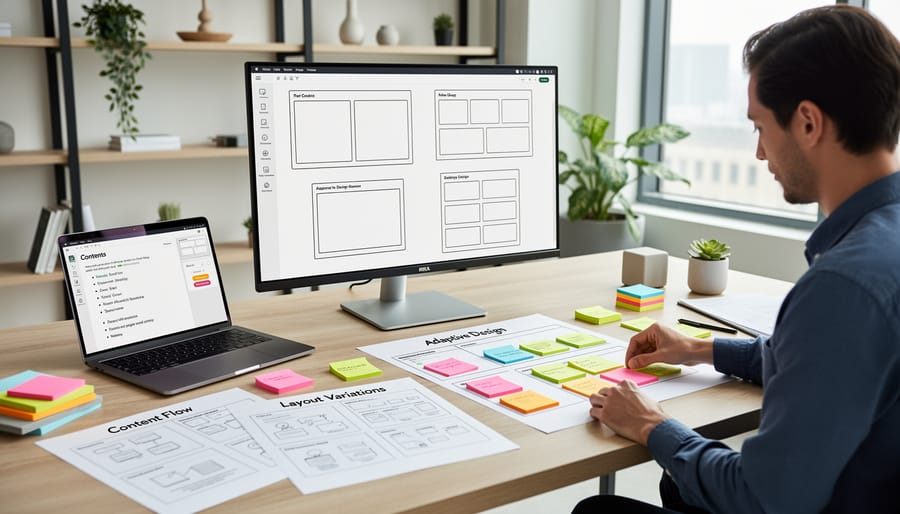
Before you dive into building your adaptive PowerPoint layout, let’s talk about the pitfalls that can turn a promising template into a classroom headache. Taking a few minutes to plan around these common issues will save you hours of frustration later.
Screen Size Compatibility Matters More Than You Think
Your classroom projector probably displays at 1024×768 or 1920×1080 resolution, but your laptop might be something else entirely. Design your layout at the resolution closest to your classroom setup, and always leave generous margins. Elements placed right at the edge of your screen during design often get cut off when projected. A good rule: keep all important content at least one inch from any edge.
Test your layout on the actual equipment you’ll use. What looks perfect on your laptop can become cramped or stretched on a different screen. If you share templates with colleagues, ask what resolution they project at so your layouts work across multiple classrooms.
Don’t Crowd Your Slides
The urge to pack everything onto one slide is real, especially when you’re excited about your game design. Resist it. Students sitting in the back row need to read your content just as easily as those in front. Aim for no more than 6-8 interactive elements per slide, and give each one breathing room.
White space isn’t wasted space. It helps students focus on what matters and makes your layout feel organized rather than chaotic.
Font Readability From a Distance
Your font choices can make or break classroom engagement. Stick with sans-serif fonts like Arial, Calibri, or Verdana at a minimum of 28pt for body text and 44pt for headings. Script fonts and thin fonts look elegant up close but disappear from ten feet away.
Test readability by stepping to the back corner of your classroom while your slide is projected. If you squint to read it, your students are squinting too. High contrast between text and background is non-negotiable: dark text on light backgrounds or light text on dark backgrounds, never low-contrast combinations like yellow on white.
File Size Management
Adaptive templates with lots of images, sounds, and embedded fonts can balloon to 50MB or more. That’s fine for your computer, but it becomes a problem when you’re emailing templates to colleagues or loading them on older classroom computers.
Compress images before inserting them (PowerPoint’s built-in compression tool works great), and consider linking to sound files rather than embedding them. Save a “master” version with all bells and whistles, then create a streamlined version for sharing.
Keep Templates Editable
Your adaptive layout should be easy to customize, not locked down. Avoid grouping too many elements together, and use descriptive names for text boxes like “Question_Text” or “Team_Score” so you remember what goes where. Add brief instructions in the notes section of your master slide explaining how to customize without breaking the layout.
Lock down only the decorative elements that should never change, and leave content areas fully editable.
Popular PowerPoint Layout Examples for Classroom Games

Grid and Game Board Layouts
Grid and game board layouts are the workhorses of adaptive classroom game templates because they naturally scale with your content. Think of a tic-tac-toe grid or a game board path where each tile holds a question, these layouts let you start with a 3×3 grid for nine questions or expand to 5×5 for twenty-five without redesigning from scratch.
The key to making grids adaptive is using evenly-spaced placeholder boxes that maintain their proportions when you add or remove columns and rows. For example, a Jeopardy-style category board with five categories and five questions each can easily shrink to four categories or expand to six by adjusting the grid structure in Slide Master view. Each tile becomes a clickable element linking to a question slide, and the uniform spacing ensures everything stays aligned no matter how many tiles you need.
Board-game-style paths work beautifully for review races where students advance by answering correctly. Design a winding path of connected tiles, numbered or color-coded, that you can lengthen or shorten by duplicating or removing tile groups. This flexible approach transforms ordinary review sessions into interactive experiences that create true classroom magic keeping students engaged while you maintain complete control over the content complexity.
Quiz Show and Game Show Formats
Quiz show formats bring the energy of television game shows into your classroom and naturally adapt to different question sets. These layouts typically feature a prominent question display area at the center or top, team podiums or contestant spaces along the sides or bottom, and an integrated scoreboard that updates throughout the game.
A Jeopardy-style board works beautifully because you can add or remove categories without breaking the layout, each category column contains clickable boxes that reveal questions when selected. Family Feud formats use a central answer board where responses flip or slide into view, with team podiums positioned on either side. The answer spaces adjust whether you have five responses or eight.
Wheel of Fortune-inspired layouts feature a puzzle board with letter tiles and a scoring wheel, both of which scale to different word lengths and point values. Game show formats shine when you build them with consistent spacing between elements and use PowerPoint’s grouping feature to keep podiums, scoreboards, and question areas aligned as you customize content.
The key advantage? Students instantly recognize these familiar formats, which reduces explanation time and increases engagement from the first round.
Team Competition and Scoreboard Arrangements
Team competition layouts work best when they scale from two teams to six without breaking your design. Start with a horizontal scoreboard across the top that divides evenly, use PowerPoint’s table tool with equal-width columns so adding or removing a team doesn’t throw off alignment. Below that, create matching content zones for each team using text boxes with identical dimensions; group them together so you can duplicate the set when you need more teams.
For scoring systems that update during gameplay, insert text boxes with large, bold numbers positioned consistently across all team sections. Leave ample space around score displays, cramped numbers are hard to read from the back row. Build in flexible name placeholders using centered text boxes that expand vertically as team names lengthen, preventing text cutoff when students pick creative names like “The Unstoppable Math Wizards.”
Step-by-Step: Building Your Adaptive PowerPoint Layout
Setting Up Your Master Slide Foundation
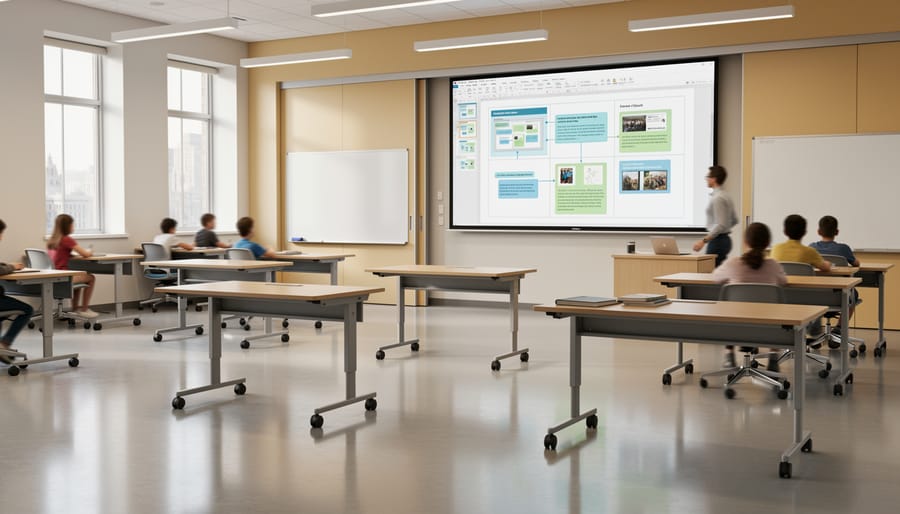
Open PowerPoint and click View > Slide Master to enter the control center of your template design. This is where you’ll build the foundation that every slide in your game will inherit automatically.
Start by selecting the top slide in the left panel, this is your master slide, and any changes here cascade down to all layouts below it. Set your background color or pattern first. Choose something that won’t clash with your content but still adds visual interest. Solid colors work best for classroom projectors.
Next, establish your font defaults. Click the master slide’s placeholder text and select fonts that remain readable from the back row, typically 28pt or larger for body text. Set your heading fonts even bigger. If you want a logo or school name on every slide, add it to the master slide now.
Create consistent margins by adding guide lines: right-click the slide, select Grid and Guides, then drag guides to mark your content boundaries. This keeps all text and images within a “safe zone” visible on any projector.
Before leaving Slide Master view, rename your layouts with clear names like “Question Slide” or “Scoreboard” so you’ll recognize them later when building your game.
Creating Flexible Content Zones
Flexible content zones are the backbone of an adaptive layout, they let you swap questions, adjust text length, and change images without reformatting every slide. Start by creating text boxes with clear boundaries but room to grow. In PowerPoint, draw a text box where your question or answer will appear, then right-click and select “Format Shape.” Under “Text Options,” enable “Resize shape to fit text” or set a fixed height with “Wrap text in shape” checked. This ensures longer questions expand the box vertically while maintaining your layout’s overall structure.
For image holders, use placeholder boxes with subtle borders (light gray works well) that show where visuals belong. Set consistent dimensions, like 4″ x 3″ for all question images, so replacement pictures maintain uniform sizing. Right-click the placeholder, choose “Format Picture,” and under “Size & Properties,” lock the aspect ratio. This prevents distortion when you drag new images in.
Build interactive elements like answer buttons or navigation arrows as grouped objects. Select multiple shapes (hold Shift while clicking), right-click, and choose “Group.” Grouped elements move together during customization, keeping your Q&A for every student layout intact. Add extra spacing, at least 0.25″ margins, around each zone to prevent overlap when content expands. Test by typing a long question and a short one in the same text box; if the layout breaks, increase the buffer space or adjust your container settings.
Adding Interactive Game Elements
Once your content zones are in place, it’s time to add the interactive features that transform a static layout into an engaging game. Start with navigation buttons, use PowerPoint’s built-in shapes (rectangles or rounded rectangles work best) and assign hyperlinks through Insert > Action. Link buttons to specific slides or use “Next Slide” for linear progression. Group button shapes with their text labels so they move together when adjusting your layout.
For scoreboards, create text boxes formatted as placeholders that teachers can quickly update. Use consistent formatting (font size, color, alignment) and position them where they’re visible but not distracting. Consider adding simple animations like “Grow/Shrink” when scores change to celebrate correct answers.
Sound triggers add excitement without complexity. Insert audio files (keep them short, 1-2 seconds) for correct answers, wrong guesses, or round transitions. Right-click the sound icon, choose “Hide During Show,” and set the trigger to play “On Click” of a specific button. Test each sound trigger to ensure it fires reliably when content around it changes. This keeps your game lively while maintaining the layout’s flexibility.
Testing Your Layout for Adaptability
Testing is where adaptive design proves its worth. Start by swapping in real classroom content, long vocabulary words, multi-line math problems, detailed science diagrams, and watch how your layout responds. Does text overflow its container? Do images squash awkwardly? Try extreme cases: a single-word answer versus a paragraph-long explanation, or a tiny icon next to a full-slide photograph.
Next, duplicate your template across different scenarios. Create a version with three categories instead of five. Add an extra team to your scoreboard. If the layout breaks or requires manual fixes, it’s not truly adaptive yet. Test on your actual classroom projector too, what looks sharp on your laptop might blur or misalign on the big screen.
Finally, hand your template to a colleague who didn’t build it. Can they customize content without accidentally destroying the structure? That’s the ultimate adaptability test.
Customization Tips for Different Subjects and Grade Levels
Your layout needs to flex with your students’ needs and your subject’s unique demands. Elementary classrooms benefit from larger fonts (minimum 28pt for body text, 44pt for headings), brighter color palettes with high contrast, and generous spacing between elements to avoid visual overwhelm. Secondary students can handle more information density, smaller fonts (down to 20pt body text), and sophisticated design themes that mirror professional game shows.
Math templates should prioritize space for equations, diagrams, and worked examples. Build in flexible zones where you can drop in graphs or geometry without breaking your layout, avoid fixed image sizes. Language arts layouts need room for longer text passages, multiple-choice options with variable answer lengths, and possibly embedded audio clips for vocabulary or reading comprehension. Science templates benefit from split-screen arrangements where you can show diagrams alongside questions, and social studies layouts often need space for maps, timelines, or primary source images.
- Elementary (K-5): Bold primary colors, sans-serif fonts only, minimal text per slide, large clickable buttons
- Middle school (6-8): Two or three accent colors, mix of text and visuals, moderate information density, interactive scoring
- High school (9-12): Professional color schemes, smaller fonts acceptable, content-heavy slides possible, complex game mechanics
- Math: Reserve 40% of slide space for problems and diagrams, use grid backgrounds subtly, ensure equation boxes expand vertically
- Language arts: Flexible text boxes that auto-resize, neutral backgrounds that don’t compete with reading passages, space for 4-6 answer choices
- Science: Image-friendly layouts with captioning zones, color-coding for different concept types, room for process diagrams
- Social studies: Map-compatible layouts, timeline-friendly horizontal arrangements, space for multiple related images
Class size impacts your layout differently than you might expect. Larger classes (25-plus students) work better with team-based layouts that minimize individual spotlighting, while smaller groups (under 15) can handle layouts featuring individual student names or avatars. If you teach multiple sections with varying sizes, build your template with optional elements you can show or hide rather than creating entirely separate files. Stick with system-safe fonts (Arial, Calibri, Verdana) to maintain adaptability when sharing templates across different computers, decorative fonts look great until they’re missing on the classroom projector laptop.
Testing and Verifying Your Adaptive Layout
Before you debut your new template in front of 25 eager students, run it through a proper verification process. Start by replacing all placeholder content with real questions, answers, and images from an actual lesson. Does the layout hold up when you add a lengthy science question versus a short math problem? Swap in different image sizes and text lengths to see where things break.
Next, test your template on the actual hardware you’ll use in class. What looks perfect on your laptop might behave differently on the classroom projector or interactive whiteboard. Open your file on the presentation computer, run it in slideshow mode, and walk to the back of the room. Can you read the smallest text? Are the colors as vibrant, or do they wash out? Check every clickable button and hyperlink, nothing kills game momentum faster than a navigation element that doesn’t work when everyone’s watching.
Ask a teaching colleague to customize one slide without your guidance. Can they figure out where to add content? Do the adaptive elements behave as expected when someone else edits them? This peer test often reveals confusing elements you didn’t notice. If you’re working with Gamu templates or other pre-built designs, verify that your customizations haven’t accidentally overridden the original adaptive features.
Common troubleshooting: If text boxes resize unpredictably, check that you’re using placeholders rather than regular text boxes in the master slide. Buttons not working? Verify your action settings and ensure you didn’t accidentally layer an invisible shape over them. Layout shifts when you add content? Your text boxes might not have proper anchoring, reset them in the master view and test again.
Next Steps: Implementing Your Layout in the Classroom
You’ve built and tested your adaptive layout, now it’s time to put it to work. Start by saving your template as a .potx file (PowerPoint Template format) so it remains a clean master copy. This format prevents accidental changes to the original and makes it easy to generate new presentations from the same foundation. Store this file in a dedicated templates folder on your computer or cloud storage where you can access it quickly for future games.
Create three to five variations of your core layout right away. Duplicate your template and adjust color schemes, content zones, or interactive elements for different subjects or game types. You might have one version optimized for vocabulary review, another for math problems, and a third for science concepts. This variety gives you flexibility without starting from scratch each time. These variations also work well as digital signage templates for displaying schedules or announcements between classes.
Share your templates with colleagues through your school’s shared drive or learning management system. Other teachers can provide fresh perspectives on what works and suggest improvements you might not have considered. Encourage them to customize copies rather than editing your master files.
After running your first few games, gather quick feedback from students. Ask what they found confusing, what kept them engaged, and whether the layout helped or distracted from the content. Their insights often reveal readability issues or navigation problems you missed during testing.
Build your personal library gradually. When you find elements that work particularly well, a scoreboard design, a question reveal animation, a team selector, save those components separately. You can mix and match these proven pieces into new layouts, combining the best features from multiple templates to create increasingly effective game experiences.
Frequently Asked Questions
Creating adaptive PowerPoint layouts raises plenty of questions, especially when you’re just starting to build your own classroom game templates. Here are answers to the most common concerns teachers have about layout design and implementation.
How many different layouts should one template have?
Start with 3-5 layouts that cover your most common needs: a title slide, a main game board, a question slide, and a scoreboard work well for most classroom games. You can always add more specialized layouts later as you discover specific needs in your teaching.
Can I use layouts from free PowerPoint templates I find online?
Yes, but make sure to check the licensing terms first. Many free templates allow educational use and modification, which means you can adapt their layouts to create your own game templates. Just avoid using copyrighted characters or branded designs in classroom materials you might share publicly.
What’s the difference between adaptive and responsive layouts?
Adaptive layouts are designed to work well when you manually change content, like swapping questions or adjusting team counts, while responsive layouts automatically resize elements based on screen size. For classroom templates, you’re primarily creating adaptive layouts that stay organized when you customize the content for different lessons.
How do I prevent students from accidentally editing my template layout during gameplay?
Save your file as a PowerPoint Show (.ppsx) rather than a regular presentation, which opens directly in slideshow mode and prevents editing. Alternatively, you can protect specific slides or elements in PowerPoint’s design settings, though this requires a few extra steps in the Review tab.
Another question that comes up frequently concerns file formats for saving your finished templates. The .potx format (PowerPoint Template) is your best choice for templates you’ll reuse across multiple lessons, because it creates a clean copy each time you open it and protects your original layout. For one-time games or presentations you’ll customize and keep, the standard .pptx format works fine and gives you full editing flexibility.
Teachers also wonder about sharing templates with colleagues who might have older versions of PowerPoint. If you’re creating layouts in PowerPoint 2026 or recent versions, save a compatibility copy in .ppt format for anyone still using PowerPoint 2010 or earlier. Keep in mind that some newer features like morph transitions or certain animations might not work in older versions, so stick with basic transitions and standard fonts if wide compatibility matters to you.
The key is not to overthink these technical details when you’re getting started. Pick the format that matches how you’ll actually use the template, test it once on your classroom setup, and adjust as needed. Most compatibility and protection issues are easy to fix once you spot them in practice.
Well-designed adaptive PowerPoint layouts transform how you create classroom review games. Instead of building each activity from scratch, you’ll develop a personal library of flexible templates that adapt to any subject, unit, or student group. The time you save compounds quickly, what used to take an hour now takes fifteen minutes, freeing you to focus on teaching rather than design work.
Start small. Pick one layout example that matches your most frequent classroom need, build it carefully, and use it until you know exactly how it works. Then expand. Add variations, experiment with new game formats, and customize elements that reflect your teaching style. Your confidence will grow with each template you create.
Your students will notice the difference. Interactive games built on solid adaptive layouts keep them engaged, motivated, and eager to participate. The energy in your classroom shifts when learning feels like play, and those moments of genuine excitement make all the design effort worthwhile.
You’ve got the tools, the examples, and the step-by-step process. Now it’s time to create something amazing for your students.