Student Avatar Icons: Safe, Fun Ways to Protect Identity in Classroom Games
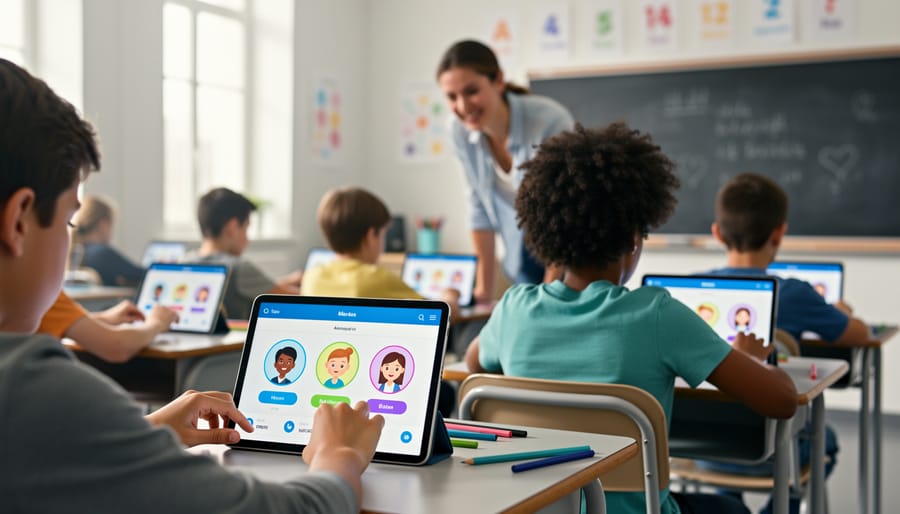
Student avatar icons let you protect your students’ identities during classroom games by replacing real names and photos with fun, anonymous characters. They’re quick to set up, loved by kids, and solve the privacy headaches that come with displaying student information on shared screens or public leaderboards.
If you’ve ever hesitated before projecting a quiz game because parents might worry about who sees their child’s score, or if you’ve wondered how to keep the energy of competition alive without putting anyone on the spot, avatars are your answer. Instead of “Sarah M. – 3rd place,” your screen shows “Purple Dragon – 3rd place.” The game stays exciting, but the pressure drops.
The shift toward avatar use in 2026 classrooms isn’t just about following privacy guidelines (though that matters too). It’s about creating a space where students feel safe to take risks, make mistakes, and celebrate wins without the weight of constant visibility. Some kids thrive in the spotlight. Others freeze up when their name appears in red at the bottom of a leaderboard, even if you never meant it that way.
The good news? Switching to avatars doesn’t mean losing the fun or personal touch of your review games. Today’s tools offer everything from customizable characters students design themselves to pre-made icon sets you can assign in seconds. You’ll keep all the engagement and motivation your games provide while giving every student a little breathing room. Whether you’re running a fast-paced trivia session or a week-long challenge, avatars make participation feel less risky and more playful.
Why Student Privacy Matters in Classroom Leaderboards
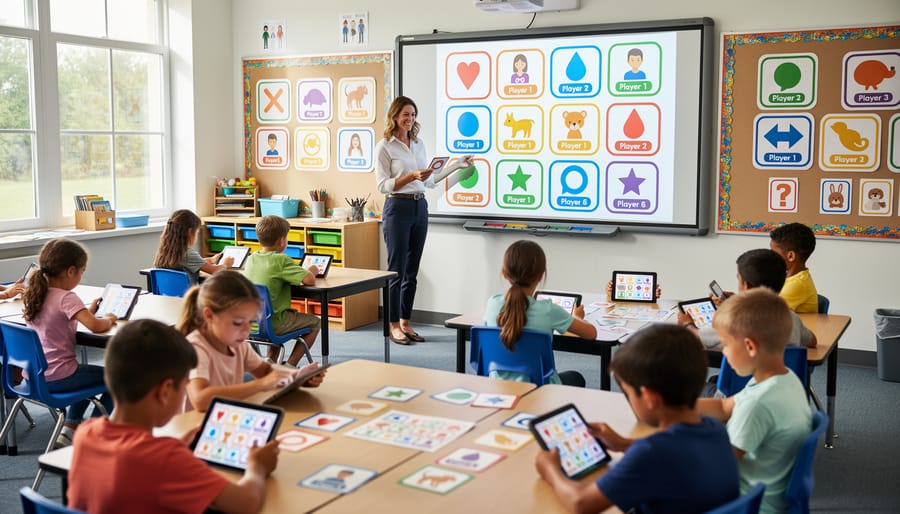
When you project a leaderboard showing student names and scores during a review game, you’re creating a public record of academic performance. While some students thrive in competitive settings, others experience real anxiety when their scores become classroom-wide knowledge. That stress can overshadow the learning objectives of your game entirely.
The pressure intensifies for students who consistently rank lower on leaderboards. They may start avoiding participation, rushing through questions to escape attention, or developing negative associations with review activities altogether. Instead of building confidence, traditional name-based leaderboards can reinforce the exact academic anxieties you’re trying to reduce.
Privacy concerns extend beyond emotional wellbeing. The FERPA student privacy protections require schools to safeguard educational records, and publicly displayed performance data falls into a gray area that many districts prefer to avoid. When you display student names alongside scores, you’re creating documentation that could raise questions from administrators or parents concerned about privacy compliance.
There’s also the social dynamics factor. Leaderboards can inadvertently create classroom hierarchies based on game performance rather than genuine understanding. Students might remember who “always loses” rather than focusing on the content you’re reviewing. That social labeling sticks around long after the game ends.
Your role as a teacher includes creating space where every student feels safe to try, fail, and learn without public judgment. Traditional leaderboards work against that goal by making every answer a matter of public record. This is where classroom leaderboard alternatives using avatar icons become valuable, letting you preserve the competitive energy while removing the personal exposure that causes anxiety.
How Avatar Icons Protect Student Identity
Separating Performance from Personal Identity
When a student competes in a classroom game using an avatar instead of their real name, their performance stays separate from their public identity. The class sees “Blue Dragon” earning points or “Star Rocket” climbing the leaderboard, not which specific student is succeeding or struggling.
This separation creates psychological safety. Students can take academic risks, answer challenging questions, and learn from mistakes without worrying that classmates will later remember “Sarah got that question wrong” or “Marcus is always at the bottom.” The game results don’t follow them into lunch or recess conversations.
For teachers, avatars solve a practical problem: you can still track individual progress through your own records while displaying results that protect student dignity. You know exactly who “Purple Unicorn” is and can use that data for assessment, but the classroom only sees the avatar competing.
This approach particularly benefits students who struggle academically or experience test anxiety. When performance isn’t publicly tied to their name, they’re more willing to participate actively rather than staying quiet to avoid potential embarrassment. The focus shifts from “who’s winning” to “what are we learning.”
Reducing Social Comparison and Anxiety
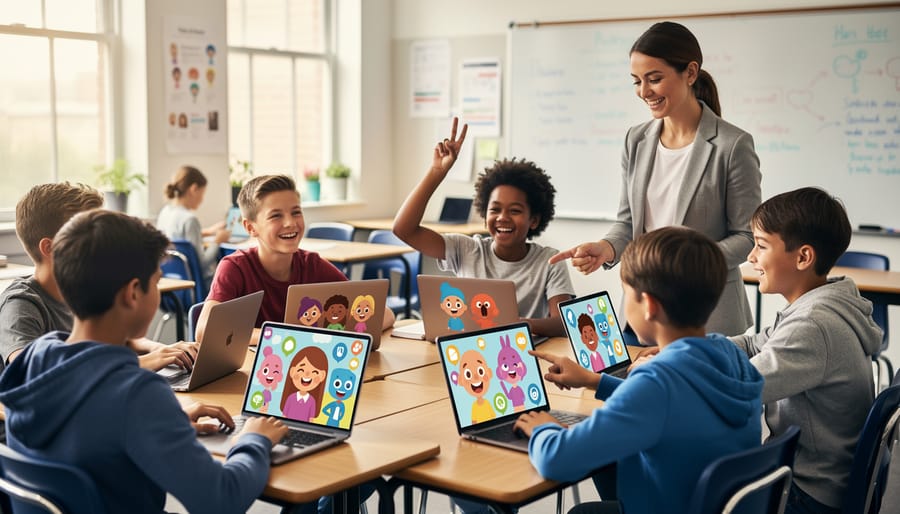
Anonymous avatars create a psychological buffer that lets students engage with classroom games without the weight of social judgment. When a cartoon ninja or friendly robot represents their performance instead of their actual name, students feel safer taking academic risks and participating fully.
This protection matters most for students who struggle academically or lack confidence. Without their name attached to a wrong answer or lower score, they’re more willing to try, knowing their classmates won’t directly associate the outcome with them. The competitive element stays fun rather than threatening because performance becomes separate from personal identity.
Avatars also level the social playing field. High achievers can’t be automatically identified and praised while others feel exposed as “the student who always loses.” Everyone becomes a character in the game, which shifts the focus from “who’s smartest” to “who can improve” or “which team worked best together.”
Teachers consistently report that quieter students participate more actively when avatars hide their identity. The fear of embarrassment drops significantly, and students redirect that mental energy toward actually learning the content instead of managing their classroom image.
Types of Student Avatar Icons for Classroom Games

Pre-Assigned vs. Student-Selected Avatars
Teachers often wonder whether they should choose avatars for their students or let students pick their own. Both approaches work, but they shine in different situations.
Pre-assigned avatars work best when you need quick setup or want to prevent distractions. You maintain complete control over which icons students use, avoiding potential conflicts over popular choices. This approach is ideal for younger students who might struggle with decision-making, timed activities where you can’t spare five minutes for avatar selection, or classes where choice tends to spark arguments. The downside? Some students feel less invested when they can’t express their personality through their avatar.
Student-selected avatars boost engagement and give kids ownership over their classroom experience. When students choose their own icon from your curated set, they’re more excited to participate and watch for their avatar on the leaderboard. This works beautifully with older students, longer-term games, or when you’re trying to build investment in the activity. Just set clear boundaries, offer a limited, pre-approved selection so you’re not managing chaos or inappropriate choices.
Many teachers split the difference: pre-assign for quick daily reviews, let students choose for unit-long competitions.
Age-Appropriate Avatar Design
Different grade levels need different approaches to avatar design. Elementary students respond best to colorful, friendly characters like animals, cartoon figures, or simple emojis that feel playful and non-threatening. Middle schoolers often prefer more sophisticated options, think sports symbols, abstract shapes, or trendy icons that feel mature without being childish.
High school students appreciate minimalist designs or icons that reflect their interests, like music notes, tech symbols, or geometric patterns. Avoid overly cutesy avatars for older students, as they can undermine engagement rather than boost it.
Whatever the age, steer clear of avatars that could promote stereotypes or exclusion. Skip gender-specific options, culturally insensitive imagery, or anything that might make students uncomfortable. The sweet spot is a collection diverse enough that every student finds something appealing, yet cohesive enough to maintain your classroom’s professional atmosphere.
Setting Up Avatar Icons in Your PowerPoint Review Games
Getting started with avatar icons in your PowerPoint review games is simpler than you might think. Most teachers already have the tools they need, it’s just a matter of adjusting a few elements in your existing game templates to protect student privacy while keeping the excitement alive.
- Choose your avatar style. Start by selecting a set of icons that suits your classroom vibe. You can find free icon sets online featuring animals, cartoon characters, geometric shapes, or themed options like space creatures or sports mascots. Pick a consistent style rather than mixing various designs, this keeps your leaderboard looking professional and helps students quickly recognize their own avatar. For elementary students, colorful and expressive options work best, while middle and high schoolers often prefer minimalist or cool designs.
- Assign avatars to students. Create a simple roster that pairs each student with their chosen avatar. You can let students pick their favorite from your set or randomly assign them, both approaches work. Keep this roster private on your computer or in a password-protected file. When setting up engaging PowerPoint games you’ll reference this roster but never display it on screen.
- Display avatars on your leaderboard slides. In PowerPoint, insert your avatar images directly onto your scoreboard or leaderboard template. Size them consistently (usually 50-75 pixels works well) and arrange them in a column or grid. Add text boxes next to each avatar for scores, but leave out any names or initials. Your slide should show only the avatar image and the corresponding point total.
- Track scores privately. As students earn points during gameplay, update the numbers on your leaderboard using your private roster as reference. You know that the purple dinosaur is Emma and the rocket ship is Marcus, but your students only see the icons and scores. Consider keeping a paper copy of your avatar assignments nearby during fast-paced games so you can quickly update the right scores without hesitation.
One technical tip that saves time: create a master slide with your avatar lineup already positioned. You can duplicate this slide for each round or question, updating only the scores as you go. This consistency helps students follow along without confusion.
If you’re using animated PowerPoint templates, insert your avatars on the top layer so they don’t get hidden behind game elements. Test your setup before class by running through a practice round to confirm all avatars are visible and scores display clearly on your classroom screen or projector.
Best Practices for Balancing Fun and Privacy
The key to successful avatar implementation is setting clear expectations from day one. When introducing avatar icons to your class, explain both the fun and safety aspects in age-appropriate terms. Tell younger students they get to pick their own “game character,” while older students often appreciate a direct conversation about privacy and how avatars let them compete without worrying about judgment. This transparency builds trust and helps students understand that you’ve chosen this system with their wellbeing in mind.
Consistency matters more than you might think. Once you establish an avatar system, stick with it across all your e-learning review games and classroom activities. Students should use the same avatar throughout a grading period or semester, which helps them build ownership of their chosen icon while still protecting their identity from public display. This consistency also makes classroom management easier since you’ll quickly learn which avatar belongs to which student without needing to check your roster constantly.
Keep a private record that only you can access. Create a simple spreadsheet or document that matches each student’s name to their avatar choice, and store it securely where students can’t view it. This lets you maintain accountability when reviewing participation or addressing behavior issues while the public-facing leaderboard shows only avatars. You can still recognize achievement and provide feedback, just privately rather than on a displayed scoreboard.
For team competitions, assign team names or colors alongside individual avatars. This approach maintains the collaborative excitement of group challenges while adding an extra privacy layer. Teams can celebrate victories together, and the competitive energy stays high because students still know how their team is performing, even if individual contributions remain semi-anonymous. The collective success becomes the focus rather than singling out top performers or struggling students.
Common Questions About Student Avatar Icons
Teachers often have practical questions when switching to avatar-based classroom games. Here are answers to the most common concerns about implementing and managing student avatar icons.
Can I still track individual student progress with avatars?
Yes. You can maintain a private roster that maps each avatar to a student name, allowing you to monitor student growth over time while keeping leaderboards anonymous to the class.
What if students figure out who has which avatar?
This happens occasionally in smaller classes, but the psychological benefit remains, seeing an avatar name on the board still feels different than seeing your actual name. You can also rotate avatars periodically to maintain anonymity.
How do I explain avatar systems to parents?
Frame it as both a privacy protection and an engagement strategy. Parents appreciate that their child’s academic performance isn’t displayed publicly, and most understand how avatars reduce social pressure during competitive activities.
Can I reuse the same avatar set for multiple classes?
Absolutely. Save your avatar template and duplicate it for each class period or subject, just ensure students in overlapping groups don’t use the same avatar to avoid confusion.
Many teachers worry about the technical side of setting up avatars, but the process is simpler than it seems. Most PowerPoint-based review games include avatar fields that work like any text box, you type in the avatar name instead of a student name. If you’re working with a game template that doesn’t have built-in avatar support, you can create text boxes or use PowerPoint’s table feature to build a simple leaderboard where avatar names replace student names.
Storage and organization become easier once you establish a system. Keep a spreadsheet for each class that lists avatar assignments alongside student names (stored securely on your school’s protected drive, never shared publicly). This reference sheet lets you quickly set up games, track individual performance, and rotate avatars when needed. Some teachers color-code their spreadsheets by class period or create separate tabs for different units, making it easy to manage avatars across multiple classes throughout the year.
The engagement question comes up frequently: will students care about the game if their real name isn’t displayed? Experience shows they often engage more enthusiastically because the avatar creates psychological distance from failure. Students feel freer to take risks, answer boldly, and participate actively when a wrong answer is attributed to “Phoenix” or “Blue Dragon” rather than themselves.
Student avatar icons transform classroom review games into spaces where every learner can participate confidently. By removing the anxiety that comes with public name displays, you’re creating an environment where students focus on learning rather than comparison. The simple shift from names to icons protects privacy while keeping all the excitement and competition intact.
Your students get to enjoy the thrill of climbing leaderboards and celebrating wins without worrying about who’s watching their every move. They can take risks, answer boldly, and bounce back from mistakes more easily when their identity stays protected. Meanwhile, you maintain all the classroom management benefits you need, tracking participation, monitoring progress, and keeping games organized.
Starting with avatar icons doesn’t require complex setup or technical expertise. Choose a fun icon set, assign or let students pick their avatars, and watch engagement levels rise. You’ll likely notice quieter students participating more actively and competitive spirits staying positive throughout the game.
Give avatar-based leaderboards a try in your next review session. The combination of privacy protection and increased participation creates exactly the kind of safe, energetic learning environment where all students thrive.