

Transform Your Classroom Games with PowerPoint Design Themes That Actually Work
Choose themes that match your game’s energy level and subject matter—bright, bold colors work wonderfully for fast-paced trivia games, while calmer palettes suit reflective activities. Start with PowerPoint’s built-in theme gallery, then customize fonts to ensure readability from the back of your classroom (aim for at least 28-point text). Replace generic background images with subject-specific graphics that reinforce your lesson content, keeping visual elements consistent across all slides so students focus on the game rather than distracting design changes.
Modify your theme’s color scheme by selecting complementary shades that create visual hierarchy—use one color for questions, another for answers, and a third for point values. The way PowerPoint designs transform review games depends heavily on maintaining clean layouts with plenty of white space, preventing cognitive overload during competitive moments.
Save your customized themes as templates to reuse throughout the year, building brand recognition in your classroom. Test your design on your actual classroom screen before game day, adjusting contrast and size as needed. Remember that effective game templates balance visual appeal with functionality—students should instantly understand how to play without lengthy explanations about navigating confusing slides.
What Makes a PowerPoint Design Theme Different from Regular Templates
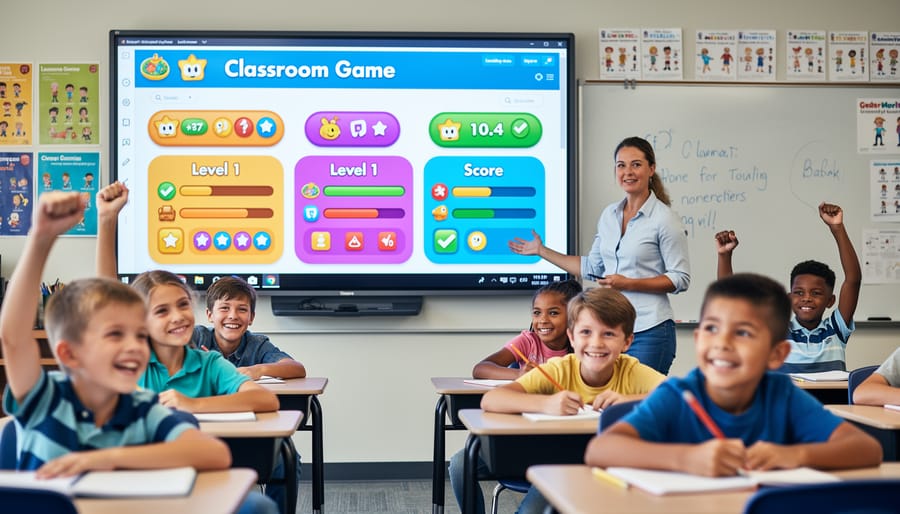
The Power of Masters in Your Game Templates
Think of slide masters as the secret backstage crew of your game templates—they work behind the scenes to keep everything looking consistent and polished! When you customize a slide master, you’re essentially creating a blueprint that automatically applies your design choices to every slide in your game. This means your fonts, colors, backgrounds, and layouts stay uniform across all question screens, scoreboards, and answer reveals without you having to manually adjust each slide.
Here’s the exciting part: make one change to the master slide, and watch it instantly update throughout your entire game! Want to switch your font from blue to green? Change it once in the master, and all your slides follow suit. Need to move your point values to a different corner? Adjust the master, and you’re done.
This behind-the-scenes magic saves you tons of time and ensures your students see a professional, cohesive game experience. No more worrying about inconsistent designs or spending hours making repetitive changes. The slide master handles the heavy lifting, letting you focus on creating engaging content that gets your students excited about learning!
Why Themes Save You Hours of Prep Time
Let’s be honest—creating engaging classroom games from scratch can eat up your entire Sunday afternoon! That’s where pre-designed PowerPoint themes become your new best friend. Instead of spending hours choosing fonts, colors, and layouts, you can jump straight into the fun part: customizing content for your students. Themes give you a professional-looking foundation in seconds, with coordinated colors and fonts already perfectly matched. This means more time for tailoring questions to your curriculum and less time fiddling with design elements. You’ll transform what used to be a two-hour project into a quick 15-minute customization session. Plus, when you find themes you love, you can reuse them throughout the year for different subjects and topics, making your prep time even faster. It’s like having a teaching assistant who handles all the busy work while you focus on what really matters—creating memorable learning experiences for your students.
Essential Elements of Great Game Template Themes
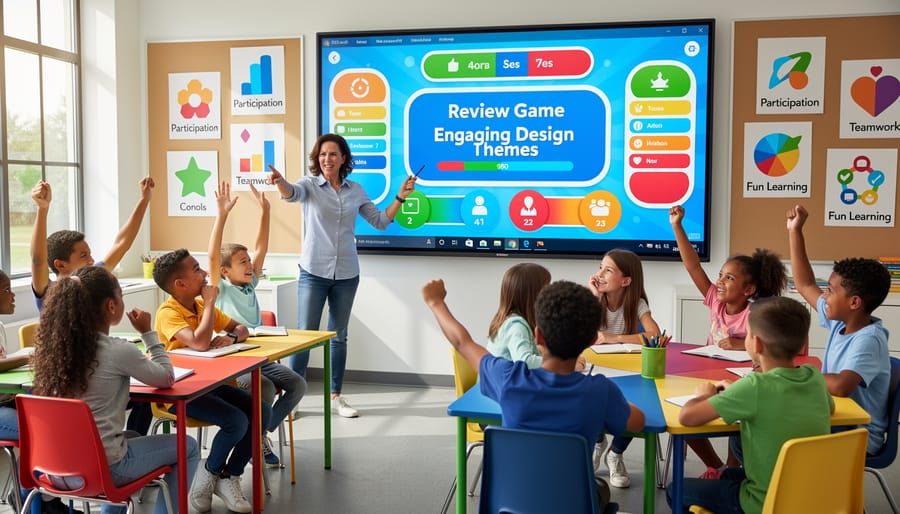
Color Schemes That Keep Students Engaged
Color choices can make or break your classroom presentation! The right color scheme keeps students focused and excited, while poor combinations might cause eye strain or make text impossible to read. Here’s the secret: stick to high-contrast pairings like dark blue text on light backgrounds, or white text on rich, vibrant colors. Bright accent colors work wonderfully for highlighting key points and game elements, but use them sparingly. Try testing your slides from the back of your classroom to ensure everyone can read them clearly. Remember, fun colors like teal, orange, and purple can energize your games without overwhelming young eyes. The best part? Most PowerPoint themes let you customize the entire color palette with just a few clicks, so you can match your school colors or create seasonal variations. When students can easily read and engage with your content, learning becomes that much more enjoyable!
Font Choices That Work Across the Room
Think of fonts like your classroom voice—they need to be heard clearly from every seat! When designing PowerPoint themes for games, start with font hierarchy: your game title should be the largest (around 60-80 points), questions or instructions medium-sized (32-44 points), and answers or smaller details still readable at 24-28 points minimum. Here’s the game-changer: test your slides from the back of your classroom. If you can’t read it from there, your students sitting in the last row definitely can’t! Stick with bold, clean fonts like Arial, Calibri, or Verdana for easy reading. Skip fancy script fonts that look cute up close but turn into squiggly blurs from a distance. Bonus tip: high contrast is your friend—dark text on light backgrounds or vice versa ensures everyone stays engaged with your game, whether they’re front-row enthusiasts or back-corner learners. Remember, readable fonts keep the focus on learning and fun, not squinting!
Built-In Layouts for Game Boards and Scoreboards
One of the best time-savers in game themes is having ready-made layouts designed specifically for gameplay. Quality themes come with pre-built slides for question reveals, answer displays, and scoreboard tracking, so you don’t have to start from scratch. Look for themes that include multiple question slide variations—like multiple choice, true/false, or open-ended formats—that let you mix up your game style while maintaining a consistent look. Many themes also feature built-in score trackers and team displays that make classroom competition easy to manage. The beauty of these interactive slide decks is that you can simply duplicate the layouts you need and customize the content for your specific lesson. This means less time fussing with design and more time creating engaging questions that get your students excited about learning.
Consistent Graphics and Visual Elements
Here’s the great news: when you apply a PowerPoint theme to your classroom game, everything automatically matches! The theme takes care of all those little design details like buttons, borders, and decorative elements, so your game looks polished and professional without extra effort on your part.
Think of it as a complete visual package. When students click through your game, they’ll see consistent button styles, matching borders around answer choices, and coordinated decorative touches on every slide. This consistency isn’t just about looking good—it actually helps students focus on learning rather than getting distracted by mismatched visuals.
The beauty of themed graphics is how they create a cohesive experience. Whether you’re using a space adventure theme or a tropical island design, every visual element works together harmoniously. You can add your own content, swap out questions, and customize text without worrying about colors clashing or styles looking out of place. The theme keeps everything unified, letting you concentrate on what really matters: creating an engaging learning experience for your students.
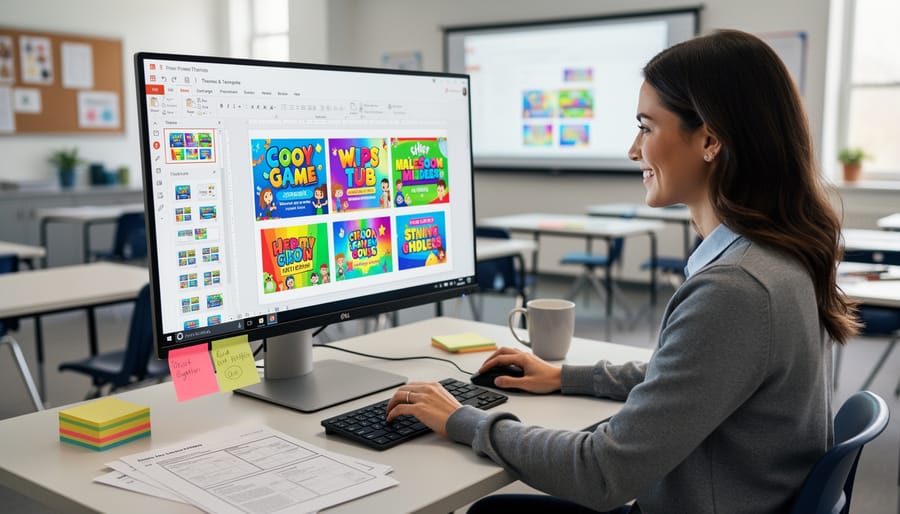
How to Customize Themes for Your Classroom Needs
Quick Color Swaps to Match Your Style
Changing your PowerPoint theme colors is easier than you might think, and it takes just a few clicks! Start by opening your presentation and clicking on the Design tab at the top of your screen. Look for the Variants group—you’ll see small dropdown arrows next to the color options. Click on Colors to reveal a menu of preset color schemes.
Want to match your school colors or classroom decor? Select Customize Colors at the bottom of that menu. You’ll see a window where you can adjust individual colors like backgrounds, text, and accents. Simply click on each color box to choose your perfect shade. Give your custom color scheme a memorable name like “Room 204 Colors” so you can reuse it for future presentations.
Pro tip: Stick to colors that create good contrast between your background and text. Light text on dark backgrounds or dark text on light backgrounds ensures your students can read everything clearly from anywhere in the classroom. This simple customization makes your game templates feel uniquely yours while keeping them visually appealing and student-friendly!
Adding Your Own Branding or Class Name
Making your game templates feel personal and classroom-specific is easier than you think! Head to the master slides by clicking View, then Slide Master. Here’s where the magic happens.
Look for the title slide and main layout slides at the top of the left panel. Click on these to add your class name, school logo, or even a fun subject-themed graphic. Simply click on text boxes that say “Click to edit Master title style” and type in your information. Want to add “Mrs. Johnson’s 5th Grade Math Masters” at the top? Just replace that placeholder text!
For footers, scroll down to find the footer text box, usually at the bottom of the master slides. This is perfect for adding your class period, subject name, or even a motivational tagline like “We Love Learning!”
Here’s a time-saving tip: make these changes once in the master slides, and they’ll automatically appear on every slide in your game. No need to edit each slide individually! You can also upload your school logo by going to Insert, then Pictures, and position it wherever you’d like.
These small touches make students feel the game was created just for them, boosting engagement and classroom pride.
When to Modify vs. When to Start Fresh
Here’s a simple rule: if a theme is 80% right for your lesson, customize it! Small tweaks like changing colors, fonts, or swapping images take just minutes and make the template feel uniquely yours. However, if you find yourself fighting with the layout or wishing for completely different elements, it’s time to browse for a better starting point. Think of it like choosing a recipe—minor ingredient swaps work great, but you wouldn’t turn a chocolate cake recipe into lasagna! When a theme’s structure supports your game format and your changes are mostly cosmetic, you’re good to go. But if the theme doesn’t match your game style or you’re spending more time redesigning than teaching, start fresh with a different option. Trust your instincts—the right theme should feel like it’s already halfway to perfect, needing just your personal teaching touch to shine.
Choosing the Right Theme for Different Game Types
Themes for Quiz Show Style Games
Quiz show style games thrive with themes that create instant excitement and clear visual organization. The best themes for these formats feature bold, contrasting colors that make categories and point values easy to read from anywhere in your classroom. Look for designs with distinct header sections where you can display categories prominently, and grid-style layouts that keep questions organized by topic and difficulty level.
Choose themes with clean backgrounds that won’t compete with your text. Solid colors or subtle gradients work better than busy patterns that might distract students. Your point values should pop off the screen, so themes with good contrast between text and background are essential.
The most effective quiz show themes include consistent color-coding options, letting you assign different colors to categories or teams. This visual organization helps students track their progress and adds to the game-show atmosphere. Remember, customization is key! Start with a theme that has strong bones, then adjust colors and fonts to match your specific content and grade level.
Themes for Team Competition Games
When you’re setting up team competition games, your PowerPoint theme needs to work harder to keep everyone engaged and organized! Look for themes with designated spaces for team names and score tracking – this helps students quickly see where they stand and adds that exciting competitive edge to your lessons.
Choose themes with vibrant, contrasting colors that clearly distinguish between teams. Bright blues versus energetic reds, or sunny yellows against cool greens work wonderfully to create visual separation. This makes it super easy for students to identify their team at a glance.
Consider themes with built-in score boxes or point trackers that you can update throughout gameplay. Many templates include editable text boxes perfect for this purpose. The key is making scorekeeping visible and simple to update between rounds.
Pro tip: Pick themes with enough visual interest to maintain excitement but not so much detail that score displays get lost. Clean, organized layouts with bold graphics strike the perfect balance. Your students will stay motivated watching their team’s progress, and you’ll spend less time managing logistics and more time celebrating their learning wins!
Themes for Interactive Review Activities
For quick classroom moments, lighter themes work beautifully! Think clean backgrounds with minimal graphics that won’t distract from fast-paced activities. Simple color blocks, subtle gradients, or one-statement graphics keep students focused during morning warm-ups or end-of-class reviews.
These flexible themes are perfect for rapid customization. You can change questions in seconds, swap colors to match different subjects, or adjust fonts for better visibility. Neutral designs like chalkboard styles, clean modern layouts, or playful dot patterns adapt to any content you need.
The beauty of review activity themes is their versatility. Use the same template for vocabulary practice on Monday and math facts on Friday by simply updating the text. Keep several go-to themes saved and ready, so you’re always prepared when you need a quick five-minute energizer or spontaneous review session without spending time on design.
Common Theme Mistakes That Make Games Less Effective
Overcomplicated Designs That Distract Students
We’ve all been there—opening a PowerPoint template that looks stunning but ends up being a distraction nightmare in the classroom. When a design has too many animations, clashing colors, or busy backgrounds, students focus more on the visual chaos than the actual learning. Here’s the truth: simpler themes almost always win in educational settings.
How do you know when a design is too busy? Ask yourself these questions: Can students easily read the text from the back of the room? Does the background compete with the content? Are there so many decorative elements that they draw attention away from your questions or instructions? If you’re answering yes, it’s time to simplify.
The best classroom game templates keep designs clean and purposeful. Look for themes with plenty of white space, clear fonts, and complementary colors that enhance rather than overwhelm. Remember, your game content is the star of the show—the design should support it, not steal the spotlight. When you choose or customize your PowerPoint themes, think about what will help students stay engaged with the learning, not distracted by excessive bells and whistles.
Ignoring Accessibility Features
Here’s a quick reminder that’ll make your games work better for everyone: when choosing your PowerPoint theme colors, make sure there’s strong contrast between text and backgrounds so all students can read easily. Stick with font sizes that are visible from the back of the classroom—nothing smaller than 24 points for body text. Think about students who might have visual challenges or learning differences. Simple adjustments like avoiding overly busy backgrounds or using clear, sans-serif fonts can make your games accessible to all learners. These small design choices ensure every student can participate fully and have fun with your classroom games!
Choosing the right PowerPoint theme truly transforms your classroom games from simple activities into professional, polished experiences that capture student attention. The beauty of using ready-to-use game templates is how easily you can customize them to match your unique teaching style and classroom needs. Whether you prefer bold colors, calming pastels, or themed designs that tie into your lesson content, there’s a combination that will work perfectly for you.
Don’t be afraid to experiment! Try different themes, mix up color schemes, and adjust fonts until you find what resonates with your students. Remember, even small design choices make a big difference in engagement levels. The time you invest in selecting and customizing the perfect theme pays off when you see your students excited to participate.
Start simple, have fun with the process, and watch how the right visual design elevates your entire classroom experience. Your students will appreciate the effort, and you’ll enjoy creating games that look as good as they play.