

Transform Your Classroom Displays with PowerPoint Digital Signage Templates
Transform your classroom communication instantly by opening PowerPoint and selecting a pre-designed digital signage template that displays announcements, schedules, and student achievements on any screen or projector. Design eye-catching rotating slides in minutes rather than hours by using templates specifically built for educational settings, complete with placeholders for daily agendas, lunch menus, birthday celebrations, and motivational quotes that keep students informed and engaged throughout the day.
Customize colors, fonts, and layouts to match your classroom theme while maintaining professional consistency across all your displays. Set your presentation to auto-advance slides at intervals you choose, creating a dynamic information hub that updates seamlessly without interrupting instruction time.
Digital signage templates eliminate the technical complexity of specialized software by working entirely within the PowerPoint you already know and love. Whether you’re showcasing student work in the hallway, displaying classroom rules near your smart board, or creating a welcome screen for parent-teacher conferences, these ready-made templates give you the visual impact of professional displays with the simplicity of drag-and-drop editing. Best of all, you can update content from your desk, save multiple versions for different occasions, and reuse your favorite designs year after year.
What Makes PowerPoint Perfect for Classroom Digital Signage
Here’s the great news: you already know how to use PowerPoint, which means you’re practically a digital signage expert already! Unlike specialized display software that requires training and extra budget approval, PowerPoint is probably sitting right there on your school computer, ready to transform your classroom communication.
The beauty of PowerPoint for digital signage is its familiar interface. There’s no learning curve because you’ve been creating presentations for years. Those same skills you use for lesson slides translate perfectly into creating eye-catching hallway displays, morning announcements, or classroom welcome screens. Simply design your content, set it to loop, and you’ve got professional-looking digital signage without the headache.
Even better, PowerPoint works seamlessly with the technology already in your classroom. Got a smartboard? Perfect. Have a TV or projector? Even better. You don’t need expensive new equipment or complicated installation processes. Just plug in and display.
This accessibility is a game-changer for collaboration too. When everyone on your team knows PowerPoint, sharing and editing templates becomes effortless. Your teaching partner can update the lunch menu display, while you focus on creating that motivational quote board. No special permissions or software licenses required.
Plus, customization is a breeze. Want to match your school colors? Easy. Need to add your class mascot? Done in seconds. PowerPoint gives you complete creative control while keeping everything wonderfully simple and stress-free.
Types of Digital Signage Templates You Can Create
Welcome Screens and Daily Announcements
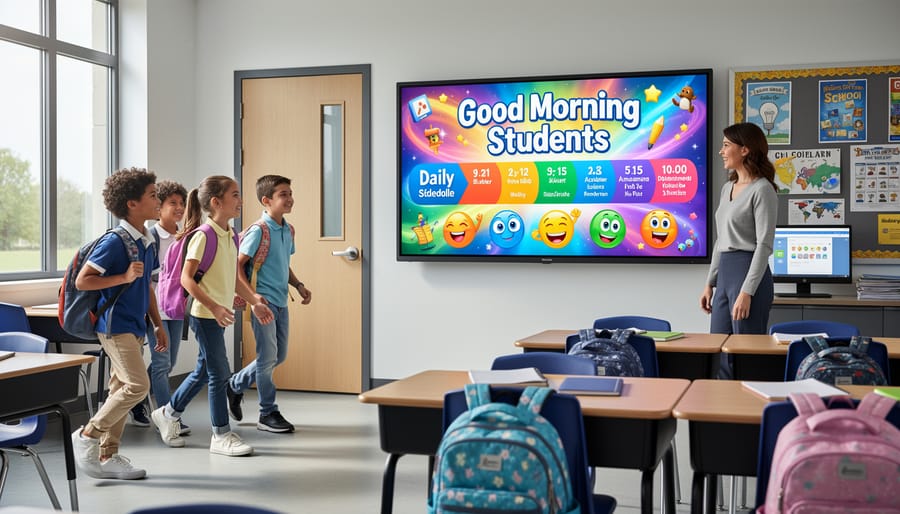
Start each school day on a positive note with welcome screen templates that create an inviting classroom atmosphere! These templates are perfect for displaying as students arrive, setting the tone for a great day of learning.
Morning message templates let you share inspirational quotes, daily objectives, or simple greetings that make students feel valued. You can easily customize the background colors and fonts to match your classroom theme or rotate different designs throughout the week to keep things fresh and exciting.
Daily schedule templates help students know what to expect, reducing anxiety and building independence. Include subject blocks, special activities, lunch times, and any schedule changes. Many teachers love adding fun icons or emojis next to each subject to make the schedule more visually appealing.
Birthday celebration templates are absolute favorites! Spotlight students on their special day with colorful designs featuring balloons, confetti, or themed graphics. Simply add the student’s name and photo, and watch their face light up when they see themselves on the screen.
The best part? You can set these templates on a timer to rotate automatically, displaying your morning message first, then transitioning to the daily schedule, and finishing with birthday announcements. This keeps your welcome display dynamic and engaging without requiring constant updates.
Interactive Learning Stations
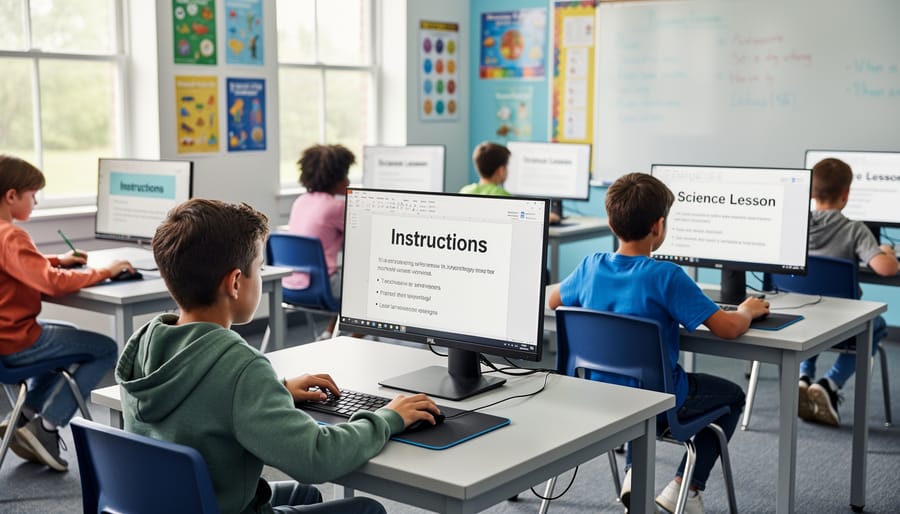
Transform your learning centers into dynamic, self-guided experiences with PowerPoint digital signage! These self-running presentations are perfect for stations where students work independently or in small groups. You can create rotating instructions for science experiments, step-by-step math problem-solving guides, or vocabulary practice slides that automatically advance through different words and definitions.
The beauty of interactive slide decks for learning stations is that they keep content fresh without requiring your constant attention. Set up a tablet or laptop at each station with presentations that loop continuously throughout the day. Your students can reference visual instructions, watch demonstration videos embedded right in the slides, or review examples at their own pace.
Customize each station’s presentation with color-coded themes so students can easily identify which center they’re at. Add timers to slides if you want to encourage students to move through activities at a steady pace, or include audio recordings of instructions for younger learners who need extra support. You can even create QR codes linking to additional resources or digital exit tickets where students reflect on what they learned at each station.
Achievement Displays and Student Spotlights
Nothing builds classroom pride quite like celebrating your students’ hard work! PowerPoint digital signage templates make it super easy to create rotating spotlight displays that showcase achievements throughout the day. Create simple slides featuring student artwork, completed projects, or academic milestones that automatically cycle on your classroom screen.
Consider setting up a “Star Student of the Week” template where you can drop in a photo and list accomplishments, or design a “Published Authors” showcase for creative writing assignments. The beauty of digital displays is how effortlessly you can update them – no more stapling papers to bulletin boards or reprinting certificates.
Templates with animation effects add extra excitement when displaying test improvements, reading goals met, or kindness awards. You can even create a collaborative class timeline highlighting memorable moments from field trips or special activities.
These visual celebrations do more than recognize individual achievements – they inspire the whole class and create a positive learning environment. Plus, students love seeing their work displayed digitally, making it feel more official and special. Customize your templates with school colors, fun borders, and encouraging messages to match your classroom’s unique personality.
Essential Features for Effective Digital Signage Templates

Auto-Advancing Slides and Looping
Setting up your digital signage to run automatically is easier than you might think, and it’s a total game-changer for busy classrooms! Once configured, your displays will run smoothly without you lifting a finger.
Start by opening your PowerPoint presentation and clicking on the Transitions tab. Here’s where the magic happens! Select the first slide, then check the box labeled “After” under the Advance Slide section. Set your desired timing (typically 5-10 seconds works well for most classroom content). Now comes the time-saver: click “Apply to All” to give every slide the same timing. You can always customize individual slides later if certain information needs more viewing time.
To create a continuous loop, head to the Slide Show tab and click “Set Up Slide Show.” Choose “Loop continuously until ‘Esc'” and select “Browsed at a kiosk” if you want the presentation to restart automatically. This prevents accidental clicks from disrupting your display.
Test your setup by running the slideshow in presentation mode. Your slides should advance automatically and loop back to the beginning seamlessly. This hands-free approach means your morning announcements, classroom schedule, or student achievements will display perfectly while you focus on what matters most: teaching!
Eye-Catching Visuals and Readable Text
Creating displays that grab attention from every corner of your classroom is easier than you think! The key is making sure your digital signage is visible and readable, no matter where students are sitting.
Start with high contrast color combinations. Dark text on light backgrounds (or vice versa) works best for readability. Think navy blue on white, or bright yellow on black. These bold pairings ensure your message pops, even from the back row. Following tried-and-true PowerPoint design principles will help you create professional-looking displays that truly shine.
Font selection matters too! Stick with clean, sans-serif fonts like Arial, Calibri, or Verdana. These are much easier to read on screens than fancy script fonts. Go big with your font sizes – aim for at least 72-point text for main messages and nothing smaller than 36-point for supporting details.
Keep your slides uncluttered. Use plenty of white space, limit text to essential information, and let eye-catching images do some of the talking. Remember, less is more when it comes to digital signage! Your students should be able to glance at the screen and immediately understand the message.
Easy Customization Options
The best part about PowerPoint digital signage templates? They’re incredibly easy to personalize! You don’t need any special design skills to make them your own. Most templates come with editable text boxes where you can simply click and type your message. Want to update tomorrow’s schedule or add a student birthday? Just open the slide and make your changes in seconds.
Swapping images is just as simple. Replace placeholder photos with your own classroom pictures, student artwork, or seasonal graphics by clicking and dragging new images into place. This flexibility means your digital signage stays fresh and relevant throughout the school year.
The update process is straightforward too, perfect for your busy schedule. Many templates let you edit multiple slides at once, so you can plan a week’s worth of announcements in one sitting. Once you’ve created effective classroom slides, save them as your master template and duplicate them whenever you need quick updates. No starting from scratch each time means more time for what really matters—teaching your students!
Setting Up Your PowerPoint Digital Signage Display
Getting your PowerPoint digital signage up and running is easier than you might think! You don’t need to be tech-savvy to create an eye-catching classroom display. Let’s walk through this together, step by step.
First, you’ll need a few basic items: a computer or laptop with PowerPoint installed, a larger screen or monitor (like a TV or projector), and a connection cable (usually HDMI works great). If your screen is across the room, you might also want to grab an extension cable to make things easier.
Start by connecting your computer to your display screen using the HDMI cable. Most modern computers and screens have these ports clearly labeled. Once connected, turn on both devices and your computer should automatically detect the second screen. If nothing appears, don’t worry! Just press the Windows key plus P on a PC, or check System Preferences on a Mac to select your display option.
Now comes the fun part! Open your PowerPoint presentation and set it to loop continuously. Click on the Slideshow tab, then select Set Up Show. Here, you’ll want to choose “Loop continuously until Esc” and “Browsed at a kiosk” if available. This keeps your display running automatically without any clicking needed.
For the best viewing experience, set your slide transitions to automatic. Click on the Transitions tab and check “After” under the Advance Slide section. Choose how many seconds you want each slide to display. Between 5 and 10 seconds usually works perfectly for most classroom content.
Finally, press F5 to start your slideshow, and you’re all set! Your digital signage will now run on its own, displaying your important announcements, student achievements, or daily schedules. Want to update the content? Simply press Esc to exit the slideshow, make your changes, and restart it. That’s all there is to it!
Customizing Templates to Match Your Classroom Needs
Here’s the wonderful news: these PowerPoint templates are just starting points for your creativity! Think of them as your blank canvas, ready to showcase your unique classroom personality and teaching style.
Start by swapping in your own colors. Maybe your class loves bright, energetic hues, or perhaps calming blues help your students focus better. Most templates let you change the entire color scheme with just a few clicks using PowerPoint’s design tools. Add your school logo, mascot, or even student artwork to make the displays truly yours.
Updating content should be quick and painless. Create a simple system where you dedicate ten minutes each Sunday evening to refresh your weekly announcements, or update birthday slides monthly. Save different versions for each season so you can easily rotate festive backgrounds during holidays without starting from scratch.
Pro tip: keep a “content bank” folder on your computer with frequently used images, clipart, and text blocks. This makes updates super speedy when you’re juggling a million other teaching tasks.
Don’t forget to involve your students! Let them design slides for special projects, create motivational quotes, or showcase their achievements. When kids see their contributions displayed prominently, engagement soars. Remember, these templates work best when they reflect your classroom community, so make them authentically yours!
Time-Saving Tips for Managing Your Digital Signage
Managing your digital signage doesn’t have to eat up your precious planning time! Here are some fun strategies to keep your displays fresh without the stress.
Start by dedicating one afternoon each month to batch-create your slides. Set aside 30-60 minutes to design all your weekly announcements, birthday celebrations, and rotating motivational quotes in one sitting. You’ll find your creative flow works better when you’re focused on one task, and you’ll have content ready to roll for weeks ahead.
Create a simple content calendar to plan what displays when. Mark important dates like testing weeks, holidays, and school events, then build corresponding slides around those anchors. This prevents last-minute scrambling and ensures you’re always prepared.
Keep a “template library” folder with your favorite reusable designs. When you need to update information, simply swap out the text or images rather than starting from scratch each time. This approach works wonderfully for recurring items like weekly schedules, lunch menus, or classroom job charts.
Consider using PowerPoint’s slide duplication feature to create variations quickly. Have a winning design? Duplicate it and change just the content. In minutes, you’ll have a whole week’s worth of fresh slides that maintain visual consistency.
Finally, embrace the “set it and forget it” approach for certain content. Schedule evergreen material like classroom rules, learning objectives, or inspirational messages to rotate automatically. This keeps something interesting on display even during your busiest teaching weeks, ensuring your digital signage continues engaging students without demanding constant attention.
You’ve got everything you need to transform your classroom into a vibrant, engaging space with PowerPoint digital signage templates. The beauty of this approach is that you’re working with tools you already know, making it simple to create professional displays that capture student attention and keep information fresh and current.
Don’t feel like you need to overhaul your entire classroom overnight. Start with just one display—maybe a daily schedule or welcome screen—and see how your students respond. As you get comfortable with the process, you can gradually add more screens and experiment with different types of content. The customization possibilities are endless, letting you adjust colors, fonts, and layouts to match your teaching style and classroom personality.
Remember, digital signage isn’t just about looking good; it’s about creating an environment where students feel informed, motivated, and excited to learn. So dive in, have fun with it, and watch your classroom come alive!