
How to Use a Word Search Generator to Make Custom Classroom Puzzles in Minutes
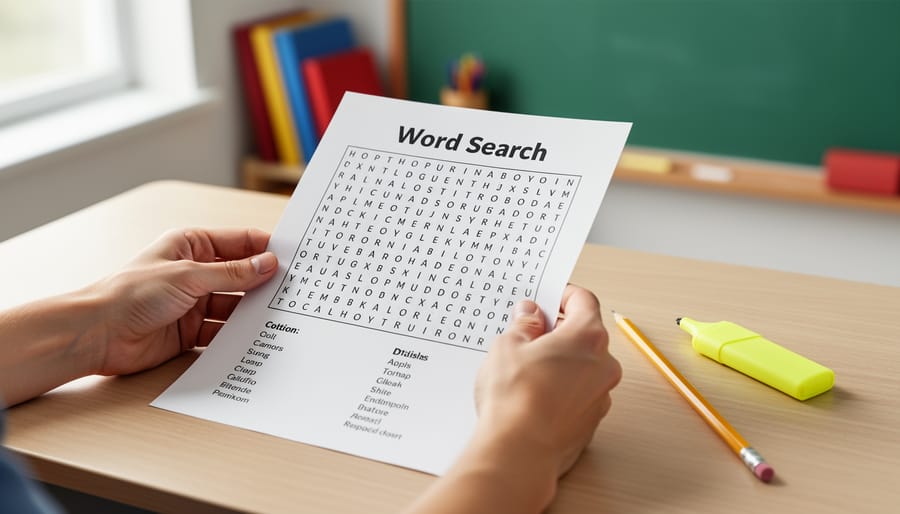
You can build a custom word search in about five minutes, and a word search generator does the heavy lifting. You type in your word list, pick a board size, and the tool scrambles the letters into a ready-to-print puzzle. No grid drawing, no graph paper, no squinting at the clock on Sunday night.
The real magic is customization. Teach Starter’s word search maker lets you choose your own words, set the board size, pick a font, switch between upper and lowercase letters, and decide whether diagonal words are included. That means a first grade spelling list and a middle school vocabulary review can each get a puzzle that fits just right.
Word searches also make a great warm-up or early-finisher activity, and they slot nicely into your classroom review games lineup. Kids hunt for the words, and every word they find is one more rep with the material.
Ready to make your first one? Grab your word list, and let’s get building.
Why Teachers Love a Word Search Generator
A generic puzzle from a free-for-all website rarely lines up with what you’re teaching this week. A word search generator fixes that. You type in your own words, so the puzzle matches your vocabulary list, your spelling unit, or your science review exactly, with nothing wasted on random terms your students have never seen.
That’s the real magic: customization. With a tool like Teach Starter’s word search maker, you pick the word list, the board size, the font, and whether letters are upper or lowercase. You can even decide if words run diagonally. Younger kids get a gentler grid. Older kids get a challenge. It looks and feels like it belongs in your classroom.
There’s research behind the fun, too. Studies suggest puzzles improve learning and word searches give students repeated, low-pressure exposure to key terms. That makes them a nice companion to other educational games you already use for review.
Here are the moments where a custom puzzle really shines:
- Bell ringers that get students settled and focused right away
- Early finishers who need something meaningful to do
- Sub plans you can print once and trust
- Vocabulary review before a quiz or unit test
- Team-building and ice-breakers at the start of the year
Because you can make one in a few minutes, you’re never stuck hunting for a puzzle that almost fits. You just build the one you need.
What You’ll Need Before You Start: Tools and Materials
Choosing the Right Word Search Generator for Your Class
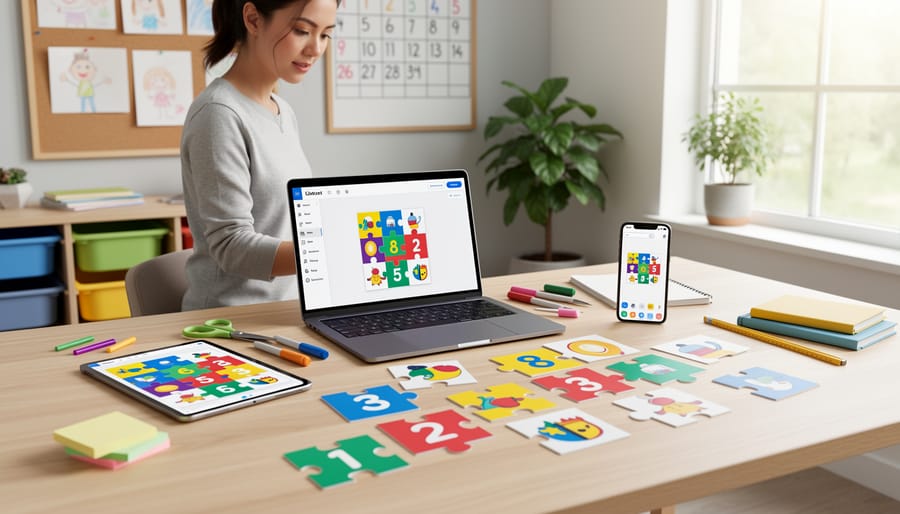
Not every word search generator works the same way, so it helps to match the tool to how you teach. Here’s a quick, balanced look at two options.
Teach Starter’s word search maker is free to start and runs online. You can customize the word list, board size, font, and upper or lowercase letters, and you decide whether diagonal words are included. After you click the Play button, you can download your puzzle. That’s a nice fit if you want lots of control over how the puzzle looks and plays.
Word Search Creator is an app for iPhone and iPad, and its App Store listing describes it as compatible with all iPhones, iPads, and Macbook types. The listing is in English and mentions in-app purchases, a 3 day trial, and the option to download puzzles as PDF and email them at no additional cost. That could work well if you like building puzzles from a device you already carry around.
Since offers and terms can change, take a minute to read the latest details on each tool’s page before you commit. A quick check now saves surprises later.
Before You Hit Download: Quick Safety Checks for Student Puzzles
Before you print a full class set, take two minutes for a quick once-over. It’s easy, and it saves you from awkward surprises later.
Start by proofreading your word list. One mistyped word can leave students hunting for something that doesn’t exist, so check every spelling against your source. Next, scan the finished letter grid. Random letters sometimes spell out unintended words, so look for anything you wouldn’t want your students finding. While you’re at it, confirm the puzzle suits your students’ age and reading level.
If you’re using an app, read the purchase details before you tap buy. The Word Search Creator listing on the App Store mentions in-app purchases and a 3-day trial, so take a moment to see what’s included. Teach Starter’s word search maker has no such step, but it’s still smart to review any tool’s current terms.
Finally, think about your puzzle titles. If you’re sharing outside your classroom, leave out student names and personal details, since FERPA limits personal data sharing for student information. A simple title like “Unit 4 Vocabulary” works perfectly.
How to Make Your Word Search Step by Step
Making your own puzzle takes just a few minutes once you know the flow. The steps below match most generators, though the exact button names might differ a little from tool to tool. Teach Starter’s word search maker is a good example of this sequence in action.
- Open the tool and click Play. This launches the puzzle maker so you can start building.
- Add your title. Something like “Unit 4 Vocabulary” keeps your printouts organized.
- Enter your word list. Type in your own words, or pick a ready-made list if you’re short on time.
- Select your board size. This sets how big the letter grid will be.
- Choose a font. Pick something clean and easy for your students to read.
- Choose upper or lowercase letters. Uppercase is usually easier to scan, but lowercase can match what younger students are learning to read and write.
- Decide on diagonal words. Switch diagonals on for more of a challenge, or off for a gentler puzzle.
- Click download. Save your finished puzzle so it’s ready to print or share.
A couple of quick tips will save you from fiddling later. First, keep your word list age-appropriate. Younger students do best with shorter lists of familiar words, while older students can handle longer vocabulary terms and a bigger pile of words to hunt for.
Second, match your board size to your longest word. If a word has twelve letters, a tiny grid just won’t fit it. A grid that’s too big for a short list, on the other hand, can leave students searching through a lot of empty-feeling letters. A good rule of thumb is to pick a board that comfortably fits your longest word with a little breathing room.
Finally, remember that customization is the fun part. Try changing one setting at a time, like turning diagonals off for a struggling group, and you’ll quickly see how much the puzzle’s feel changes. Before you hand anything out, take a moment to proofread your list one last time so every word is spelled just right.
Check Your Puzzle and Put It to Work: Verification and Next Steps

Before you hand out copies, take two minutes to check your work. Start by solving the puzzle yourself. If your generator offers an answer key, scan it to confirm every word on your list actually made it onto the grid. Some generators quietly drop a word that won’t fit, so count your list against the key. If a word is missing, try a larger board size and generate again.
Next, print one test copy. Look at it the way a student would. Is the font easy to read? Are the letters big enough for your grade level? Does the grid fit the page without getting cut off? Fixing it now beats fixing it with 28 kids waiting.
Once your puzzle passes the test, put it to work. A word search makes a great warm-up right before a review game. Students settle in, see the key vocabulary, and arrive at game time with the words fresh in their heads. You can also pair it with a PowerPoint game template so teams compete after the puzzle is done.
Want something more energetic? Turn your puzzle into a vocabulary race with a scoreboard on the board. Split the class into teams and give a point for each word found. If you’d like a full game plan, here’s how to run a word search race in your classroom. You can also explore word search online ideas for even more ways to keep students engaged.
Word Search Generator FAQs
Got questions before you hit “create”? Here are quick answers to the ones teachers ask most.
Can I make a word search with my own words?
Yes! Tools like Teach Starter’s word search maker let you customize the word list, board size, font, and upper or lowercase letters, so the puzzle matches your unit exactly.
Can I choose whether words run diagonally?
You can. In Teach Starter’s maker, you select whether diagonal words are included, which is a handy way to make a puzzle easier or trickier for your grade level.
Can I save or email my puzzle as a PDF?
It depends on the tool. Word Search Creator’s App Store listing says you can download puzzles as a PDF and email them at no additional cost, while Teach Starter’s puzzle downloads after you click the Play button and then the download option.
Are there free options or trials, and will it work on my iPad or Mac?
Word Search Creator offers a 3 day trial and lists in-app purchases, so read the current terms before you buy. It’s available for iPhone and iPad and is described as compatible with Mac too.
Once your puzzle is printed, you might want it to survive more than one class period. If you plan to reuse favorites year after year, it’s worth learning how to laminate puzzles so they hold up to pencils, dry-erase markers, and lots of enthusiastic little hands.
And there you have it! A word search generator turns a plain list of words into a ready-to-print puzzle in just a few clicks, and you get to make every choice along the way. Before you hand copies out, take a minute to proofread your list and scan the grid for anything unexpected. A little checking keeps things smooth and stress-free.
Now for the fun part. Pair your fresh, custom puzzles with a lively review game, and watch your students light up. Happy puzzling, and happy teaching!