How to Set Up CI/CD Workflows for Game Template Integrations in Your Classroom
A CI/CD workflow automates the process of updating and distributing your classroom game templates so that every change you make gets instantly shared with your students without manual file juggling. Instead of emailing new versions, uploading to multiple platforms, or watching students work with outdated materials, you set up an automated pipeline that handles distribution the moment you hit save.
Think of it as creating a publishing system for your classroom content. You make one update to your master template, and the system automatically checks it, packages it, and delivers it to wherever your students access materials. This same technology that software developers use to push app updates works beautifully for educators managing interactive learning tools and game-based activities.
The beauty of CI/CD for teachers is that it eliminates version chaos. No more “Which template should I use?” questions or discovering halfway through class that half your students downloaded last week’s file. You maintain one source of truth, and automation ensures everyone gets the current version.
Setting up this workflow takes about an hour of initial configuration, but it saves hours every week once running. You don’t need coding expertise or technical background. The process uses free tools designed for collaboration, and the steps mirror familiar teaching tasks like organizing folders and setting up sharing permissions.
This guide walks you through building your first automated workflow using the same principles that make design docs that work so effective: clear structure, consistent process, and systems that scale with your needs.
What You’ll Need to Get Started
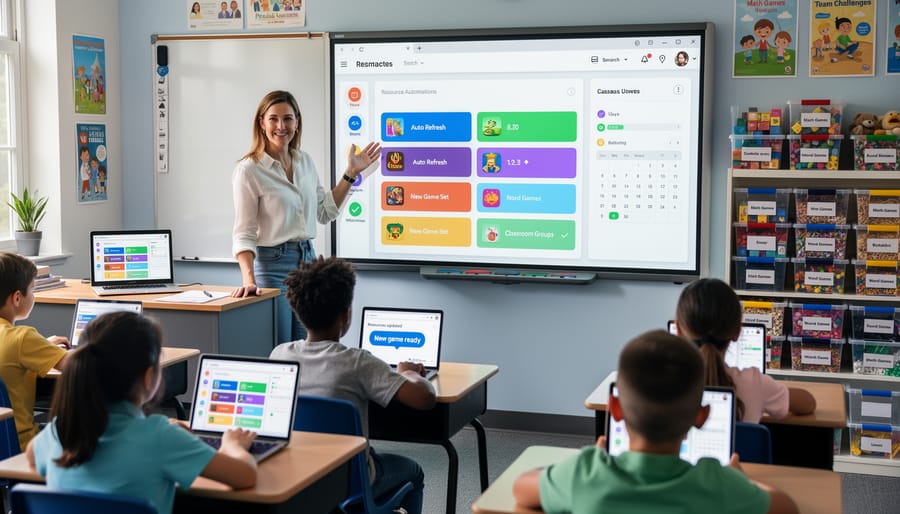
Getting your CI/CD workflow up and running doesn’t require a computer science degree or expensive software. Everything you need is probably already available through your school or free online. The beauty of this approach is that it builds on tools educators already use daily, just in a slightly more organized way.
Here’s what you’ll need to make this work:
- Cloud storage account (Google Drive or Microsoft OneDrive), Your digital filing cabinet where all templates live and update automatically
- Email account, For receiving notifications when templates update and managing sharing permissions
- Web browser, Chrome, Edge, or Firefox work perfectly for accessing and managing your workflow
- Your game templates, The PowerPoint or Google Slides games you want to automate
- A sharing plan, Simple notes about who needs access to which templates (your classes, grade-level team, or department)
Most educators already have these basics through their school Google Workspace or Microsoft 365 accounts. If your district uses a learning management system like Google Classroom, Canvas, or Schoology, that’s a bonus because you can integrate your workflow directly into where students already go for assignments.
You won’t need any coding knowledge or special technical skills. Think of this more like creating a really smart filing system than building software. The cloud storage does the heavy lifting, automatically syncing your updated templates to everyone who needs them.
One optional but helpful tool is a simple spreadsheet to track your templates. Create columns for template name, subject area, grade level, last update date, and where it’s shared. This becomes your command center, helping you see at a glance which games are current and which might need refreshing.
The total cost? Zero dollars if you’re using school-provided accounts. Even if you need to set up personal accounts, both Google Drive and OneDrive offer generous free storage that’s more than enough for game templates. You’re literally just organizing what you already have in a smarter way.
Important Things to Know Before You Start
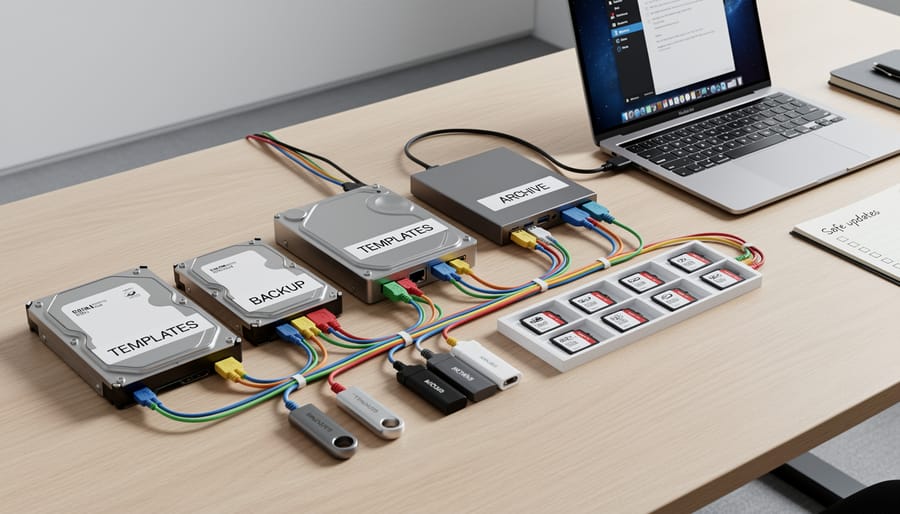
Before you dive into automating your game templates, let’s talk about a few crucial safeguards that’ll save you headaches down the road. Think of this as your pre-flight checklist, skip these steps and you might find yourself scrambling to recover lost work or fix broken games right before class starts.
Your first priority is protecting your work. Store master copies of all your game templates in a separate folder that’s never touched by your automated workflow. Label it clearly, something like “ORIGINAL TEMPLATES – DO NOT EDIT” works great. This safety net means you can always start fresh if something goes wrong, especially when you’re ready to scale it up for multiple classes.
Next, understand your file permissions before you automate anything. When you set up shared folders or automatic distribution, you’re choosing who can view, edit, or delete your templates. Double-check these settings, you don’t want students accidentally editing your master template or collaborating teachers unable to access the files they need. Most cloud platforms let you preview permissions before sharing.
Be mindful of student progress data too. If your games track scores or completion within the file itself (like some PowerPoint macros do), automation could accidentally reset that information. Keep student data separate from your template files whenever possible. Keeping track of file versions becomes essential here, you’ll want to know which version students used and when.
Finally, recognize that automation isn’t always the answer. If you’re only using one or two templates occasionally, manual updates might actually be faster and simpler. Save the workflow setup for templates you update frequently or share with multiple people.
Step-by-Step: Building Your First Game Template Workflow
Organizing Your Template Library
A well-organized template library makes automation smooth and prevents headaches later. Start by creating a clear folder structure in your cloud storage. Set up three main folders: “Master Templates” (your original, pristine versions), “Working Templates” (copies you customize for specific lessons), and “Archive” (older versions you might need later).
Inside each folder, use consistent naming conventions. Instead of “jeopardy game.pptx” or “final_version2_updated.pptx”, try “Master_Jeopardy_Science_v1.pptx” or “Working_Jeopardy_Math_Week5.pptx”. Include the template type, subject, and version number or date. This clarity helps both you and any automation tools know exactly which file is which.
Think of your Master Templates folder like a bank vault. Never edit these files directly. When you want to customize a game, copy it to your Working Templates folder first. This way, you always have clean originals to fall back on if something breaks or you need a fresh start.
Consider creating a simple game design document for each template family. Drop a text file in each folder explaining what the template does, which subjects it works best for, and any special customization notes. Future-you (or collaborating teachers) will thank you.
Keep it simple at first. You can always reorganize later, but starting with this master-working-archive structure gives your automation a solid foundation to build on.
Setting Up Automatic Updates
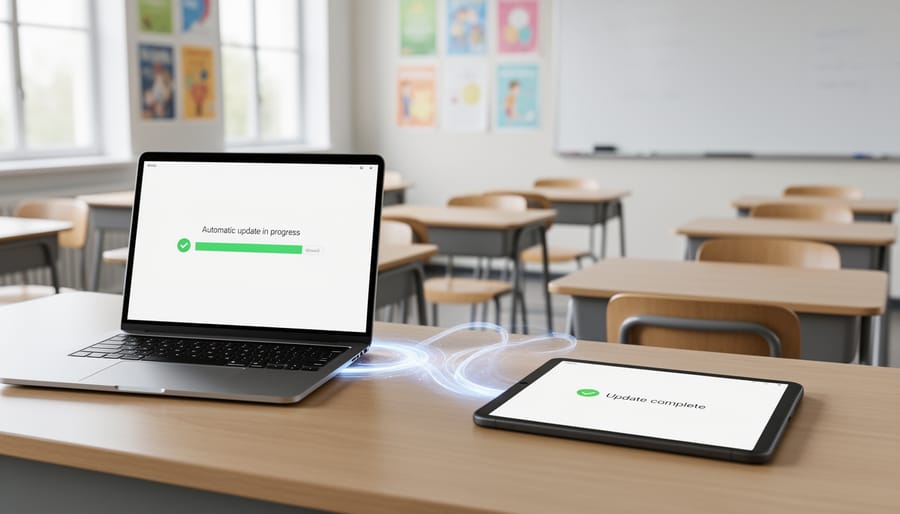
The easiest way to push template updates automatically is through shared cloud folders. When you save an updated version of your game template to a shared Google Drive or OneDrive folder, everyone with access instantly gets the new version without you sending a single email. Set your sharing permissions to “can view” so students can’t accidentally modify the master file, then provide them with a direct link to the folder. When you update PowerPoint.ppt on your end, they’ll see the changes next time they open it.
For a more streamlined approach, many learning management systems like Google Classroom, Canvas, or Schoology let you attach files from your cloud storage rather than uploading copies. This creates a living link. Update the source file in your Drive, and the assignment automatically reflects those changes. Students who haven’t downloaded it yet will get the newest version, which works perfectly for weekly review games or templates you refine as the semester progresses.
If you’re sharing templates with other teachers in your department, consider setting up a shared team folder with clearly labeled subfolders like “Current Templates” and “Archive.” When you update a template, move the old version to Archive and place the new one in Current Templates. Your colleagues will always know where to find the latest materials without confusion.
For schools using Microsoft 365, Teams channels offer automatic file syncing. Drop your updated template into the channel’s Files tab, and every team member gets instant access. You can even set up notifications so teachers know when you’ve added new content, turning your template library into a dynamic resource that evolves throughout the school year.
Creating Your Distribution System
Setting up a reliable distribution system means your students and fellow teachers can grab the newest version of your game templates anytime, without you playing email tag or hunting down outdated files.
The simplest approach? Create a central hub using tools you likely already have. Set up a dedicated folder in Google Drive or OneDrive, then share it with view-only access to your students or a link that anyone with the URL can access. When you update a template in this folder, everyone automatically sees the latest version, no resending required. Name your folder something obvious like “Ms. Johnson’s Game Templates” so it’s easy to find.
Want to get fancier? Most learning management systems like Google Classroom, Canvas, or Schoology let you attach files that update automatically. Instead of uploading a new copy each time, link directly to your cloud storage file. Students clicking that link always get the current version. You update once; they benefit immediately.
For sharing with other teachers, consider creating a “master templates” folder with edit access for your team and a separate “student versions” folder that pulls from the master. When someone on your team improves a trivia game, the student-facing version updates automatically.
Pro tip: Add a “Last Updated” date in the file name or on the first slide. This helps everyone confirm they’re using the fresh version and builds trust in your system.
The beauty of this setup? You’re not managing distribution anymore, the system does it for you. Update your Halloween vocabulary game once in October, and twenty teachers plus 500 students get it instantly. That’s automation worth celebrating.
Testing Your Workflow and Troubleshooting
Once you’ve built your game template workflow, you need to make sure it actually works before relying on it for your classroom. Think of this as a practice run before game day, you wouldn’t hand students a new activity without trying it yourself first.
Start by making a small, noticeable change to one of your template files. Add a simple text box that says “TEST UPDATE” on the first slide, or change the background color of a single element. Save this change to your master template in your cloud storage. Now watch what happens. Check the locations where your workflow should distribute updates, whether that’s a shared folder, your learning management system, or individual teacher accounts. Give it a few minutes (sync times vary), then open the template from each destination. Your test change should appear everywhere.
Next, verify permissions by having a colleague or test account try to access the updated template. They should be able to open and edit it (if that’s your intention) or only view it (if you want to prevent modifications to the master). Permission problems are the most common workflow hiccup, so checking this now saves headaches later.
If your test update doesn’t appear where it should, start with the basics. First, confirm your file actually saved to the cloud, check the upload status in your storage platform. Second, verify you’re looking at the right folder location (easy to mix up similar folder names). Third, check your internet connection, since syncing requires it. If the file synced but others can’t access it, revisit sharing settings and make sure you shared the folder itself, not just individual files.
Sometimes syncing takes longer than expected, especially with larger PowerPoint files or slower school networks. Wait ten minutes and refresh before assuming something’s broken. If problems persist, try the classic tech support solution: sign out of your cloud storage and sign back in. This often forces a fresh sync.
Keep a simple checklist for future updates: make the change, verify it saved, check one distribution point, confirm someone else can access it. This quick routine catches issues before they affect your students and gives you confidence that your automated system is doing its job while you focus on teaching.
Customization Ideas for Your Classroom Needs
Once your workflow is running, you can adapt it to match your teaching rhythm and classroom needs. The beauty of automation is that it handles the repetitive tasks while you focus on the creative customization that makes learning fun.
For weekly review games, set up your workflow to pull from an engaging question bank that updates every Monday morning. Create a master template for each subject, then let your system automatically populate Friday’s review game with that week’s vocabulary, math problems, or science concepts. Students will look forward to the consistency while you save hours of prep time.
Seasonal updates work brilliantly with automation. Design holiday-themed templates once, then schedule them to appear in your shared folder two weeks before each holiday. Your Halloween vocabulary game or winter break math review will show up right when you need them, complete with festive graphics and seasonal references you customized months earlier.
Subject-specific variations become easier when you collaborate with other teachers. Set up shared workflows where the science department maintains biology templates, the math team handles geometry games, and everyone benefits from each other’s updates. One teacher perfects the scoring system, another adds animation tricks that reduce student shouting and your workflow distributes these improvements to the whole team automatically.
You can also create tiered versions for different ability levels. Set up your workflow to maintain beginner, intermediate, and advanced versions of the same game template, each pulling appropriate questions from your organized content library. The automation ensures all versions stay current while you retain complete control over customization, difficulty levels, and the fun elements that keep students engaged.
Common Questions About Game Template Workflows
We know you might have questions about whether CI/CD workflows are right for your classroom. Let’s tackle the most common concerns teachers have when they’re considering automating their game template updates.
Can I still customize templates after setting up automation?
Absolutely! Automation handles distribution and updates, but you maintain complete control over customization. You can still edit questions, change themes, and personalize content anytime, the workflow just makes sharing those changes easier.
Will this work with my school’s technology setup?
Most likely, yes. These workflows use common tools like Google Drive, OneDrive, or your learning management system, platforms most schools already have. If your students can access shared files now, automation will work for you.
Do I need coding knowledge to set this up?
Not at all. The workflows we’ve covered use point-and-click tools and simple sharing settings. If you can organize files in folders and adjust sharing permissions, you have all the technical skills you need.
How much time does this actually save?
Teachers typically save 15-30 minutes per week they’d otherwise spend manually sending updated files or re-uploading templates. Over a school year, that adds up to hours you can redirect toward lesson planning or student interaction.
The beauty of these workflows is their flexibility. Start with one game template you use frequently, automate its distribution, and see how it feels. You’re not committing to overhauling your entire teaching process overnight. Many teachers begin by automating their weekly review games, then gradually expand to other templates as they get comfortable with the system.
Remember, automation is meant to support your creativity, not replace it. You’ll still have the same freedom to adapt games for different learning objectives, customize content for individual classes, or create entirely new templates. The workflow simply ensures those customizations reach your students without the repetitive task of manual distribution.
You don’t need to automate everything at once. Start with just one game template you use frequently, maybe your weekly vocabulary review or that trivia game students always beg to play. Set up a simple cloud folder system, test it for a few weeks, and see how much time you save. Once you’re comfortable, you can expand your workflow to include more templates.
The best part? Automation never takes away your creative control. You can still customize colors, add silly sound effects, tweak questions for your specific students, or theme games around holidays and inside jokes. CI/CD workflows just handle the boring stuff, the updating, distributing, and organizing, so you have more energy for the fun parts that make your classroom unique.
Think about what you’ll do with those extra minutes each week. Maybe you’ll finally have time to create that space-themed game you’ve been sketching on sticky notes, or you’ll spend less time at your computer and more time chatting with students before the bell rings.
Your next step is simple: pick one template, choose a cloud storage solution, and follow the steps we’ve covered. You’ve already got the hardest part down, creating engaging games your students love. Now you’re just making it easier to keep doing what you do best: teaching with creativity, enthusiasm, and a touch of playful competition.