

Transform Your PowerPoint Games With Interactive Slide Decks That Keep Students Hooked
Transform ordinary slides into dynamic learning experiences by adding clickable buttons, hidden content reveals, and choice-based navigation that puts students in control of their learning journey. Interactive slide decks aren’t just presentations—they’re digital learning stations where students click, explore, and discover content at their own pace, perfect for centers, review games, or self-paced lessons.
Start with simple hyperlinks connecting slides to create choose-your-own-adventure style activities or quiz pathways that branch based on student answers. Layer shapes over answers to create scratch-off reveals, use trigger animations to make objects appear when clicked, or design drag-and-drop matching activities using grouped objects. These features work in both PowerPoint and Google Slides, requiring no special plugins or coding knowledge.
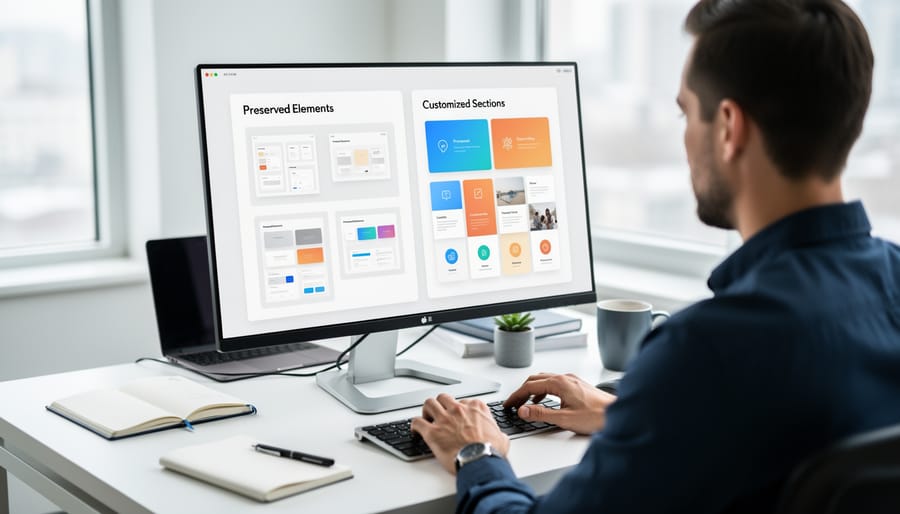
The beauty of interactive decks lies in their flexibility—customize colors, fonts, and content while keeping the clickable structure intact by simply replacing text and images without moving or deleting the interactive elements. Test your navigation before sharing by clicking through every pathway to ensure buttons lead where intended.
Your students will stay engaged longer because they’re actively participating rather than passively watching, and you’ll gain valuable time as these decks work independently during stations or virtual learning. Whether creating jeopardy-style review games, digital escape rooms, or interactive story problems, you’re building reusable resources that spark curiosity and make learning feel like play.
What Makes a Slide Deck Actually Interactive?
You’ve probably seen plenty of slide decks with fancy animations or fun graphics, but that doesn’t automatically make them interactive. True interactivity goes way beyond slides that just advance when you click.
An actually interactive slide deck responds to what your students do and what choices you make in real time. Think of features like clickable buttons that take you to different slides based on student answers, timers that create urgency during activities, or Q&A slides where student responses determine what happens next. These decks use logic-based features built right into PowerPoint, like hyperlinks, triggers, and animations that create branching pathways through your content.
The key difference between passive and interactive presentations is simple: passive decks just display information in a fixed order, while interactive ones adapt to the learning experience happening in your classroom. When a student picks an answer and the deck reveals whether they’re correct, awards points, or jumps to a specific challenge level, that’s genuine interactivity at work.
These logic-based elements turn your slides into dynamic learning tools that keep students engaged because they’re actually participating, not just watching. The best part? Once you understand how these features work together, you can customize them to fit your teaching style and your students’ needs perfectly.

The Building Blocks of Interactive Logic in PowerPoint
Clickable Navigation That Follows Game Flow
Think of this feature as creating your own “Choose Your Own Adventure” book, but in slide form! Instead of students passively clicking through slides one by one, they get to make choices that actually matter. Here’s how it works: you add clickable buttons or linked text that transport students to different slides based on their decisions.
For example, in a math game, students might click “Easy,” “Medium,” or “Hard” difficulty buttons, and each choice whisks them to a completely different set of problems. Got the answer right? Click the button to jump to a “Great job!” slide. Need another try? A different button takes them back to try again.
The magic happens through simple hyperlinks and action buttons already built into PowerPoint. You’re essentially building pathways through your presentation, letting students explore content at their own pace and according to their needs. This creates a personalized learning journey where every student’s experience can be unique.
The best part? You don’t need coding skills. Most interactive templates come with these navigation buttons already set up. You can customize where they lead by changing the hyperlink destination, giving you total control over your game’s flow without any technical headaches.

Built-In Scorekeeping That Updates Automatically
One of the most exciting features of interactive slide decks is the automatic scorekeeping system that takes all the mental math off your plate. When students answer questions correctly, the scoreboard updates instantly without you clicking a single button or grabbing a calculator. This behind-the-scenes magic happens through simple formulas built into the template that count correct answers and display totals in real time.
Think about traditional classroom games where you’re juggling markers, erasing scores, and trying to remember which team had how many points. With automatic scoreboards, those days are gone! The slides do the counting for you, letting you focus on facilitating the game and celebrating student success. Students stay engaged because they can see their progress immediately, and the competitive energy stays high when points appear the moment someone answers correctly.
The best part? You don’t need to understand complex formulas to use these scoreboards. The template creator has already done that work. Your job is simply to advance the slides and watch your students light up as their team scores climb. This seamless experience keeps the momentum going and transforms review sessions into genuinely fun competitions that students actually look forward to.
Sound Effects and Feedback Loops
Sound effects transform your interactive slide deck from a silent worksheet into an engaging game experience! When students click a correct answer, a cheerful chime or applause instantly tells them they’re on the right track. An incorrect choice might trigger a gentle buzz or playful “oops” sound, signaling it’s time to try again without any discouragement.
These audio cues create immediate feedback loops that keep students engaged and motivated. Instead of waiting for you to check their work, learners receive instant confirmation, which reinforces correct understanding and encourages persistence when they need another attempt. The sounds act as mini-celebrations for success and gentle redirects for mistakes.
The best part? You can customize these sound effects to match your classroom vibe! Want upbeat game-show sounds for high energy? Go for it! Prefer softer, calming tones? That works too! Most interactive templates let you swap out audio files easily, so you can choose sounds that resonate with your students’ preferences and your teaching style. Just remember to test the volume beforehand and ensure all sounds are classroom-appropriate and non-distracting.
Why Interactive Logic Beats Static Slideshows Every Time
Picture this: You click to the next slide, and instead of students passively watching, they’re suddenly shouting out answers, leaning forward in their seats, and genuinely curious about what happens next. That’s the magic of interactive logic at work.
Traditional slideshows move in one direction—forward. You advance, students watch, repeat. But interactive slide decks use triggers, hyperlinks, and conditional pathways that respond to student input. When a student selects an answer, the presentation reacts differently based on their choice. Pick the correct answer? Celebrate with a success screen. Need another try? The deck guides them back with helpful hints.
This responsive design transforms your classroom dynamic. Instead of lecturing at students, you’re facilitating an experience where they drive the learning. One teacher recently shared how her reluctant readers became competitive during a vocabulary review using an interactive deck—suddenly everyone wanted a turn because the slides responded to their answers with sound effects and animations.
The beauty lies in the built-in logic. These templates use simple PowerPoint features organized in smart ways. Click zones are strategically placed, feedback loops keep students engaged, and navigation paths adapt to learning needs. This creates natural differentiation without you manually sorting students into groups.
Compare this to advancing through static slides where every student sees identical content regardless of understanding. Interactive decks let fast learners zoom ahead while others receive extra support—all within the same presentation. You’re not just showing information; you’re creating effective Q&A slides that genuinely respond to your students.
The result? Higher engagement, better retention, and students who actually ask to review material again.
Customizing Your Interactive Template Without Breaking the Logic
Adding Your Questions and Content
Great news—you don’t need to rebuild the wheel! Once you’ve chosen your interactive template, it’s time to make it your own. Start by opening the template and taking a quick tour through the existing slides to see where the sample content lives.
Next, simply replace the placeholder text with your own lesson material. Click directly into text boxes and type away—your subject matter, vocabulary words, math problems, or whatever fits your curriculum. The interactive buttons and navigation will stay intact, so you’re just swapping out the content, not the functionality.
When adding your questions and content, keep it concise and student-friendly. Bullet points work beautifully, and remember that less text means more engagement. If your template includes answer slides or feedback pop-ups, customize those too with encouraging messages or fun facts.
Don’t worry about “breaking” anything—most templates are designed to handle text changes without affecting the interactive features. If you want to add images or videos, just insert them as you normally would in PowerPoint. Test your slides in presentation mode to make sure everything flows smoothly before classroom showtime!
Adjusting Without Accidentally Deleting Key Features
Customizing your interactive slide deck doesn’t have to be scary! The key is understanding what not to touch. Before making any changes, spend a few minutes clicking through the template in presentation mode to identify which elements are interactive. Look for buttons, clickable shapes, and hyperlinks. These are the features you’ll want to protect.
When you’re ready to customize, work in small steps. Change one thing at a time, then test it immediately in presentation mode. This way, if something breaks, you’ll know exactly what caused the problem and can quickly undo it. Focus your edits on text boxes, images, and background colors first since these rarely interfere with the interactive logic.
Here’s a golden rule: if you see something you don’t recognize or understand its purpose, leave it alone! Mysterious shapes or text boxes positioned off-slide often serve important functions behind the scenes. Think of them as the backstage crew making the magic happen.
Most importantly, always save a backup copy of your original template before making changes. That way, you can always start fresh if needed. With these simple precautions, you’ll confidently personalize your slides while keeping all those engaging features working perfectly for your students!
Getting Started: Your First Interactive Slide Deck
Ready to dive in? Starting with interactive slide decks is easier than you think! Begin by choosing a template that matches your lesson goals. Are you reviewing content? Look for templates with quiz features or game-style navigation. Teaching new concepts? Find ones with reveal animations or clickable tabs that let students explore at their own pace.
Once you’ve selected your template, open it and explore how it works before customizing. Click through each slide to understand the interactive elements. Notice which buttons lead where and how students will navigate. This quick walkthrough helps you see the flow and prevents accidentally breaking those clever links.
Next, swap in your own content. Replace sample text with your questions, add your images, and adjust colors to match your classroom vibe. Most templates are designed for easy editing, so you can personalize without worrying about the underlying mechanics.
Start small with one lesson or review session. Try a simple Q&A slide design first to build confidence. Your students’ excitement and engagement will fuel your enthusiasm to create more. Remember, every expert started with their first slide deck. You’ve got this!
You now have the knowledge and tools to turn ordinary review sessions into dynamic learning adventures. Interactive slide decks aren’t just fancy presentations—they’re powerful engagement engines that put students in the driver’s seat of their own learning. The beauty is that you don’t need to be a tech wizard to make them work. With a bit of practice customizing triggers, buttons, and navigation paths, you’ll create experiences that have students asking, “Can we do that again?”
The impact is immediate and visible. Watch as distracted students lean forward, as quiet voices speak up during quiz activities, and as review time transforms from something to endure into something to enjoy. Start small, experiment with one interactive element this week, and build your confidence from there. Your students are ready for this shift—and so are you.