

Your Browser Settings Are Blocking Your Classroom Games (Here’s the Quick Fix)
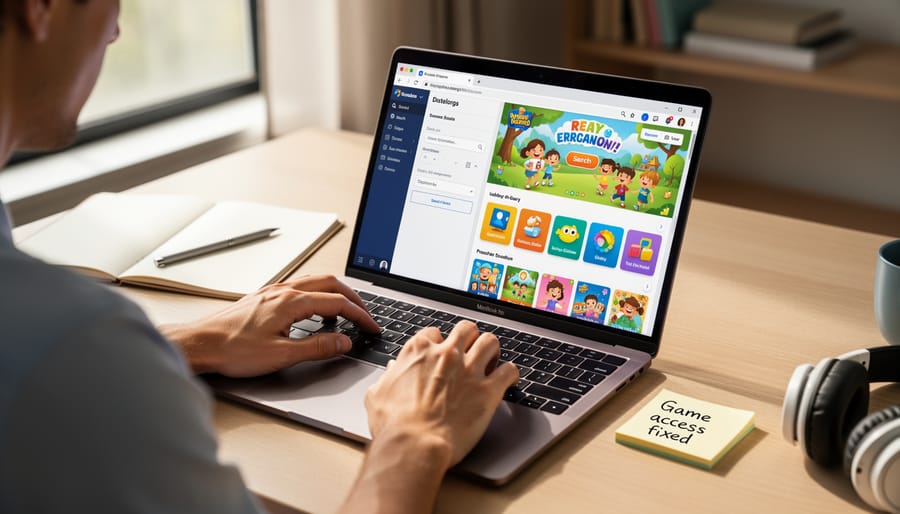
Check your browser’s JavaScript settings first—navigate to Settings > Privacy & Security and ensure JavaScript is enabled, as most gamified learning platforms won’t function without it. Clear your browser cache and cookies regularly, especially before launching game-based lessons, since accumulated data often causes loading failures and display errors that disrupt class time.
Allow pop-ups specifically for trusted game sites through your browser’s site settings rather than disabling pop-up blockers entirely—this prevents games from being blocked while maintaining security. Update your browser to the latest version each month, as outdated browsers lack the security patches and performance improvements that modern educational games require.
Test games on your classroom devices at least one day before lesson delivery, using the same student login credentials if possible, to identify configuration issues when you have time to fix them. Bookmark a backup game or activity that requires zero browser configuration, giving you a reliable fallback when technical issues arise mid-lesson.
Keep your school’s IT contact information readily available, but master these basic troubleshooting steps first—most browser-related game problems resolve quickly without tech support intervention, saving valuable instructional time and building your confidence with classroom technology.
Why Browser Settings Matter for Classroom Games
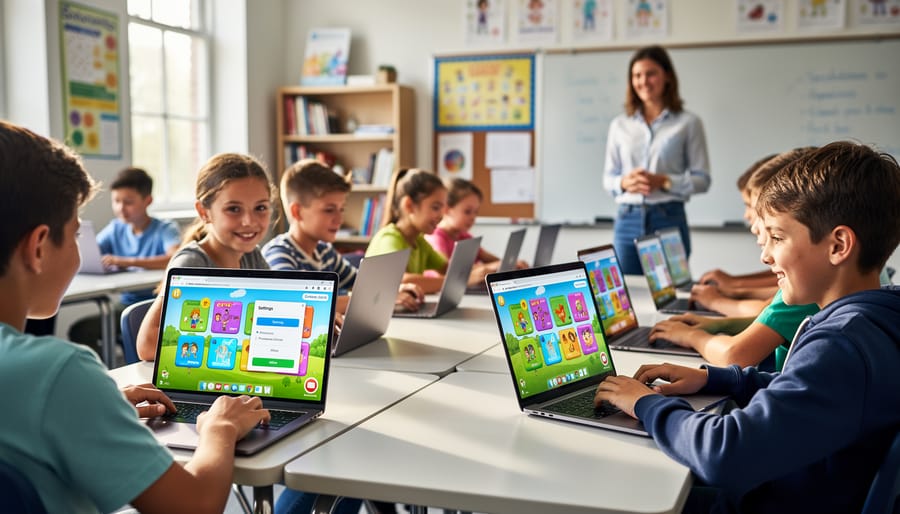
Picture this: You’ve found the perfect game for your lesson, your students are buzzing with excitement, and then… nothing loads. Sound familiar? You’re definitely not alone! Understanding why this happens can save you precious classroom time and keep that learning momentum going strong.
Your web browser is like a gatekeeper for all the cool interactive classroom games you want to use. It decides what can play, what sounds are allowed, and which features get the green light. When games need special permissions to work their magic—like playing audio, showing animations, or tracking student progress—your browser steps in to protect your computer. That’s great for security, but sometimes it blocks the very features that make games engaging!
Here’s what typically goes wrong in classroom settings: Pop-up blockers prevent game windows from opening, audio settings mute all the fun sound effects, outdated browsers can’t handle newer game technology, and security settings block interactive features that require cookies or local storage. These aren’t random glitches—they’re actually your browser doing its job, just a bit too enthusiastically for classroom needs!
The good news? Once you understand these settings, you’ll be able to troubleshoot issues quickly and get back to what matters most: engaged, excited learners having fun while they learn.
The Essential Browser Settings Every Teacher Needs to Check
JavaScript: The Engine Behind Your Interactive Games
Think of JavaScript as the invisible stage crew that makes your classroom games come alive! While you see colorful characters jumping around or quiz questions appearing on screen, JavaScript is working behind the scenes to make every click, animation, and score update happen in real-time.
Here’s the simple truth: without JavaScript enabled, most in-browser games simply won’t work. It’s like trying to put on a school play without anyone moving the props or changing the scenery. The games might load, but they’ll just sit there frozen, which isn’t much fun for your students!
The good news? Enabling JavaScript is usually quick and straightforward. Most modern browsers have it turned on by default, but sometimes school district settings or security software might disable it. If your games aren’t loading or responding, JavaScript is often the culprit.
Don’t worry if this sounds technical. You don’t need to understand how JavaScript works any more than you need to know how electricity flows to flip a light switch. You just need to make sure it’s turned on, and we’ll walk you through exactly how to do that for each major browser. Once enabled, you’ll be ready to bring engaging, interactive learning experiences into your classroom with confidence!
Pop-Up Settings That Won’t Interrupt Your Lesson
Good news! You don’t have to compromise security to let your favorite educational games through. Most browsers let you create a “safe list” of trusted sites that can open game windows while still blocking unwanted pop-ups from everywhere else.
Here’s the quick approach that works across most browsers: Look for your pop-up blocker settings (usually found under Privacy or Security in your browser menu). Instead of turning off pop-ups completely, choose the option to add exceptions or allowed sites. Copy and paste the website address of your trusted game platform into the exceptions list, and you’re all set!
For example, if you’re using Chrome, click the three dots in the upper right, select Settings, then Privacy and Security, then Site Settings, and finally Pop-ups and redirects. Click Add next to “Allowed to send pop-ups and use redirects” and enter your game site’s URL.
The beauty of this method? Your classroom games load smoothly every time, while random websites still can’t bombard you with distracting pop-ups. It’s like giving your favorite educational tools a VIP pass while keeping the door closed to everything else. Test it once, and you’ll have worry-free gaming sessions all year long!
Getting Sound and Audio to Work Every Time
Nothing disrupts a great classroom game faster than silent sound effects! Let’s get that audio working so your students can enjoy the full experience.
First, check if your browser is blocking audio. Most browsers prevent sound from playing automatically until you interact with the page. Simply click anywhere on the game screen before starting, and the audio should kick in. This one click often solves the problem instantly!
Next, look for a small speaker icon in your browser’s address bar. If you see it crossed out, click it and select “Allow sound.” You can also right-click the browser tab itself and choose “Unmute site” if the tab shows a muted speaker symbol.
Don’t forget the basics: check your computer’s system volume and make sure it’s turned up. Also look for volume controls within the game itself, usually found in the settings menu or corner of the screen. Many games let you adjust sound effects and background music separately, which is perfect for customizing the experience to your classroom needs.
If you’re still not hearing anything, try refreshing the page or closing and reopening your browser. Sometimes a quick restart is all it takes to get everything working smoothly again!
Managing Cookies and Site Data for Smooth Gaming
Here’s the good news: cookies aren’t the villain they’re sometimes made out to be! When educational game platforms use cookies, they’re simply storing helpful information like your students’ progress, saved games, and leaderboard scores. Think of cookies as digital bookmarks that help games remember where each student left off.
To keep games running smoothly, you’ll want to allow cookies specifically for trusted educational sites. Most browsers let you whitelist individual websites while keeping general protections in place. Simply add your classroom game platforms to the allowed list in your browser’s privacy settings. This targeted approach means students can save their progress and enjoy seamless gameplay while maintaining security and student privacy across the board.
Pro tip: Make this a one-time setup at the beginning of the school year! Once you’ve configured your classroom devices to accept cookies from your go-to educational platforms, you’re all set for hassle-free gaming throughout the year.
Screen Size and Display Settings for Projectors
Getting your games to look crisp and engaging on the big screen makes all the difference for student excitement! Start by pressing F11 (or Fn+F11 on some keyboards) to enter full-screen mode, which removes browser toolbars and gives your game maximum screen real estate. This creates an immersive experience that keeps everyone focused on the action.
If the game appears too small, use your browser’s zoom function. Press Ctrl and + (or Cmd and + on Mac) to zoom in until text and game elements are clearly visible from the back row. You can always press Ctrl and 0 to reset to normal size. Most games look best at 100-125% zoom, but feel free to experiment.
Before starting your lesson, do a quick visibility check from different spots in your classroom. Can students read instructions easily? Are game elements large enough? Making these small adjustments ahead of time prevents mid-lesson interruptions and keeps the energy high. Remember, a game that everyone can see clearly is a game that everyone can enjoy together!
Browser-Specific Quick Setup Guides
Chrome: The Most Popular Choice
Great news! Chrome is incredibly game-friendly and just needs a few quick tweaks to work smoothly with your favorite classroom games. Let’s get you set up in no time!
First, click the three dots in the top-right corner of your Chrome browser to open the menu. Select “Settings” and you’ll find yourself in the control center. From the left sidebar, click on “Privacy and security.” This is where the magic happens!
Look for “Site Settings” and click through. Here’s what you want to check: make sure JavaScript is set to “Sites can use Javascript” because most games need this to run. Next, scroll down to find “Pop-ups and redirects” and set it to “Sites can send pop-ups and use redirects” if your game platform opens in new windows.
For games with sound effects or music, click on “Additional permissions” and ensure “Sound” is set to allow. Finally, if your games include video elements, verify that “Camera” and “Microphone” permissions are enabled for those specific sites when prompted.
Pro tip: Chrome remembers your settings for each website, so you only need to configure this once per game platform. Your students will thank you when everything runs smoothly from day one!
Edge: Windows Default Done Right
Good news! If your school uses Windows, Edge is already installed and shares the same foundation as Chrome, making setup super straightforward. The settings menus look nearly identical, so follow the Chrome instructions above to enable JavaScript, cookies, and pop-ups. Easy peasy!
Here’s where Edge shines in school settings: it integrates beautifully with Microsoft 365 accounts that many districts already use. Students can sign in once and access their profiles across devices, which is fantastic for consistency.
One quick Edge-specific tip: check if your IT department has enabled “Enhanced Security Mode.” While this feature protects students online, it can sometimes block game graphics or interactive elements. If games load slowly or look wonky, click the three-dot menu, select Settings, then Privacy, search, and services. Scroll to Enhanced security and try switching from Strict to Balanced mode for trusted game sites.
Edge also offers Collections, a handy built-in tool for organizing your favorite educational game links without needing separate bookmarks. Create a “Classroom Games” collection to keep everything at your fingertips! This browser truly delivers Windows compatibility with teacher-friendly features that make classroom tech time smoother.
Safari: For Mac and iPad Classrooms
If you’re working with Macs or iPads in your classroom, Safari is your go-to browser, and the good news is that it’s wonderfully straightforward to set up for in-browser games!
Start by opening Safari and clicking Safari in the top menu bar, then select Settings (or Preferences on older versions). Head to the Websites tab and look for Pop-up Windows. Here’s where you can allow pop-ups for your trusted game sites, which prevents students from losing progress when games open new windows. You can add specific websites or choose “Allow” for all sites during game time.
Next, check the Privacy tab. Make sure “Prevent cross-site tracking” isn’t blocking game elements. For classroom computers, you might temporarily disable this during gaming sessions, though remember to re-enable it afterward for security.
For iPads specifically, open Settings, scroll to Safari, and toggle off “Block Pop-ups” when using games. iPad users should also ensure “Prevent Cross-Site Tracking” is off for gaming sessions.
One unique Safari feature you’ll love: Screen Time settings let you pre-approve specific game websites, giving you excellent control over what students can access. This makes Safari particularly classroom-friendly for managing multiple devices at once!
Troubleshooting When Games Still Won’t Work
Sometimes games just won’t cooperate, even after you’ve adjusted all the right settings. Don’t worry—this happens to the best of us, and there are a few quick fixes that usually do the trick!
Start with a simple cache clear. Your browser stores temporary files that can sometimes cause conflicts. In most browsers, you can clear your cache by pressing Ctrl+Shift+Delete (or Command+Shift+Delete on Mac), then selecting “Cached images and files.” Give your browser a fresh restart, and try loading the game again.
Browser extensions can be sneaky troublemakers. That ad blocker or privacy extension might be blocking game elements without you realizing it. Try opening an incognito or private browsing window—this typically disables extensions automatically. If your game suddenly works, you’ve found your culprit! You can then disable specific extensions one at a time to identify which one is causing the issue.
School IT restrictions are trickier since you’ll need administrative support. Many districts block gaming sites or specific ports that educational games require. Reach out to your school’s IT department with the specific game URL and explain its educational value. They’re often willing to whitelist educational platforms—especially when you share how it benefits student engagement and learning outcomes.
If you’re still stuck, take screenshots of any error messages and contact the game platform’s support team. They’ve seen it all and usually respond quickly with targeted solutions!
Setting Up Browsers on School Devices vs. Personal Computers
Here’s the reality: school IT restrictions vary wildly from district to district. What you can adjust on your classroom devices depends entirely on your school’s tech policies.
Start by identifying what you actually control. Can you install browser extensions? Adjust privacy settings? Access developer tools? Try making small changes first. If a game won’t load, clearing your browser cache is usually safe territory. Enabling cookies for specific educational sites? Often within teacher permissions.
When should you call tech support? If you need administrative passwords, want to whitelist entire domains, or notice restrictions blocking educational content across multiple devices, that’s their job. Be specific when you reach out: “Students can’t access Kahoot because of pop-up blockers” gets faster results than “games don’t work.”
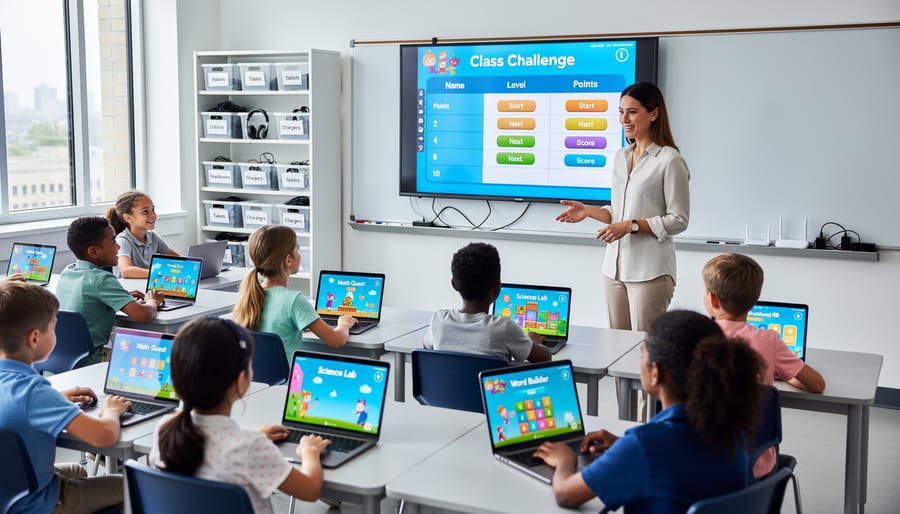
Your best backup plan? Keep your personal laptop or tablet ready with pre-tested games. Load everything before class starts, bookmark working sites, and consider mobile hotspot options if your district allows them. Having a plan B means technical hiccups won’t derail your lesson momentum. Test games on both school and personal devices during planning time so you’re never caught off guard.
You’ve got this! Remember, setting up your browser is truly a one-time investment that opens the door to countless engaging learning opportunities. Once you’ve adjusted those settings, you’re all set to bring interactive games into your classroom whenever inspiration strikes.
The payoff is absolutely worth it. Imagine your students eagerly participating in a vocabulary review game or racing through math challenges with genuine enthusiasm. These moments of engagement make the initial setup time fade into the background quickly.
Here’s a quick checklist you can save or print for future reference:
– Enable cookies and JavaScript in your browser settings
– Add your game site to trusted or allowed lists
– Disable pop-up blockers for educational platforms
– Clear cache and cookies if games won’t load
– Keep your browser updated to the latest version
– Test games before class when possible
Bookmark this checklist and keep it handy for those rare moments when you need a quick refresher. With these tools in your back pocket, you’re ready to transform ordinary lessons into memorable, interactive experiences that your students will talk about long after the bell rings.