
Why Your Classroom Game Won’t Work on Google Play (And What Actually Will)
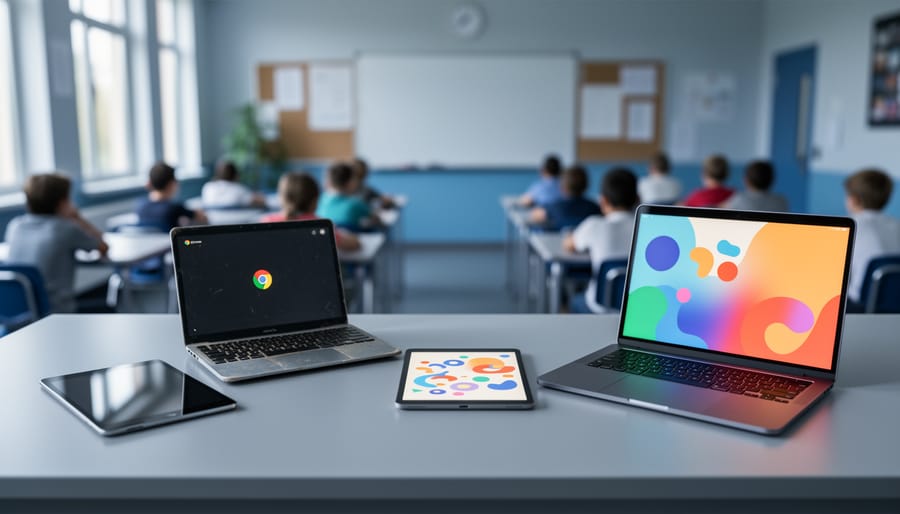
You’ve downloaded the perfect classroom game on Google Play, but half your devices won’t run it. Sound familiar? Device compatibility issues plague teachers daily—outdated tablets reject newer apps, Chromebooks can’t access certain Android games, and school-issued iPads can’t touch Google Play at all. IT restrictions add another layer of frustration, requiring approval processes that take weeks while your lesson plans wait.
The core problem lies in Google Play’s fragmented ecosystem. Your classroom likely contains a mix of Android versions, iOS devices, Chromebooks with varying Android app support, and aging hardware that developers no longer optimize for. Even when apps technically work, performance varies wildly across devices, creating unequal learning experiences for students.
Here’s the good news: PowerPoint-based classroom games bypass these headaches entirely. Every device in your classroom—whether running Windows, Mac, Chromebook, or even older hardware—opens PowerPoint files. No app store approvals. No version conflicts. No student left out because their tablet is two years old. You gain complete control over customization, adapting games to your exact lesson needs without waiting for developer updates or fighting compatibility errors.
The Google Play Compatibility Challenge for Teachers
You’ve probably been there: you find the perfect educational app on Google Play, download it on one tablet, and everything works beautifully. Then you try installing it on your classroom’s other devices, and suddenly it’s unavailable or won’t run properly. Frustrating, right?
Here’s what’s happening behind the scenes. Google Play uses an automatic filtering system that checks whether apps will work on your specific device. It looks at things like your Android version, screen size, processor type, and available features like cameras or GPS. If an app needs Android 10 but your tablets are running Android 8, Google Play simply won’t show that app as available for download on those older devices.
This compatibility system actually serves a helpful purpose—it prevents you from installing apps that would crash or malfunction on your devices. However, it creates a common challenge in classroom settings where you might have a mix of older and newer technology.
Many teachers mistakenly think that if an app appears in their Google Play store, it will work on all their classroom devices. Unfortunately, that’s not always the case. Each device gets its own customized view of available apps based on its specific capabilities.
Another misconception is that all education apps are designed with school technology in mind. The reality is that many developers build apps for the newest consumer devices, leaving older school tablets incompatible. This becomes especially problematic when budgets are tight and upgrading an entire classroom set of devices isn’t feasible.
Understanding these compatibility limitations helps explain why finding truly universal classroom solutions can feel like an uphill battle.

What Actually Works: PowerPoint Games vs. Google Play Apps
The Device Flexibility Advantage
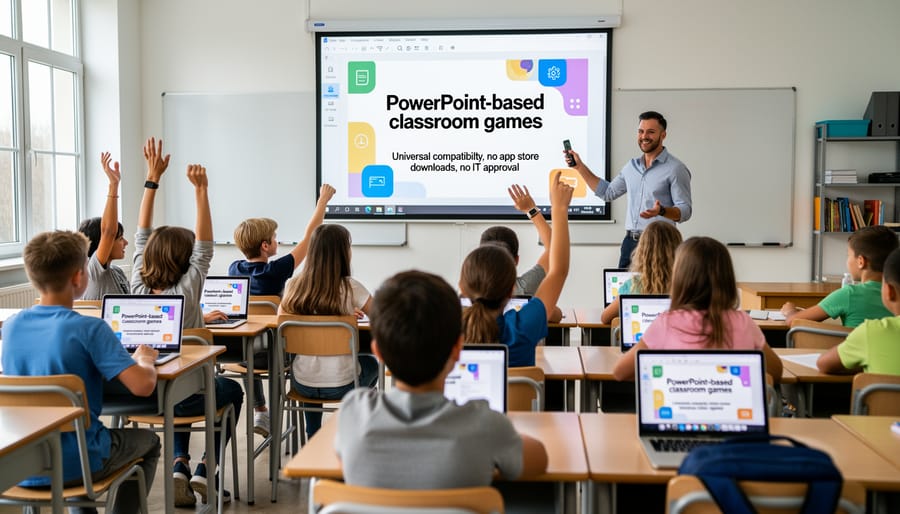
Here’s the exciting news: PowerPoint games give you the freedom to use virtually any device in your classroom without worrying about Google Play restrictions! Whether you’re working with Windows laptops, MacBooks, Chromebooks, or tablets, PowerPoint files run smoothly across all these platforms.
This flexibility is a game-changer for classrooms with mixed devices. You won’t need to check compatibility lists or worry whether the school’s IT department has approved specific apps. Simply download your PowerPoint game once, and it works everywhere. Your students with iPads can play alongside classmates using school Chromebooks, and that teacher with a Mac laptop? They’re all set too!
The best part is customization. You can easily adapt the same game template for different grade levels, subjects, or learning objectives right within PowerPoint. Change questions, adjust difficulty levels, or add student names—all without downloading separate versions or managing multiple apps. This means less time troubleshooting tech issues and more time engaging your students in meaningful learning activities that actually work when you need them to.
No Installation Headaches
Here’s the wonderful news: downloadable PowerPoint game templates sidestep all those frustrating roadblocks you face with app store downloads. No more waiting weeks for IT approval delays or navigating complicated permission requests. You simply download the template and start playing.
Since these games run directly in PowerPoint or Google Slides, you won’t need precious storage space on already-full classroom devices. There’s no worrying about whether your school tablets have enough memory or if students’ Chromebooks can handle another app installation. The templates are lightweight and work with software that’s likely already on your devices.
Best of all, you maintain complete control. Want to use a game today? Download it and go. Need to customize it for tomorrow’s lesson? Make your changes instantly. There are no app store restrictions limiting what you can modify or how you can share resources with colleagues. This freedom means you can focus on what matters most: creating engaging, interactive learning experiences that get your students excited about participating.
Making Classroom Games Work on Every Device in Your School
Chromebooks and Google Slides Compatibility
Good news for Chromebook classrooms! Converting your PowerPoint games to Google Slides is simpler than you might think, and it’s a fantastic workaround when Google Play apps aren’t an option.
Start by opening your PowerPoint file and clicking File, then Download As, and select Microsoft PowerPoint. Next, head to Google Drive and click New, then File Upload to add your PowerPoint file. Once uploaded, right-click the file and choose Open With, then Google Slides. Voila! Your game is now in a Chromebook-friendly format.
Here’s where things get exciting. Most interactive features transfer beautifully. Hyperlinked buttons that create game boards and navigation? They’ll work perfectly. Animations that reveal answers or create suspenseful moments? Those come through too. However, you’ll want to double-check a few elements after conversion.
Sound effects sometimes need re-uploading, so test your audio and add fresh sound files if needed. Click Insert, then Audio to browse your Google Drive for replacement sounds. Scoreboard animations might need minor adjustments, but the basic functionality stays intact. Just review each slide and tweak as necessary.
Pro tip: Save your converted game as a dedicated Google Slides file and share it with view-only permissions to students. This prevents accidental edits during gameplay. You can also create a template folder with pre-converted games, making future lessons even easier to deploy across your Chromebook devices. Your interactive games will run smoothly without any Google Play dependencies holding you back!
Windows and Mac Desktop Solutions
Here’s the great news: your existing classroom computers are perfect for running PowerPoint games, no Google Play needed! Whether you’re using Windows PCs or Mac computers, PowerPoint is likely already installed and ready to go.
For Windows users, PowerPoint games work seamlessly across all versions from 2010 onward. Simply download your game file, open it in PowerPoint, and you’re ready to engage your students. The best part? No internet connection required once the file is downloaded, making it perfect for schools with unreliable Wi-Fi.
Mac users can enjoy the same experience with PowerPoint for Mac. Your games will display beautifully on those large projection screens or interactive whiteboards that are already set up in your classroom.
Pro tip: Save your favorite games directly to your desktop for quick access between classes. You can even customize colors, questions, and themes to match your lesson plans without needing any special permissions from your IT department. This flexibility means you can prep engaging activities during your planning period and launch them instantly when students arrive. No app store approvals, no compatibility headaches, just straightforward fun that works every single time on the equipment you already have.
Tablets and Mobile Devices
Great news! You don’t need Google Play to bring interactive games to your classroom tablets. Whether you’re working with iPads, Android tablets, or Chromebooks, PowerPoint-based games work beautifully across all devices without downloading a single app.
Here’s the game-changer: save your classroom games as PowerPoint files and open them through your device’s presentation app. iPad users can use Keynote or the free Microsoft PowerPoint app, while Android tablets work seamlessly with Google Slides or PowerPoint Mobile. The best part? Your students can click, tap, and interact with game elements just like they would on a computer.
This approach eliminates those frustrating permission requests to your IT department and bypasses storage limitations that come with traditional apps. You can customize games for different learning levels, share files instantly through email or cloud storage, and update content on the fly. Plus, you’ll avoid compatibility headaches when mixing device types in your classroom.
No more waiting for app approvals or dealing with version updates. Your game library stays accessible across every device your students use, making differentiated instruction easier than ever. Students stay engaged, and you stay in control of your learning activities.
Avoiding Common Compatibility Pitfalls
Sound Effects Not Working?
Audio glitches can really disrupt your carefully planned lesson! If sound effects aren’t playing properly, start by checking your device’s volume settings and make sure media volume is turned up, not just the ringer. Sometimes Google Play apps have specific audio permissions that need enabling in your device settings.
Different Android versions handle sound differently, which can be frustrating when you’re managing multiple classroom devices. Older tablets might not support newer audio formats, while some Chromebooks require additional browser permissions for sound playback. If you’re using interactive games, inconsistent audio across devices can confuse students and break the learning flow.
Here’s a teacher-tested tip: PowerPoint-based classroom games eliminate these audio headaches entirely! Since PowerPoint runs natively on most devices without Google Play dependencies, your sound effects work consistently whether students are on tablets, laptops, or classroom computers. You can even customize the audio to match your lesson themes, creating a more engaging and reliable experience for everyone. No more troubleshooting during precious class time!
Animation and Interactive Feature Fixes
Nothing ruins classroom excitement faster than a scoreboard that freezes or buttons that won’t click! When interactive features glitch across different devices, it can derail your entire lesson. Here’s the good news: PowerPoint-based games eliminate most animation headaches because they rely on built-in software features rather than app-specific code.
To keep interactive elements running smoothly, test your game on at least two different devices before game day. Check that clickable buttons respond consistently and animations play at the right speed. If you notice lag on older devices, simplify complex transitions or reduce animation layers. Remember, simpler designs often work better across various platforms anyway!
Create a quick backup plan by saving static versions of scoreboards or keeping manual scoring sheets handy. This way, if technology hiccups, your game continues without missing a beat. Your students will stay engaged, and you’ll feel confident knowing you’re prepared for any tech surprise!
File Format and Version Compatibility
Good news! When creating PowerPoint games for your classroom, you’ll find that file format compatibility is refreshingly straightforward compared to dealing with app store restrictions. Save your games in the .pptx format, which works seamlessly across Windows, Mac, Chromebook (through Google Slides), and even tablets. This universal format means you can design once and share everywhere without worrying about device-specific versions.
For maximum flexibility, stick with PowerPoint 2013 or newer versions when creating your games. These versions ensure all interactive features like triggers and animations work consistently across different platforms. If some students use Google Slides, they can open your .pptx files directly in their browser with most interactive elements intact. The beauty of this approach? No app downloads, no permission slips, and no Google Play limitations. Just save your file to Google Drive or your school’s shared folder, and every student can access it regardless of their device. This simplicity lets you focus on what matters most: creating engaging learning experiences!
Future-Proofing Your Classroom Gaming Setup
Making smart technology choices today means less frustration tomorrow. When you’re planning your classroom gaming setup, think beyond what works right now and consider what will keep working as technology changes.
The best approach? Choose platform-independent solutions that work across different devices and operating systems. PowerPoint-based games are perfect for this because they run on virtually any device with presentation software, whether that’s Windows, Mac, Chromebook, or even tablets. You’re not locked into a specific app store or dependent on developer updates.
Here’s your future-proofing checklist: First, prioritize games that save to cloud storage so students can access them from any device. Second, avoid solutions that require specific apps or operating systems. Third, choose customizable templates you can adapt as your needs change rather than rigid pre-made games.
Think about device turnover too. Schools often update their technology every few years, and you don’t want to rebuild your entire game library when new devices arrive. With presentation-based games, your content moves seamlessly from old devices to new ones without compatibility headaches.
Finally, remember that the simplest solutions often prove the most durable. While flashy apps come and go, basic presentation software has remained classroom-compatible for decades. By investing your time in creating versatile, adaptable games now, you’re building resources that will serve you and your students for years to come, regardless of what devices your school adopts next.
Here’s the truth: you don’t need to wrestle with Google Play restrictions to bring exciting games into your classroom. PowerPoint-based game templates offer the compatibility solution you’ve been searching for. They work seamlessly across computers, tablets, Chromebooks, and interactive whiteboards without requiring app downloads, IT approval, or constant updates.
By choosing downloadable templates over platform-specific apps, you’re giving yourself flexibility and control. Customize games to match your lessons, adjust difficulty levels for different learners, and reuse templates throughout the year. No more discovering that half your devices can’t run the app you just found, or waiting weeks for administrator approval.
The best part? You already have the tools you need. Focus your energy on creating engaging learning experiences rather than troubleshooting technical barriers. Your students will have more fun, and you’ll spend less time dealing with device headaches.