

Transform Your PowerPoint Games Into Interactive Classroom Magic
Transform your PowerPoint game templates into dynamic, interactive experiences by installing add-ins that bring professional features to your classroom presentations. Add-ins are small programs that extend PowerPoint’s capabilities, letting you create countdown timers, spin prize wheels, insert sound effects, and add animated elements that make gamified learning platforms even more engaging for students.
Installing add-ins takes just minutes. Click Insert, then Get Add-ins from the ribbon menu, search for the tool you need, and click Add to install it instantly. Popular options like Wheel of Names, Classpoint, and Pear Deck integrate seamlessly into your existing game templates, requiring no design experience or technical skills. Once installed, these tools appear in your ribbon menu, ready to customize with your own content, colors, and settings.
The beauty of add-ins lies in their flexibility. Use timer add-ins to create urgency during quiz rounds, random name pickers to choose contestants fairly, or interactive polling tools to track student responses in real time. Each add-in works independently, so start with one that addresses your immediate need, then gradually build your toolkit as you discover which features your students enjoy most.
What Are PowerPoint Add-ins (And Why Should You Care)?
Think of PowerPoint add-ins as extra superpowers for your classroom game templates. They’re small helper tools that snap right into PowerPoint or Google Slides, giving your games exciting features that don’t come built-in. Instead of just static slides, you can add working timers that count down during quiz rounds, sound effects that celebrate correct answers, and live scoreboards that automatically update as teams earn points.
Here’s why this matters for you: add-ins transform basic templates into dynamic, interactive experiences that grab student attention and keep it. Imagine running a Jeopardy-style review game where a timer builds suspense, a buzzer sounds when someone answers, and points tally themselves without you doing mental math mid-lesson. That’s the magic of add-ins working behind the scenes.
The best part? You don’t need to be tech-savvy to use them. Most add-ins install with just a few clicks and work automatically once they’re set up. They handle the technical stuff so you can focus on what you do best: teaching and connecting with your students.
For classroom engagement, add-ins are game-changers. They add professional polish to your review games, making every activity feel special and energizing. Students stay more focused when there’s a visual countdown ticking or exciting sounds playing, turning ordinary review sessions into memorable learning moments they actually look forward to.

Setting Up Add-ins for Your PowerPoint Game Templates
Finding the Right Add-ins for Classroom Games
Ready to supercharge your classroom games? Finding the perfect add-ins is easier than you might think! Head to the Insert tab in PowerPoint and click on Get Add-ins to open the Office Store. This is your treasure trove of tools that can transform your game templates into even more engaging learning experiences.
For classroom games, look for add-ins that support interactivity and visual appeal. Pear Deck for PowerPoint is fantastic for adding real-time student responses and polls directly into your game slides. Wheel of Names works wonderfully for random student selection, making games fair and exciting. If you want to incorporate timers to add excitement during quiz rounds, search for countdown timer add-ins that display right on your slides.
Here’s a quick tip: use the search bar in the Office Store and try keywords like “quiz,” “timer,” “interactive,” or “student engagement” to discover options tailored for education. Many add-ins are free, and most offer preview descriptions so you can see if they match your game style before installing. Don’t be afraid to experiment with a few different options until you find your favorites that work best for your classroom needs!
Installing Your First Add-in (It’s Easier Than You Think)
Ready to supercharge your classroom presentations? Installing your first add-in is surprisingly simple! Here’s how to do it in just a few quick steps:
1. Open PowerPoint and click on the “Insert” tab at the top of your screen.
2. Look for the “Get Add-ins” button (it might also say “Office Add-ins” depending on your version).
3. Browse through the store or use the search bar to find add-ins that catch your eye.
4. Click on the add-in you want, then hit the “Add” or “Trust It” button.
5. The add-in will appear in your ribbon, ready to use right away!
That’s it! You’ve just installed your first add-in. Most add-ins work immediately without any complicated setup.
Having trouble? Here are quick fixes: If you don’t see “Get Add-ins,” check that you’re connected to the internet and using an updated version of PowerPoint. Sometimes restarting PowerPoint helps too. Remember, you can always remove an add-in if it’s not quite right for your needs – just go back to the add-ins menu and click “Remove.”
Don’t worry if it takes a try or two to get comfortable. You’re doing great, and your students will love the enhanced interactive experiences you’re creating!
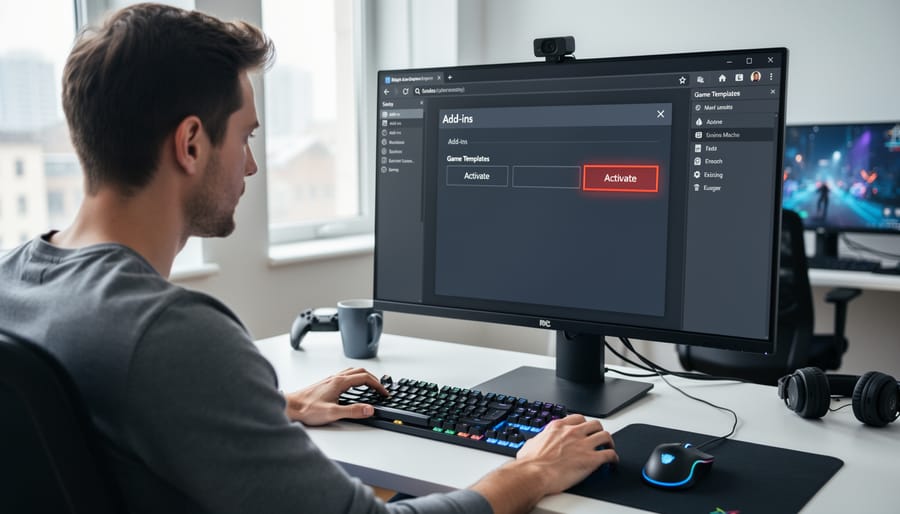
Activating Add-ins in Your Game Presentations
Great news! Once you’ve installed your add-ins, getting them to work in your game presentations is super simple. In PowerPoint, head to the Insert tab and look for the My Add-ins or Get Add-ins button on the ribbon. Click it, and you’ll see all your installed add-ins ready to go. Just select the one you want, and it’ll open right in your presentation where you can start customizing your game elements.
For Google Slides users, it’s just as easy! Go to Extensions in the top menu, and you’ll find your installed add-ins listed there. Click on the one you need, and follow any quick setup prompts. Most add-ins will add new options to your toolbar or open a side panel where you can drag and drop features directly onto your slides.
The best part? You can mix and match add-ins within the same presentation to create exactly the game experience your students will love. Try activating different add-ins across various slides to keep things fresh and exciting throughout your lesson!
Using Add-ins with Google Slides Game Templates
The Google Slides Difference
If you’re a Google Slides fan, you might be wondering if you’re missing out. Good news: Google Slides has its own version called add-ons, and they work similarly! The main difference? Add-ons live in the Extensions menu instead of a separate add-ins tab. Installation is just as simple, and many popular tools like Pear Deck and Nearpod offer versions for both platforms. The biggest practical difference for teachers is that Google Slides add-ons sync automatically across devices since everything lives in the cloud. PowerPoint add-ins require installation on each computer, though the Office 365 web version is catching up. Choose based on what your school uses, but rest assured both platforms offer fantastic options to jazz up your classroom games and presentations.
Installing Google Slides Add-ons for Your Games
Ready to supercharge your Google Slides games? Installing add-ons is easier than you think, and it opens up a world of interactive possibilities for your classroom!
Start by opening any Google Slides presentation. Look up at the top menu and click on “Extensions,” then select “Add-ons” followed by “Get add-ons.” This launches the Google Workspace Marketplace, your one-stop shop for amazing educational tools.
In the search bar, type keywords like “classroom games,” “interactive,” “timer,” or “spinner” to find add-ons perfect for game-based learning. Browse through the options and read the descriptions to see which features match your needs. When you find one you love, simply click on it.
Hit the blue “Install” button and follow the permission prompts. Don’t worry—these permissions allow the add-on to work properly within your presentation. Once installed, you’ll find your new add-ons under the “Extensions” menu whenever you need them.
The best part? You only need to install each add-on once, and it’ll be available across all your Google Slides presentations. Now you’re ready to customize your games and create unforgettable learning experiences!
Making Your Game Templates Work Smoothly
Getting your add-ins to play nicely with game templates is easier than you think! Start by testing new add-ins with a copy of your template first, never the original. This way, you can experiment worry-free. If an add-in isn’t showing up, try refreshing your presentation or restarting PowerPoint completely. Sometimes add-ins need a quick reboot to work their magic.
Keep your software updated, as outdated versions can cause hiccups. If you notice formatting changes after installing an add-in, check the add-in’s settings panel for customization options that let you adjust how it interacts with your slides. Most compatibility issues happen when multiple add-ins compete for the same functions, so if something seems glitchy, try temporarily disabling other add-ins to identify the culprit.
Remember, simpler templates often work best with add-ins. If you’re experiencing persistent problems, reach out to the add-in’s support team or educator community forums where fellow teachers share their troubleshooting wins and creative solutions.
Top Add-ins That Take Your Classroom Games to the Next Level

Timer and Countdown Add-ins
Nothing gets your students more pumped up during a game round than watching the clock tick down! Timer add-ins are absolute game-changers for creating that exciting, edge-of-your-seat atmosphere in your classroom. For PowerPoint, check out Timer Plus, which lets you customize countdown timers with different sounds and visual styles to match your game’s theme. You can easily adjust the time for each round, making it perfect whether you need 30 seconds for quick-fire questions or 2 minutes for team challenges. Another great option is Breaktime, which offers colorful, animated timers that students can actually see from across the room. The best part? Most timer add-ins let you pause, reset, and restart with just one click, so you’re always in control. These tools help keep games moving at an energetic pace while teaching valuable time management skills. Your students will love the added excitement, and you’ll appreciate how smoothly your game sessions flow!
Sound and Music Enhancers
Sound effects and background music can transform your classroom game from ordinary to extraordinary! While PowerPoint doesn’t have built-in audio add-ins specifically, you can easily enhance your games by using the native audio features more effectively. Insert sound effects for correct answers, buzzers for wrong ones, or applause when teams score points. The key is keeping your audio files organized and readily accessible.
For Google Slides users, extensions like Soundtrap can help you create custom audio clips right within your presentation. You can also explore browser-based sound effect libraries and simply download clips to insert into your slides. Pro tip: keep volume levels consistent across all sounds so you don’t startle students with sudden loud noises!
Remember to test all audio before game day to ensure everything plays smoothly. Students absolutely love the added excitement that sound brings to classroom competitions, making even simple review games feel like professional game shows!
Interactive Polling and Response Tools
Real-time polling add-ins transform your PowerPoint game templates into dynamic interactive learning tools where every student can participate instantly. Add-ins like Poll Everywhere, Mentimeter, and Pear Deck let you embed live polls, quizzes, and open-ended questions directly into your game slides. Students respond using their devices, and results appear on screen in real time, creating excitement and maintaining engagement throughout your lesson.
The best part? These tools work seamlessly with your existing game templates. Simply install the add-in, insert a question slide wherever you want student input, and watch participation soar. You can customize question types from multiple choice to word clouds, making it easy to adapt games for any subject or grade level. Most offer free educator accounts with generous features, so you can start enhancing your classroom games today without budget concerns.
Scoreboard and Tracking Add-ins
Want to take your classroom games to the next level? Scoreboard and tracking add-ins are game-changers! These handy tools automatically update points, add exciting visual effects like confetti or sound effects when teams score, and keep everyone engaged without you manually tracking everything.
Think about it: no more erasing and rewriting points on slides or losing track during fast-paced games. These add-ins do the heavy work for you, letting you focus on facilitating the fun. Many offer countdown timers, team name customization, and colorful animations that make students cheer when they earn points.
The best part? Most are super easy to set up and require just a few clicks to integrate into your existing game templates. Your students will love the professional touch, and you’ll appreciate how smoothly everything runs. These tools transform simple slides into dynamic, interactive experiences that keep learners motivated and excited to participate.
Customizing Add-ins to Match Your Teaching Style
The beauty of PowerPoint add-ins is that they’re not one-size-fits-all solutions. You can tweak and adjust them to perfectly match your unique teaching style and classroom needs!
Start by exploring the settings menu within each add-in. Most offer simple customization options that can make a huge difference. For younger students, you might want to adjust timer speeds to give them extra thinking time, or choose brighter color schemes that grab their attention. Teaching high schoolers? Speed things up and incorporate more competitive elements to keep them engaged.
Subject matter makes a difference too. Math teachers might customize quiz add-ins to show equations clearly, while language arts teachers can adjust text sizes for reading comprehension activities. Science educators can incorporate image-heavy features for visual learning. The key is experimenting until you find what works for your content.
Don’t forget about classroom management styles. If you prefer collaborative learning, look for add-ins that allow team scoring and group participation tracking. For independent work, focus on features that let individual students progress at their own pace.
Here’s a fun tip: create different presentation templates with your favorite add-in configurations already set up. Save one for quick review games, another for in-depth assessments, and maybe a special one for Friday fun activities. This saves time and ensures consistency.
Remember, there’s no wrong way to customize. Play around, get creative, and let your students’ feedback guide you. The more you personalize these tools, the more naturally they’ll fit into your teaching rhythm!
Troubleshooting Common Add-in Issues (Without the Headache)
Don’t worry – even tech-savvy teachers hit a few bumps when working with add-ins! Here are quick fixes for the most common hiccups.
Can’t find your installed add-in? Take a deep breath! In PowerPoint, click the Insert tab and look for the Add-ins or Get Add-ins button. Your installed tools should appear there. Sometimes they hide in a dropdown menu, so click that little arrow if you see one.
Add-in won’t load or keeps crashing? This happens more often than you’d think! Close PowerPoint completely and restart your computer – yes, the classic solution actually works. Make sure your PowerPoint is updated to the latest version, as outdated software causes most compatibility issues.
Getting a “not supported” message? Some add-ins work only on specific versions or platforms. Check the add-in’s description to confirm it works with your setup. If you’re using PowerPoint Online, remember that fewer add-ins are available compared to the desktop version.
Add-in slowing down your presentation? Remove any add-ins you’re not actively using. Having too many installed can bog things down during class time, and you definitely don’t need that stress when 25 students are watching!
Still stuck? Most add-in creators offer help videos or support pages. A quick search of the add-in name plus “troubleshooting” usually leads to answers. You’ve got this – technology sometimes needs a little patience and persistence!
You’re all set to transform your classroom games with add-ins! The best part? Setup takes just minutes, and the payoff in student engagement is absolutely worth it. Whether you choose ClassPoint for real-time interaction or Class Tools for quick customization, you’ll notice an immediate difference in how enthusiastically your students participate.
Don’t let any tech worries hold you back. Installing add-ins is truly as simple as clicking a few buttons, and most offer free versions perfect for getting started. Your game templates will feel fresh and exciting with these powerful features at your fingertips.
Ready to level up your classroom activities? Pick one add-in that caught your attention and try it out this week. Your students will thank you for making learning this fun and interactive!