

Keep Your Classroom Games Running When the Internet Won’t
Download PowerPoint game templates to your computer before class starts, eliminating internet dependency entirely while keeping students engaged with the same interactive review games they love. These offline-ready templates work flawlessly on any device without requiring a single byte of bandwidth, giving you complete control over your lesson flow regardless of connection quality.
Compress large image files and remove embedded videos from existing digital activities to reduce their load time by up to 80%, making them functional even on spotty connections. Replace streaming content with simple text-based slides or pre-downloaded images that display instantly.
Close unnecessary browser tabs, background apps, and automatic updates on your classroom computer to free up available bandwidth for your teaching tools. Run only the essential program you need for your review game, ensuring every bit of connection speed goes toward student engagement rather than hidden processes.
Test your chosen activities on your classroom network during prep time to identify which games run smoothly and which need offline alternatives. Keep a backup folder of downloaded PowerPoint templates ready on your desktop so technical difficulties never derail your carefully planned review session. Your students deserve consistent, reliable learning experiences, and these strategies ensure internet issues won’t stand in your way.
Why Internet Problems Shouldn’t Stop Your Review Games
We’ve all been there—you’ve planned the perfect review game to energize your students, and then the dreaded spinning wheel of doom appears. Your classroom WiFi decides to take an unscheduled vacation right when you need it most.
Unfortunately, internet connectivity issues are incredibly common in schools. Whether it’s unreliable WiFi that cuts in and out during crucial moments, bandwidth limitations that slow everything to a crawl, or overcrowded networks struggling to support dozens of devices simultaneously, these challenges can derail even the best lesson plans. When multiple classrooms are streaming videos, accessing online platforms, and running digital activities all at once, your network can quickly become overwhelmed.
The frustration is real, but here’s the good news: internet problems don’t have to mean abandoning the interactive review games your students love. The key is having a solid backup plan in place before connectivity issues strike.
That’s where low-bandwidth and offline solutions become absolute game-changers for your classroom. Instead of scrambling to create a worksheet at the last minute or canceling your planned activity altogether, you can confidently move forward with engaging review games that work regardless of your internet situation. By preparing downloadable resources and understanding which tools require minimal or zero connectivity, you’ll never have to sacrifice the fun, interactive learning experiences that keep your students motivated and on track. Having these alternatives ready means you’re always prepared to deliver quality instruction, no matter what your WiFi decides to do.

Smart Strategies for Low-Bandwidth Classrooms
Download Before You Teach
The best time to prepare for low-bandwidth classroom challenges is before you step into your classroom. Think of it as packing your teaching toolkit the night before a field trip!
When you have reliable internet at home or during your planning period, take a few minutes to download all the game templates and materials you’ll need. Most PowerPoint-based review games are completely self-contained files that work beautifully without any internet connection once they’re saved to your computer. Simply browse through available templates, download your favorites, and save them to a dedicated folder on your desktop or USB drive.
This simple habit means you can customize your games with questions, content, and themes during your prep time, then walk into class ready to go—no loading screens, no buffering, and no last-minute panic when the Wi-Fi decides to take a break. You’ll have complete control over your lesson flow, and your students won’t lose momentum waiting for resources to load.
Pro tip: Create a “Downloaded Games” folder organized by subject or unit. This makes it super easy to grab the right game when you need it, and you’ll build up an amazing library of ready-to-use resources over time!
Simplify Your Game Features
When you’re dealing with spotty internet, sometimes the simplest games work best! Here’s the good news: you can still create engaging, interactive review activities without all the bells and whistles that slow things down.
Start by skipping embedded videos within your game templates. While videos are fantastic teaching tools, they’re bandwidth hogs that can freeze your game mid-round. Instead, play videos separately before or after the game, keeping your activity running smoothly.
Next, give your images some love by optimizing them. Large, high-resolution photos can drag down your game’s performance. Before uploading images, resize them to smaller dimensions and compress them using free tools available online. Your students won’t notice the difference, but your internet connection certainly will!
Choose game templates wisely. Simpler formats like basic quiz games or straightforward Jeopardy-style boards typically use fewer resources than elaborate templates with animations and sound effects. These streamlined options load faster and run more reliably on slower connections.
Remember, the heart of any review game is student engagement and learning, not flashy features. A simple, smoothly-running game beats a fancy one that keeps buffering every few minutes. Your students will have more fun, and you’ll have fewer tech headaches!
Use Local Storage Wisely
Here’s a game-changer for beating bandwidth issues: store your game files right on your classroom computer or a trusty flash drive instead of relying on the cloud during class time. Think of it as packing your lunch instead of hoping the cafeteria has what you need!
When you download PowerPoint game templates ahead of time, you’re taking internet connectivity completely out of the equation. No more frozen screens or buffering circles during the most exciting moment of your review game. Simply save the file to your desktop or Documents folder where it’s easy to find when you need it.
Flash drives are your best friend for teaching across multiple classrooms. Load up your favorite game templates on a USB drive, and you’ve got a portable game show that works anywhere, anytime. Label it clearly (maybe “Ms. Johnson’s Review Games”) so it doesn’t get mixed up with other classroom materials.
Here’s a pro tip: create a dedicated folder on your computer called “Classroom Games” and organize files by subject or unit. This way, you can quickly grab the right game without scrolling through your entire file system while students are watching and waiting.
Remember to make backup copies! Keep one version on your computer and another on a flash drive. Technology can be unpredictable, and having a backup means you’re always ready to bring the fun, even if your primary storage has a hiccup. Your future self will thank you for this simple precaution.
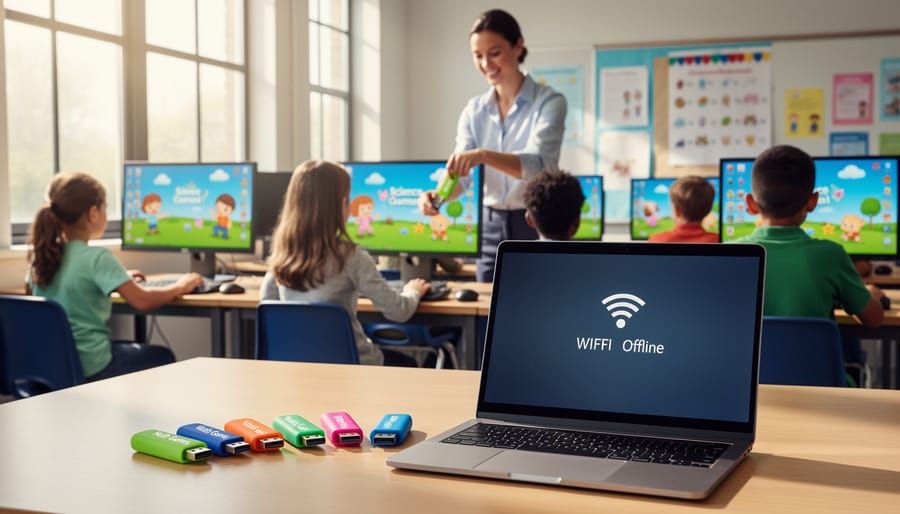
Your Offline Backup Plan
PowerPoint Games Work Offline
Here’s the wonderful news that makes PowerPoint games absolute lifesavers for unpredictable internet situations: once you’ve downloaded a template, you’re completely free from internet dependency! These games run directly from your computer using Microsoft PowerPoint, which means no buffering, no loading delays, and zero connection requirements during class time.
Think of it this way—you download the template once when you have internet access (maybe at home or during planning periods), customize it with your content, save it to your computer or USB drive, and you’re set for weeks of engaging review activities. Whether your school’s WiFi decides to take a break or you’re teaching in a location with limited connectivity, your game is ready to go at a moment’s notice.
This offline capability is especially empowering because you maintain complete control over your lesson flow. No worrying about websites timing out during that crucial review before a test, no frantically refreshing browsers while students wait, and no backup plans needed. Just click, play, and watch your students dive into learning. Plus, you can share these downloaded templates with colleagues via email or shared drives, spreading the interactive fun throughout your entire school community without anyone needing internet access to use them.
Preparing Your Offline Game Library
Creating your go-to game library is easier than you think, and once it’s ready, you’ll wonder how you ever taught without it! Start by setting aside about 30 minutes to build your collection strategically.
First, identify the subjects and topics you teach most frequently. Download 3-5 game templates for each major unit or concept. Think math facts, vocabulary review, science terms, or historical events. Save each template with a clear, descriptive name like “Multiplication-Facts-Game” or “Spanish-Vocab-Week3” so you can find exactly what you need in seconds.
Next, create a simple folder system on your computer. Set up main folders by subject, then add subfolders for different game types or units. This organization means no more frantic searching when class is about to start and the internet decides to take a break!
Here’s a time-saving tip: customize 2-3 templates right away with content you’ll definitely use this month. Add your questions, answers, and any images while you have a few quiet minutes. You’ll thank yourself later when lesson planning gets hectic!
Keep your library on both your computer and a backup USB drive. Technology can be unpredictable, and having that backup ensures you’re always ready to engage your students, regardless of connectivity issues.
Remember, you’re building a resource that grows with you. Add new games as you discover favorites, and soon you’ll have an impressive toolkit that works anytime, anywhere!
What to Do When the Internet Fails Mid-Lesson
Don’t panic when your internet drops mid-game! The beauty of downloadable PowerPoint game templates is that you can keep the momentum going even when connectivity fails. Here’s how to handle those frustrating moments smoothly.
First, take a deep breath and acknowledge what happened with humor. A simple “Well, technology has other plans today!” keeps the mood light and shows students that hiccups happen. Then immediately announce you’re switching to offline mode, which sounds way more exciting than “the internet crashed.”
If you’ve been playing an online version, quickly save any scores by snapping a photo with your phone or jotting them on the board. Students appreciate knowing their progress counts, and this takes just seconds.
Next, open your pre-downloaded PowerPoint template that mirrors the game you were playing. Keep these files readily accessible in a “Backup Games” folder on your desktop for instant access. Launch it and continue from roughly the same spot. Your students will barely notice the transition if you move confidently.
Pro tip: Always download and test your PowerPoint games before class starts. Have at least two backup activities saved locally on your computer. This preparation transforms potential chaos into a minor blip.
Remember, your energy sets the tone. Stay upbeat and frame the switch as an adventure rather than a problem. Students respond to your confidence, and they’ll stay engaged when you show them that learning continues regardless of technology troubles. You’ve got this!

Maximize Your Game Experience in Any Connection
Great news—you don’t need lightning-fast internet to create memorable learning experiences! Whether your connection is spotty or you’re working completely offline, there are plenty of ways to keep your students excited and engaged.
First, take advantage of customization features before class starts. When you have internet access at home or during planning time, download your game templates and personalize them with your content. Add your own questions, adjust point values, customize team names, and even insert images or fun sound effects. Once everything is saved, these customized games work perfectly without any internet connection.
Keep your game files organized in a dedicated folder on your computer so they’re always ready to go. This means no last-minute scrambling or connection anxiety right before class. You can build an entire library of review games across different subjects and units.
To maximize engagement during gameplay, focus on the interactive elements that don’t require bandwidth. Use dramatic reveals, encourage friendly competition between teams, and let students take turns being the “game show host” who clicks through questions. The excitement comes from the activity itself, not the internet connection.
Consider creating backup versions of your favorite games with different question sets. This way, you can replay the same template multiple times throughout the year without students getting bored. Mix up team formations, adjust difficulty levels, or add bonus rounds to keep things fresh and exciting every time.
Low bandwidth doesn’t mean low engagement in your classroom. With a little proactive planning, you can keep your students excited and learning no matter what your internet connection decides to do that day. The best part? You don’t have to be a tech expert to make it work.
PowerPoint game templates are your reliable backup plan that actually delivers. Download them when you have a decent connection, customize them to match your lesson content, and you’re all set—whether your Wi-Fi is blazing fast or completely offline. Your students won’t know the difference, and you won’t spend precious class time troubleshooting connectivity issues.
Think of these templates as your classroom insurance policy against tech frustrations. They’re always ready when you need them, they work on practically any computer, and they bring that interactive energy students love without requiring a single bar of internet signal. Prepare ahead, stay flexible, and watch your students stay engaged regardless of technical limitations.