
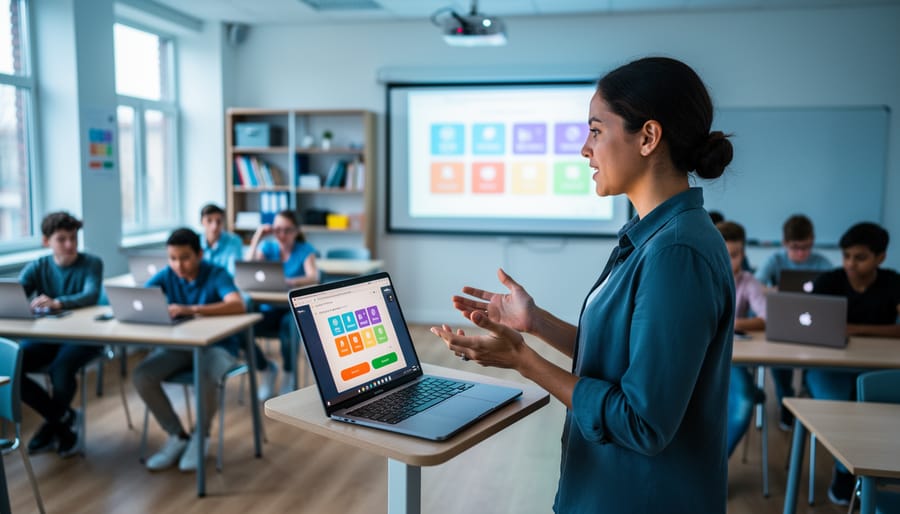
How Quizlet and Google Classroom Work Together to Transform Your Review Games
Connect Quizlet to Google Classroom in under two minutes by installing the Quizlet app from the Google Workspace Marketplace, then click the share button on any Quizlet study set to post it directly as a Google Classroom assignment with automatic grading capabilities. Transform your study materials into interactive experiences by creating Quizlet flashcard sets that sync with your existing Google Classroom courses, allowing students to access review games, practice tests, and study modes right from their assignment stream. Leverage the integration to assign specific Quizlet Live team games or individual study sessions that track completion automatically, saving you hours of manual grade entry while boosting student engagement through gamified learning platforms. Customize sharing settings to control whether students can view correct answers immediately or must complete activities first, giving you flexibility to use Quizlet for formative assessment, homework practice, or test preparation while maintaining your preferred teaching approach. This integration eliminates the need for students to manage multiple login credentials and keeps all learning resources centralized in one familiar workspace, streamlining your digital classroom management.
What Is Quizlet Google Classroom Integration?
Imagine bringing together two of your favorite classroom tools into one seamless experience. That’s exactly what happens when you connect Quizlet with Google Classroom! This integration lets you share your engaging study sets and flashcards directly through your Google Classroom assignments, making it incredibly easy to get learning materials into your students’ hands.
Here’s how it works in simple terms: Once you’ve connected your Quizlet and Google Classroom accounts, you can attach any Quizlet study set to a Google Classroom assignment with just a few clicks. No more copying and pasting links or sending separate instructions. Your students receive everything they need right in their Classroom stream, where they’re already checking for assignments.
The real magic happens when students interact with these materials. They can study using Quizlet’s fun, interactive modes like flashcards, matching games, and practice tests, all while you track their progress through Google Classroom. When students complete their Quizlet activities, their scores can sync back to your Classroom gradebook automatically.
Teachers everywhere are getting excited about this integration because it saves precious time and creates a smoother learning experience. Instead of juggling multiple platforms and login screens, you’re creating a centralized hub where engaging study materials meet your existing classroom workflow. It’s customization made simple, letting you focus on what matters most: helping your students succeed while keeping learning fun and interactive.
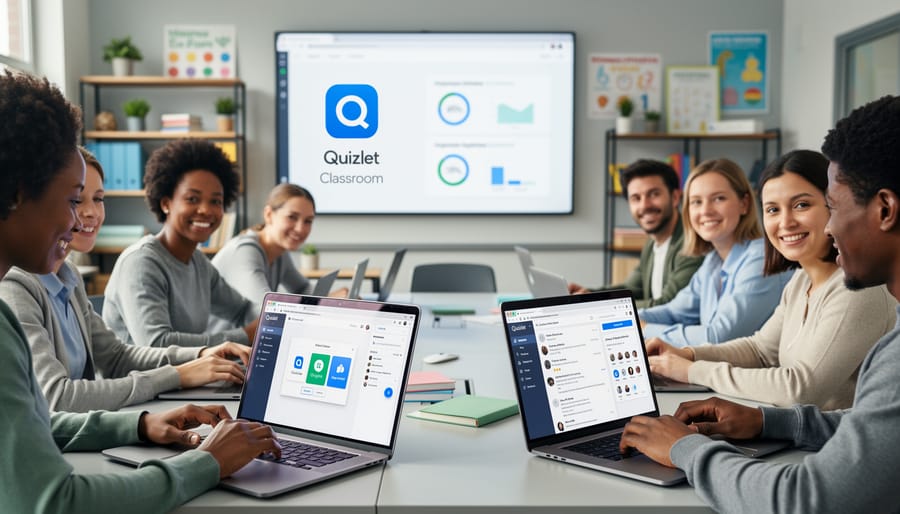
Setting Up the Integration: Your Quick Start Guide
Connecting Your Accounts
Getting Quizlet and Google Classroom to work together is easier than you might think! The best part? You don’t need any special tech skills to make this happen.
First, head over to Quizlet and log into your teacher account. If you haven’t already, you’ll want to upgrade to Quizlet Teacher to unlock the integration features. Once you’re in, navigate to your Classes section and click “Create a new class.”
Here’s where the magic happens! Instead of manually adding students one by one, look for the “Import from Google Classroom” option. This will prompt you to authorize Quizlet to access your Google Classroom data. Don’t worry—this is completely safe and only allows Quizlet to see your class rosters.
After you click “Allow,” you’ll see a list of all your Google Classroom courses. Simply select the class you want to connect, and boom! Your student roster will automatically populate in Quizlet. This Google Classroom rostering feature saves you tons of time and keeps everything synced up perfectly.
The connection stays active, so any new students joining your Google Classroom will automatically appear in your Quizlet class too. Now you’re ready to start creating engaging study sets and activities!
Sharing Quizlet Sets With Your Classes
Ready to share those awesome study sets with your students? You’re going to love how simple this is! Once you’ve created or found the perfect Quizlet set, click the “Share” button at the top of your set. From the sharing options, select “Google Classroom” and you’ll see a familiar Google Classroom icon pop up.
Choose which class you want to assign the set to from your dropdown menu. Here’s where the customization magic happens—you can decide whether to post it as an assignment, an announcement, or just material for students to explore on their own time. Add any instructions or due dates to help students know exactly what you expect from them.
The best part? Students can access the study set with just one click from their Google Classroom stream. No separate logins or confusing links to remember! They’ll jump straight into studying with flashcards, games, and practice tests.
Pro tip: Create different versions of study sets for different learning levels in your classes. You can customize vocabulary difficulty or question complexity, then assign the appropriate version to each class. This personalized approach keeps every student engaged and challenged at just the right level!
Why This Integration Makes Your Life Easier
One-Click Assignments
Gone are the days of tedious copying and pasting! With Quizlet and Google Classroom integration, sharing your study sets is as simple as clicking a button. Once you’ve connected your accounts, you’ll see a Google Classroom icon right within Quizlet. Just click it, choose your class, and boom—your assignment is instantly posted to your students’ Classroom feed.
This streamlined process saves you precious planning time and eliminates those frustrating formatting issues that sometimes pop up when transferring content between platforms. Your students receive perfectly formatted study materials with clear instructions, ready to go. Plus, you can customize assignment settings like due dates and point values right from the sharing window. It’s a game-changer for busy teachers who want to spend less time on logistics and more time inspiring learners!
Automatic Grade Syncing
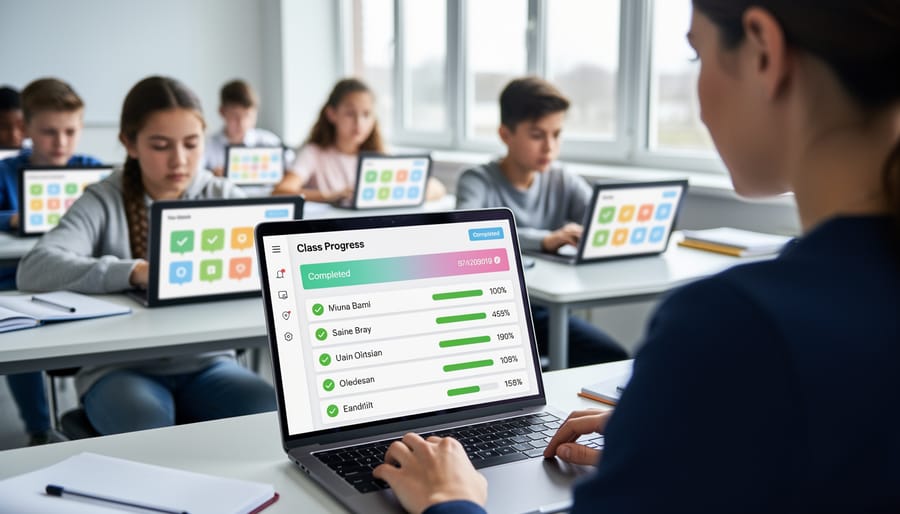
One of the most time-saving features of integrating Quizlet with Google Classroom is the automatic grade syncing. When students complete Quizlet activities you’ve assigned through Google Classroom, their scores flow directly into your Google Classroom gradebook without any manual entry on your part. This means no more copying and pasting scores or switching between platforms to track student progress.
The syncing happens seamlessly in the background. As soon as a student finishes a Quizlet assignment, their performance data transfers to Google Classroom, giving you real-time visibility into who’s completed their work and how they’re performing. You’ll see detailed scores for activities like Learn, Test, and Match modes, helping you identify which concepts students have mastered and where they might need extra support.
This automation frees up valuable time you’d otherwise spend on administrative tasks, letting you focus on what really matters—creating engaging learning experiences and supporting your students.
Student Progress at Your Fingertips
One of the biggest perks of this integration is the automatic grade sync that saves you precious time. When students complete Quizlet activities through Google Classroom, their progress flows directly into your gradebook without any manual data entry on your part.
You’ll see at a glance who’s completed their study sets, how they performed, and who might need a friendly nudge to get started. The assignment page in Google Classroom displays completion status for each student, so you can quickly identify who’s engaging with the material and who might benefit from additional support.
This transparency helps you celebrate wins with students who are crushing their vocabulary practice while providing timely interventions for those who need extra help. No more chasing down completion reports or wondering if students actually studied the material you assigned.
The best part? All this tracking happens behind the scenes while you focus on what really matters: teaching and connecting with your students. You can even use these insights to customize future assignments, creating targeted practice sets for students who struggled with specific concepts while challenging those who breezed through the material.
Creative Ways to Use Quizlet in Your Google Classroom
Pre-Game Study Sessions
Want your students to show up ready to play? Assign Quizlet study sets as pre-game homework through Google Classroom! This simple strategy ensures everyone arrives prepared and confident.
Here’s how to make it work: create or choose a Quizlet set that covers your upcoming review game content. Share it as an assignment in Google Classroom a day or two before your planned game session. Students can use Quizlet’s various study modes—flashcards, learn, or test—to familiarize themselves with the material at their own pace.
The beauty of this approach is that students come to class already warmed up on the content. They’ve had time to identify tricky concepts and build confidence with the material. When game time arrives, everyone participates more enthusiastically because they feel prepared to succeed.
You can even sweeten the deal by offering participation points for completing the pre-study assignment. This motivates students to prepare while keeping the focus on learning rather than high-stakes performance.
Team Preparation Activities
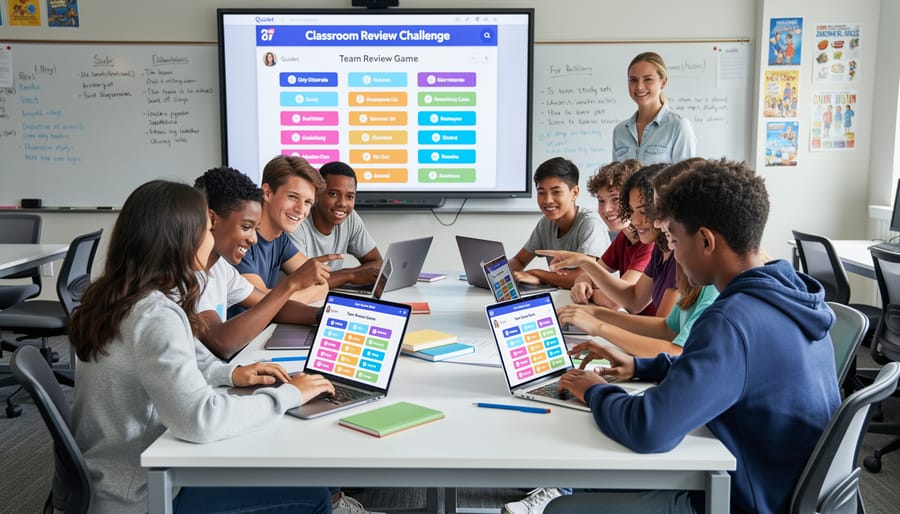
Getting your teams ready for game day is where the magic happens! Use Quizlet’s collaborative features to build team cohesion before launching into competitive classroom activities. Start by creating study sets in Quizlet, then assign them through Google Classroom to specific team groups you’ve organized. This gives teams dedicated time to review together using Quizlet Live or Learn mode.
Consider assigning different study modes to different teams based on their learning needs. Some groups might benefit from flashcard practice, while others excel with writing exercises or match games. You can customize the difficulty level for each team, ensuring everyone gets appropriately challenged material.
Schedule practice sessions a few days before your big review game to give teams time to master the content. Track their progress through Google Classroom’s grading interface to see which teams might need extra support. This preparation phase transforms random competition into strategic, well-prepared team gameplay that maximizes learning outcomes while keeping the excitement high!
Post-Game Reinforcement
The magic doesn’t stop when your game ends! Use the data from your PowerPoint review games to identify concepts students struggled with, then create targeted Quizlet study sets focused specifically on those tricky topics. Assign these customized sets through Google Classroom as follow-up practice, giving students the chance to master what they missed in a low-pressure environment.
This personalized approach shows students you’re paying attention to their individual needs. You can even add encouraging messages in your Google Classroom assignment description, like “Let’s conquer those fractions together!” Students appreciate the extra support, and you’ll love seeing their confidence grow as they practice at their own pace. The best part? Quizlet’s various study modes let students choose how they learn best, whether through flashcards, matching games, or practice tests. It’s differentiation made easy!
Combining Cloud Storage Benefits With Game-Based Learning
When you bring together Quizlet and Google Classroom, you’re creating something really special: a learning hub that combines the best of cloud-based tools with hands-on game experiences. Think of it as having your cake and eating it too!
The beauty of cloud storage integrations is that your students can access their study materials anywhere, anytime. They can review flashcards on the bus ride home, play Quizlet Live during class, and submit their work directly through Google Classroom without switching between multiple platforms. Everything flows together seamlessly.
But here’s where it gets even better: you can complement these cloud-based activities with downloadable game templates that add variety to your lessons. Maybe your students start the week practicing vocabulary through Quizlet’s interactive modes, then mid-week you download a customizable Jeopardy-style template to review the same content in a competitive team format. The content stays consistent, but the delivery keeps things fresh and exciting.
This complete ecosystem gives you flexibility that single-platform approaches just can’t match. Some days you’ll want the instant gratification of cloud-based games that require zero prep time. Other days, you’ll have the energy to customize a downloaded template with specific graphics or bonus questions that perfectly match your lesson objectives.
Your students benefit from this variety too. Different learners shine in different formats. Some kids love the fast-paced digital competitions, while others prefer the tactile experience of holding game cards or standing at the board. By combining both approaches within your Google Classroom framework, you’re ensuring every student has opportunities to succeed and stay engaged.
Troubleshooting Common Integration Hiccups
Don’t worry if things don’t work perfectly right away! Even the smoothest integrations can hit a few bumps, and you’re definitely not alone. Here are quick fixes for the most common hiccups teachers encounter.
If your Quizlet study sets aren’t appearing in Google Classroom, first check that you’ve given Quizlet the necessary permissions to access your account. Head to your Google account settings and review connected apps. Sometimes a simple disconnect and reconnect does the trick! Also make sure you’re logged into the correct Google account that’s linked to your classroom.
When students report they can’t access a shared Quizlet set, verify that you’ve published the assignment rather than saving it as a draft. It happens to the best of us! Double-check your sharing settings too—students need view access at minimum.
Running into sync issues where updates aren’t showing? Try refreshing both platforms and clearing your browser cache. This solves about 80 percent of mysterious tech problems.
If certain students can’t see the integration features, they might be using outdated browsers. Encourage them to update or switch to Chrome or Firefox for the best experience.
Remember, troubleshooting is part of the learning curve! Most issues have simple solutions, and once you’re past these initial setup challenges, you’ll wonder how you ever managed without this powerful combination. Keep experimenting and customizing to find what works best for your unique classroom needs.
Bringing Quizlet and Google Classroom together opens up exciting possibilities for creating a dynamic, engaging learning environment. This integration isn’t just about making your workflow smoother—it’s about building a complete game-based learning strategy that keeps students motivated and actively participating in their education.
The beauty of combining these tools is that you’re meeting students where they are. They’re already comfortable with Google Classroom’s familiar interface, and Quizlet brings the fun factor with its interactive study modes and competitive elements. When you pair them together, you get the best of both worlds: streamlined assignment distribution and genuinely enjoyable review activities.
Don’t stop at just one integration, though. The most engaging classrooms blend multiple interactive tools to keep things fresh and exciting. Experiment with different Quizlet study modes, customize content to match your students’ interests, and watch how their enthusiasm for learning grows.
Ready to get started? The setup takes just minutes, but the benefits last all year long. Give the Quizlet Google Classroom integration a try this week and see how it transforms your review sessions into something students actually look forward to. Your future self will thank you when assignment grading becomes easier and student engagement reaches new heights.