
How Physical Mobility Challenges Shape Better Classroom Games for Every Student
Create slide-based games where students can participate from their seats by calling out answers or using handheld whiteboards instead of rushing to the board. Physical mobility impairments affect how students navigate classroom spaces and interact with learning activities, but your PowerPoint games can become powerful inclusion tools with simple modifications. Replace activities requiring standing, running, or fine motor manipulation with alternatives like team spokesperson systems where one student shares collaborative answers, or digital spinner tools students control with minimal movement.
Design templates with larger click targets and extended response times so students using adaptive devices can fully participate. Position essential game elements in the center of slides rather than corners, making content visible from any classroom seat. Include keyboard shortcuts and spacebar-activated features for students who cannot use a mouse precisely.
When customizing game templates, consider auditory signals alongside visual cues, allowing students with limited mobility to focus on content rather than watching for subtle on-screen changes. Build in flexible participation options within each game round, letting students choose whether to respond verbally, through a partner, or using assistive technology. These adaptations transform your review games from potential barriers into engaging experiences where every student can demonstrate their knowledge and celebrate learning success.
What Physical Mobility Impairment Means in Your Classroom
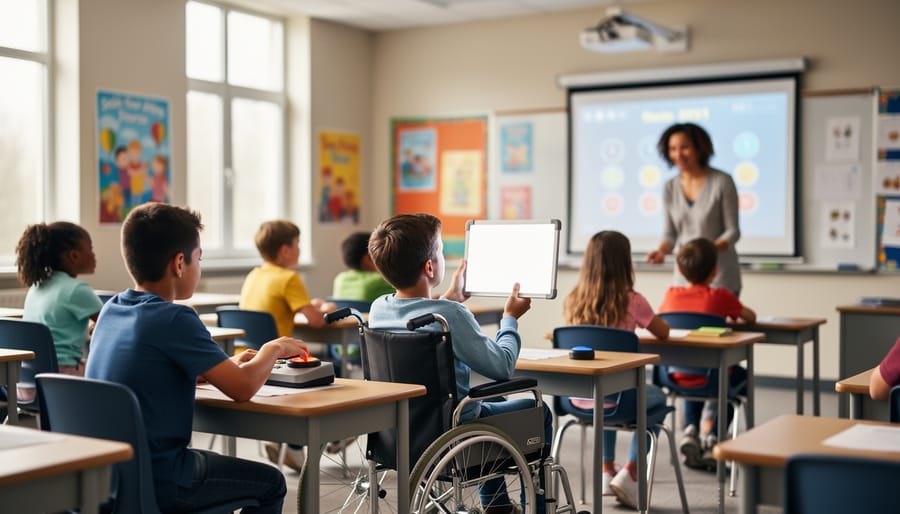
Physical mobility impairment covers a wide spectrum of challenges that affect how students move and interact with their environment. In your classroom, this might look like a student who uses a wheelchair, a learner with limited hand dexterity, someone recovering from a sports injury, or a child managing a chronic condition that affects movement.
Here’s what matters most: mobility impairments aren’t one-size-fits-all. You might have students who can’t use a traditional mouse or keyboard easily, others who need adaptive equipment to participate, or some who experience fatigue that limits their endurance during activities. Some mobility challenges are immediately visible, while others aren’t obvious at first glance.
Think beyond permanent conditions too. Temporary situations count! That student with a broken arm, the learner recovering from surgery, or someone experiencing pain from a recent injury all benefit from accessible classroom design.
Hand and fine motor challenges are especially relevant for digital activities. Some students may have difficulty with precise clicking, dragging items on screen, or typing quickly. Others might need extra time to navigate between screens or use assistive technology like adaptive keyboards or touch screens.
The beautiful thing about understanding this range? Once you make your activities accessible for students with mobility impairments, you often create a better experience for everyone. Those modifications that help a student with limited dexterity often reduce frustration for all your learners.
Remember, mobility needs can change throughout the day or year. A student might have good days and challenging days, or their needs might evolve as they grow. Staying flexible and responsive to these changes makes your classroom genuinely inclusive and supportive for every student who walks, rolls, or moves through your door.
Why Traditional Game Formats Create Barriers
The Speed Trap
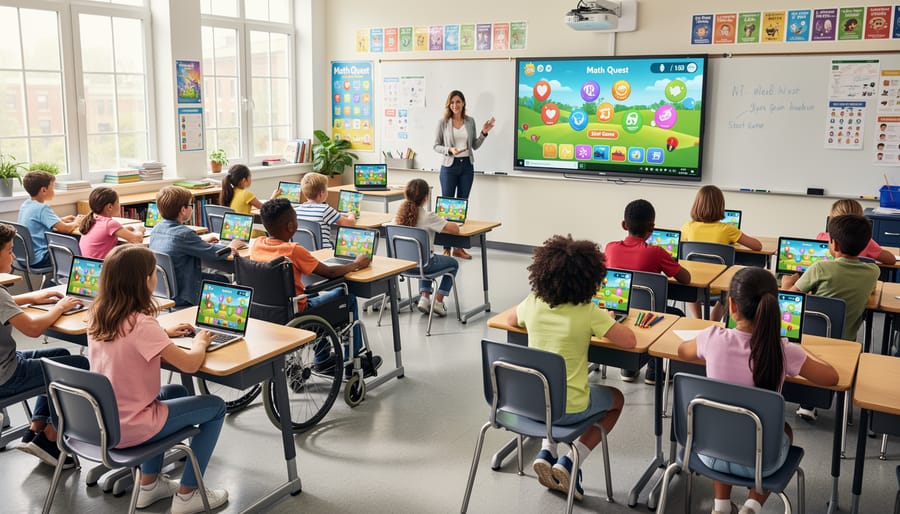
Many popular classroom games rely on speed to build excitement—think students racing to ring a bell first or sprinting to the board to write an answer. While these activities create energy, they unintentionally create barriers for students with physical mobility impairments. A student using a wheelchair, walker, or crutches simply cannot compete in a footrace across the classroom, regardless of their knowledge level. Similarly, timed responses that require quick hand movements or precise motor control can exclude students with fine motor challenges or conditions affecting coordination. The result? These learners watch their peers participate while their academic knowledge goes unrecognized. The good news is that digital PowerPoint games naturally level this playing field. When students answer from their seats using response cards, verbal answers, or personal devices, speed becomes about thinking rather than moving. You can celebrate quick thinking without requiring quick movement, ensuring every student has an equal shot at demonstrating what they know.
Physical Movement Requirements
Many traditional classroom games require students to stand, walk to the board, or physically manipulate game pieces, which can create barriers for students with mobility impairments. The great news? Digital PowerPoint games eliminate most of these challenges! Since students can participate from their seats using individual devices or through verbal responses, everyone stays included without requiring physical movement around the classroom. When using game templates displayed on your main screen, consider having students raise hands or use response cards instead of coming to the board. For games that typically involve physical buzzers or bells, try digital alternatives like sound effects played from devices. You can also designate student helpers to move pieces or click answers on behalf of classmates who may have difficulty with fine motor control. The beauty of customizable digital games is that you decide how students interact, making it simple to create participation methods that work for every learner in your classroom.
Digital Game Templates: Your Accessibility Advantage
Participation Without Physical Barriers
Digital games are game-changers for students with physical mobility impairments because they remove traditional barriers to participation. Instead of requiring students to move around the classroom, raise hands high, or manipulate physical materials, your students can engage through simple verbal responses, eye-gaze technology, or single-switch devices. Many students can participate by simply calling out answers or working with a partner who handles the physical clicking. The beauty of PowerPoint-based games is their flexibility—you can customize how students respond based on their individual needs. Some students might use adaptive keyboards, touch screens, or voice recognition software, while others participate through a buddy system. The key is that everyone gets to join the fun and show what they know without physical demands getting in the way. This inclusive approach ensures that cognitive engagement and learning take center stage, not physical ability. Your classroom becomes a space where every student can actively contribute, compete, and celebrate their knowledge in ways that work for them.
Flexible Response Methods
The beauty of digital classroom games? They naturally support multiple ways to respond! When students face mobility challenges, you can keep the same engaging game structure while adjusting how players participate. One student might call out answers verbally while another types responses or points to choices on screen. Consider pairing students together so partners can take turns clicking or writing while both contribute ideas.
This flexibility aligns perfectly with Universal Design for Learning principles, creating inclusive experiences without extra planning. The game remains unchanged, but participation opens up for everyone. You might have one student use a voice-to-text tool, another work with an aide for physical navigation, and others use traditional keyboard and mouse controls. The key is offering these options from the start, making accommodation feel natural rather than singled out. When you present games with built-in response flexibility, every student can focus on learning content instead of worrying about access barriers. This approach transforms your classroom into a truly welcoming space where participation styles vary as much as your students do!
Simple Customizations That Make Games Accessible to All
Adjust Timing and Pacing
One of the simplest yet most impactful adjustments you can make is removing or extending time limits in your PowerPoint games. Students with physical mobility impairments may need extra time to navigate controls, click responses, or physically indicate their answers. Consider eliminating countdown timers altogether or extending them significantly to reduce pressure and anxiety. You can also shift to self-paced formats where students advance when ready rather than racing against the clock. Try offering flexible response methods too, like allowing verbal answers instead of requiring rapid clicking. Remember, the goal is learning and engagement, not speed! When you remove time pressure, you create a more inclusive environment where all students can participate confidently and demonstrate their knowledge without physical barriers getting in the way of their success.
Create Flexible Team Roles
Team-based games work beautifully when you intentionally assign roles that match each student’s strengths. Think beyond the traditional setup where physical speed determines success. Instead, create positions like Strategist, Reader, Answer Checker, Team Captain, or Score Keeper. This way, a student with mobility challenges might excel as the team’s strategist who analyzes questions and guides decisions, while more mobile students handle tasks requiring movement. You can even rotate roles throughout the game to keep things fresh and give everyone a chance to shine in different ways. The key is designing your PowerPoint game activities so that winning depends on teamwork and diverse contributions rather than just one type of ability. When students see their unique strengths valued, engagement soars and everyone feels like an essential part of the action!
Offer Multiple Ways to Answer
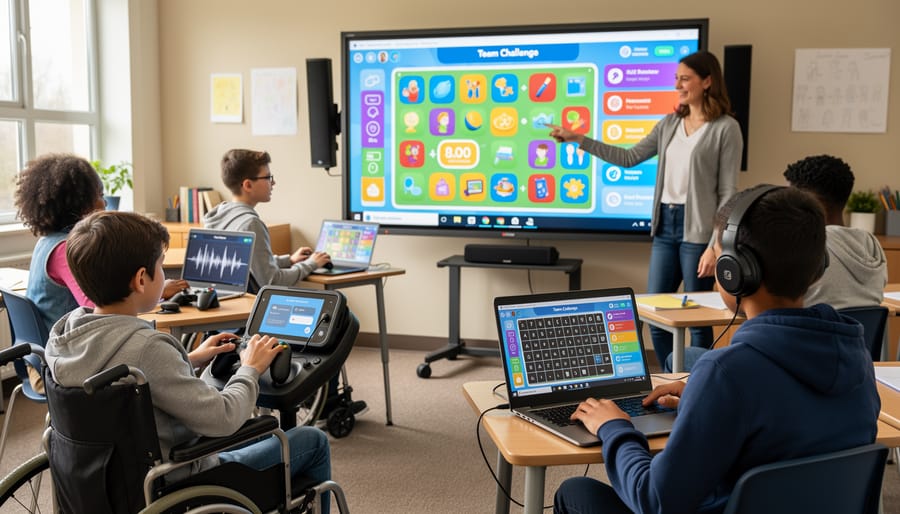
Give every student a voice by offering multiple response options that work with their unique abilities! Some students might excel at verbal answers, while others prefer writing on paper or typing on devices. Embrace variety by incorporating pointing systems where students can indicate answers on a board or screen, use thumbs up/down signals, or select responses through adaptive switches. Digital games make this easy—students can click, tap, or use assistive technology to participate fully. Consider partner responses where students work with a buddy who can help communicate their answers. You can even blend approaches with sensory-friendly game design by allowing students to draw, use picture cards, or gesture their responses. The key is flexibility! Let students choose their preferred method, and you’ll see engagement soar as everyone finds their perfect way to shine during game time.
Real Classroom Scenarios: Making It Work
Mixed-Ability Teams
Here’s a game-changer for your classroom: strategically pairing students creates powerful learning opportunities where everyone contributes their unique strengths! When you’re setting up teams for your PowerPoint game reviews, consider mixing students with different physical abilities intentionally.
For example, pair a student who uses a wheelchair with a classmate who might struggle with reading comprehension but excels at physical tasks. The first student can handle buzzer operation and answer recording while their partner retrieves materials or manages physical game components. This collaboration naturally develops empathy and mutual respect.
Try rotating team roles regularly so students experience different responsibilities. One round, a student with limited mobility might be the team spokesperson, while their partner handles the whiteboard. Next round, they switch it up! This approach teaches everyone that physical differences aren’t limitations but simply different ways of participating.
The beauty of mixed-ability teams is watching students recognize that success comes from combining diverse talents, not identical abilities. You’re not just teaching content anymore—you’re building a classroom community where every student genuinely matters!
Technology as an Equalizer
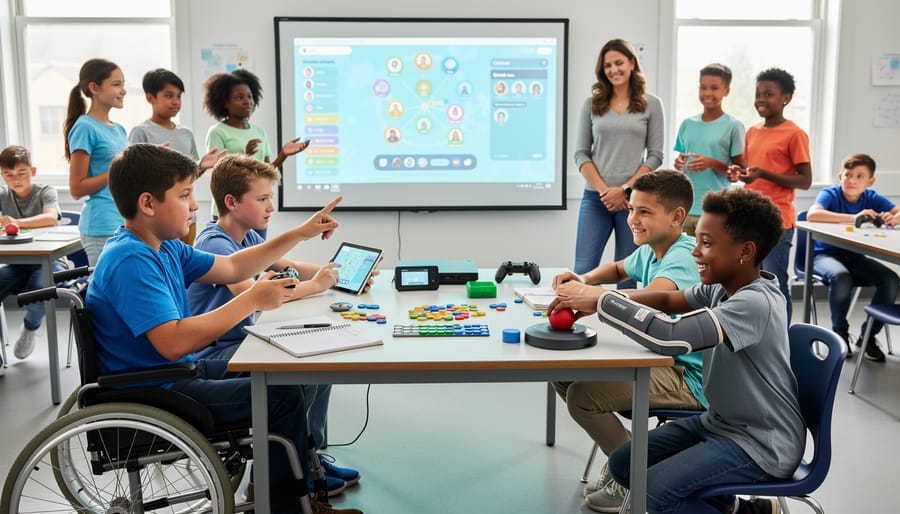
Here’s the great news: most digital game templates work beautifully with the assistive tools your students already use! Screen readers, voice recognition software, adaptive keyboards, and switch controls can integrate smoothly with PowerPoint-based games when you design with accessibility in mind. This means students using head pointers, sip-and-puff devices, or eye-tracking technology can participate just as actively as their peers.
The key is ensuring your game templates support assistive technology integration from the start. Use large, clearly labeled buttons, provide keyboard navigation options, and avoid requiring rapid clicking or precise mouse movements. Most modern assistive devices are incredibly sophisticated—your role is simply creating games that don’t put up unnecessary barriers. When students can use their familiar tools to play along, you’re not just adapting your classroom; you’re celebrating the amazing ways technology helps everyone learn together!
Creating an Inclusive Game Culture in Your Classroom
Creating an inclusive game culture starts with your mindset and extends through every classroom interaction. When students with physical mobility impairments see themselves as valued participants rather than accommodations, game-based learning becomes genuinely engaging for everyone.
Begin by involving students in the adaptation process. Ask what works best for them and let them help customize game controls or participation methods. This builds ownership and sends a powerful message that their needs matter.
Celebrate diverse ways of participating. Whether a student uses adaptive technology, works with a partner, or participates verbally instead of physically, frame all methods as equally valid. Your enthusiasm for their contributions matters more than how they deliver answers.
Make accessibility your default, not an afterthought. When you design games with flexibility built in from the start, no student feels singled out. Offer multiple response options for every activity so adaptations benefit everyone.
Use inclusive language during gameplay. Instead of saying “raise your hand” or “run to the board,” try “show me your answer” or “share your response.” These small shifts remove barriers without drawing attention to differences.
Remember that creating an inclusive environment is an ongoing journey. Check in regularly with students about what’s working and what could improve. Your willingness to adapt and grow alongside them demonstrates that everyone belongs in your classroom games.
Creating accessible game-based learning doesn’t require a complete classroom overhaul. The truth is, small adjustments make a tremendous difference. When you add extra time, keyboard navigation, or larger clickable areas to your PowerPoint games, you’re not just helping students with mobility impairments—you’re creating a better learning experience for everyone. Students with temporary injuries, those who struggle with fine motor control, and even learners who simply prefer different interaction methods all benefit from these thoughtful modifications.
You have incredible power to shape how students experience learning in your classroom. By embracing inclusive design principles in your game-based activities, you’re sending a clear message: every student belongs here, and everyone deserves the chance to participate fully. These accessible games reduce frustration, build confidence, and keep the focus where it belongs—on learning and having fun.
Start with one small change today. Try it out, observe how your students respond, and keep building from there. Your commitment to accessibility creates welcoming, engaging learning experiences that help all students thrive.