
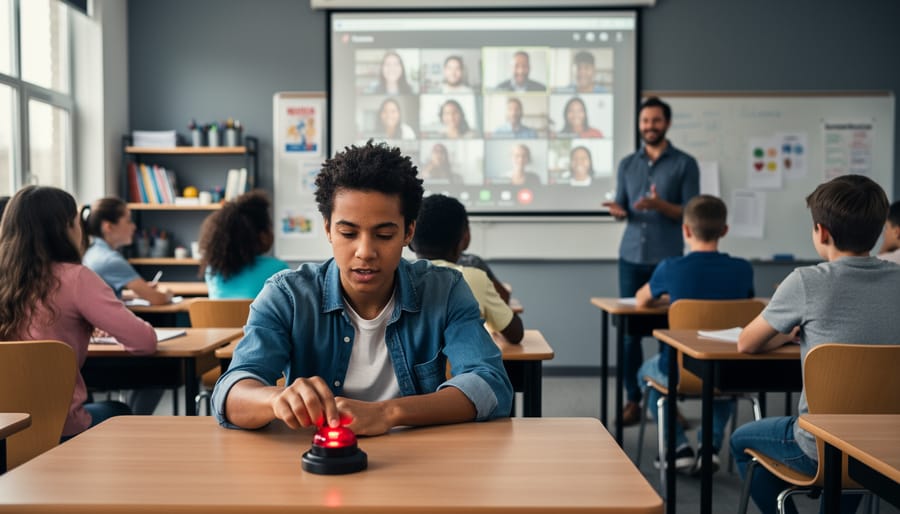
How Hybrid-Remote Classroom Games Keep Every Student in the Action
Set up your game display where both in-person and remote students can see it clearly—share your screen via video conferencing while projecting it on your classroom board simultaneously. This dual-visibility approach ensures nobody misses the action, whether they’re sitting in front of you or joining from home.
Create mixed teams that pair in-person students with remote learners so everyone feels connected and invested. Assign an “in-class captain” to physically buzz in or write answers while their remote teammate contributes ideas through the chat or microphone. This partnership model prevents remote students from becoming passive observers and gives in-person students a reason to collaborate digitally.
Customize your PowerPoint game templates to include longer response windows—hybrid settings naturally need extra seconds for tech delays and communication between team members. Add visual timers directly onto your slides and use audio cues that both audiences can hear clearly, eliminating confusion about when turns begin and end.
Test your entire setup 10 minutes before class starts every single time. Run through one practice round where remote students confirm they can see the screen, hear you clearly, and understand how to participate. This quick rehearsal catches audio glitches, screen-sharing issues, and participation confusion before the actual game begins, saving you from mid-lesson troubleshooting.
Establish crystal-clear participation signals from day one—remote students type “BUZZ” in chat or use a reaction emoji, while in-class students raise hands or use physical buzzers. Consistent systems eliminate the chaos of competing for attention across two different spaces and help you facilitate smoothly without favoring either group.
What Hybrid-Remote Game Play Actually Means for Your Classroom
Let’s break this down in the simplest way possible. Hybrid-remote game play means you’re running one review game that includes everyone—whether they’re sitting at desks in your classroom or logging in from their kitchen tables at home. No need to create two separate activities or worry that remote students are missing out on the fun.
Here’s what this looks like in action: You display your game on the classroom screen (just like always), while remote students see the same game through their video call. Everyone participates at the same time, answering questions and earning points together. Think of it as one unified game experience happening across two spaces simultaneously.
The beauty of this approach is that it works with various student devices—laptops, tablets, or phones. Your in-person students can respond using classroom tech or their own devices, while remote learners use whatever they have at home. The game doesn’t discriminate based on location or device type.
What makes this truly effective is the equal participation factor. Remote students aren’t just watching passively—they’re actively competing, answering questions, and celebrating wins right alongside their classroom peers. You can call on both groups, form mixed teams, and create an inclusive atmosphere where physical location becomes irrelevant.
The key difference from traditional teaching? You’re not toggling between two separate lessons or feeling like you’re shortchanging one group. Instead, you’re orchestrating one cohesive, energetic review session that brings your entire class together, regardless of where they’re physically located. It’s about creating connection and engagement for everyone, everywhere.
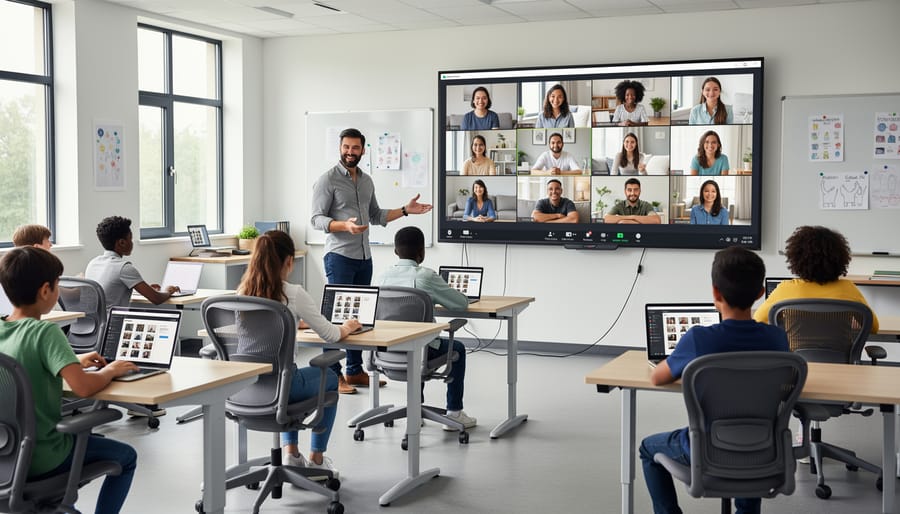
The Challenge: Making Remote Students Feel Like Part of the Team
You know that sinking feeling when you’re running an exciting classroom game, and you glance at your screen to see your remote students looking confused or completely checked out? You’re not alone. This is one of the biggest frustrations teachers face with hybrid learning.
The participation gap is real. While your in-person students are buzzing with energy, raising hands, and shouting out answers, remote learners often struggle to find their moment to jump in. They’re dealing with audio delays, can’t read the room’s energy, and sometimes feel like they’re watching a show instead of playing a game.
Then there’s the technical disconnect. Remote students might not be able to see game boards clearly on shared screens, or they miss visual cues that help in-person students know when it’s their turn. Sometimes they can’t even hear the question properly over classroom noise.
The motivation challenge hits hardest. When students feel like outsiders looking in, their enthusiasm drops fast. They might stop trying to participate altogether, turning off cameras and mentally checking out. And honestly, who can blame them? It’s tough to feel excited about a game when you’re not sure you’re really part of it.
The good news? These challenges aren’t insurmountable. With the right approach and a few strategic adjustments, you can create game experiences where every student, regardless of location, feels like a valued team member.
Simple Tech Setup That Actually Works
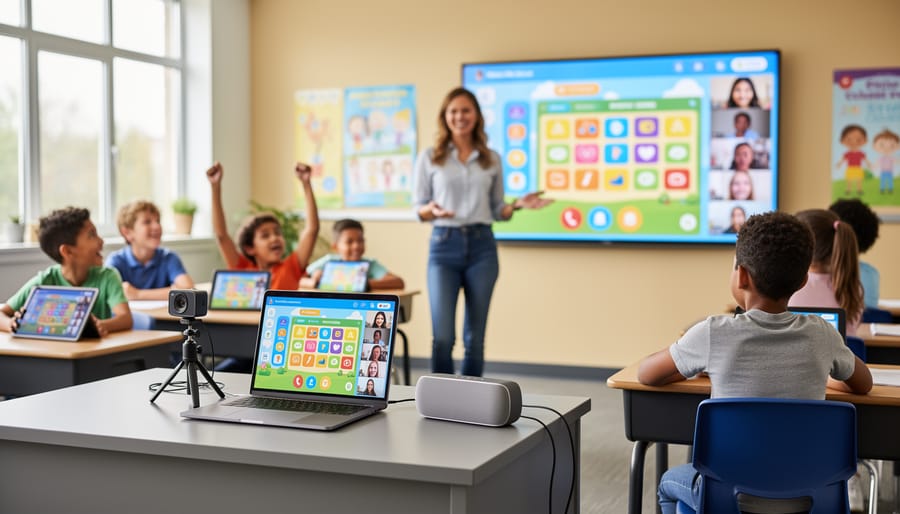
Screen Sharing Made Easy
Getting your PowerPoint game screen visible to everyone is simpler than you might think! The key is making sure both your in-person students and remote learners can see all the action, scoreboards, and those exciting sound effects that make review games so engaging.
Start by opening your PowerPoint game in presentation mode on your teacher computer. Then, use your video conferencing platform’s screen sharing feature to broadcast your entire screen to remote students. Most platforms like Zoom, Google Meet, or Microsoft Teams have a simple “Share Screen” button right in the toolbar. Click it, select the window showing your game, and you’re good to go!
Here’s a pro tip: make sure to check the “Share Computer Sound” option when you start sharing. This ensures remote students hear all those fun sound effects and music that make the games come alive. Test your audio before the big game day to avoid any surprises.
For in-class students, simply connect your computer to your classroom projector or display as usual. Now everyone sees the same screen simultaneously, whether they’re sitting in front of you or learning from home. This works perfectly across the different devices students use, creating that unified game experience that keeps everyone excited and engaged!
Getting Answers from Both Groups
The key to hybrid success is creating a rhythm where both groups can answer without talking over each other. Here’s a game-changer: assign different response methods to each group. Your in-person students can use traditional methods like raising hands, holding up answer cards, or writing on individual whiteboards, while your remote learners use the chat box or reaction emojis.
Try the “chat first, hands second” strategy. Give remote students a 10-second head start to type their answers in the chat while in-person students think silently. Then, let your classroom crew show their responses on whiteboards simultaneously. This levels the playing field and prevents one group from copying the other.
For quick-fire rounds, use a visual timer everyone can see. Remote students can drop a thumbs up or down emoji, while classroom students use colored cards (green for agree, red for disagree). This creates exciting energy without the chaos of everyone shouting at once.
Pro tip: Designate a classroom helper to monitor the chat during fast-paced games. This frees you up to engage with everyone and keeps the momentum going strong!
Managing Mixed Teams
Creating mixed teams is one of the most exciting ways to bridge the gap between your in-person and remote students! Start by intentionally pairing students from both locations on the same team. This encourages everyone to communicate and collaborate, no matter where they’re sitting.
Use breakout rooms or chat features to give teams a dedicated space to strategize together. Remote students can share ideas through the chat while in-class students respond verbally, creating a dynamic back-and-forth that keeps everyone involved. Assign specific roles within each team—like a remote student being the “scorekeeper” while an in-class student acts as the “spokesperson”—so every voice matters.
Try rotating team compositions regularly to build classroom community and prevent any “us versus them” mentality. When students work with different classmates across locations, they develop stronger connections and learn to appreciate diverse perspectives.
Keep teams small, ideally three to four students, to ensure everyone participates actively. This prevents remote learners from fading into the background while keeping in-class students from dominating discussions. Celebrate team achievements that highlight cross-location collaboration, reinforcing that your classroom community extends beyond physical walls. With thoughtful team design, you’ll create an inclusive environment where every student feels valued and engaged!
Customization Tips for Hybrid Success
Adjusting Timing for Remote Lag
Remote students need a few extra beats to catch up with the classroom action, and that’s totally normal! When you ask a question during your game, count to five (yes, really count!) before calling on anyone. This gives remote learners time to process the audio, unmute themselves, or type their response in the chat.
Here’s a game-changer tip: announce your questions twice. Say it once for your in-person students, then repeat it while making eye contact with your camera for remote participants. This double delivery feels natural and ensures everyone hears clearly.
Watch for visual cues from your remote students too. Are they frantically typing? Still nodding along? These signals tell you when they’re ready to jump in. You might also designate a “remote response window” where online students get first dibs on answering through chat before opening it up to the whole class. This simple adjustment makes remote learners feel valued and keeps your game energy flowing smoothly for everyone!
Visual Clarity Matters More Online
When you’re running games with both in-person and remote students, remember that your remote learners are viewing everything through smaller laptop or tablet screens. What looks perfectly readable on your classroom projector might appear tiny and illegible to students joining from home!
Bump up your font sizes more than you think you need to. Aim for at least 28-point text for questions and answer choices. Your in-class students won’t mind the larger text, and your remote participants will actually be able to read without squinting or leaning into their screens.
Choose high-contrast color combinations like dark blue text on yellow backgrounds or white text on deep purple. Those subtle pastels that look lovely in person often wash out completely on video calls. Think bold and vibrant!
Simplify your slides by reducing the amount of text and images per screen. One clear question with four visible answer choices works better than cramming multiple elements that compete for attention. White space is your friend here—it helps remote students focus on what matters most without feeling overwhelmed by visual clutter.
Sound Effects That Work Through Speakers
Good news! Most sound effects built into PowerPoint games work beautifully through video conferencing platforms like Zoom or Google Meet. To ensure your remote students hear everything clearly, do a quick audio check before game day. Play your game in presentation mode while recording yourself in your video conferencing tool, then listen back to confirm sounds come through crisply.
Keep sound effects short and punchy rather than long musical clips, as these compress better through video audio. If you notice any distortion, adjust your computer’s volume down slightly before sharing your screen. Pro tip: Enable “Share computer sound” when screen sharing so effects don’t get muted automatically. Your in-person students will hear sounds through your classroom speakers while remote learners catch them through their headphones or devices. This creates an equally exciting experience for everyone, keeping the energy high and students motivated whether they’re learning from home or sitting in your classroom.
Real Classroom Scenarios That Work
Let’s look at how real teachers are making hybrid-remote work come alive in their classrooms!
Mrs. Rodriguez runs a 5th grade science class with seven students joining from home and eighteen in the classroom. She uses a quiz show template to review the water cycle. Here’s her simple setup: she shares her screen via video call so remote students see the questions simultaneously with in-person learners. She created mixed teams with both remote and classroom students, assigning a “team captain” in the room who relays answers from their remote teammate through a quick chat message. The competition stayed fair because everyone saw questions at the same time, and the energy was fantastic!
High school history teacher Mr. Chen tackled a different challenge with his split class. For his World War II review, he customized a game board template by adding visual clues alongside questions since remote students sometimes struggled with audio. He let remote students buzz in using the chat’s raised hand feature while classroom students used actual buzzers. This dual approach kept everyone engaged without complicated technology.
Elementary teacher Miss Park found success with younger students by pairing each remote learner with an in-person buddy. During their math facts game, buddies would collaborate before answering, which built connection across the distance and reduced the isolation remote students sometimes feel.
The common thread? These teachers kept things simple, mixed their student groups intentionally, and weren’t afraid to adapt the game rules slightly. They focused on participation over perfection, and their students loved the interactive break from traditional lessons. You can absolutely make this work in your classroom too!
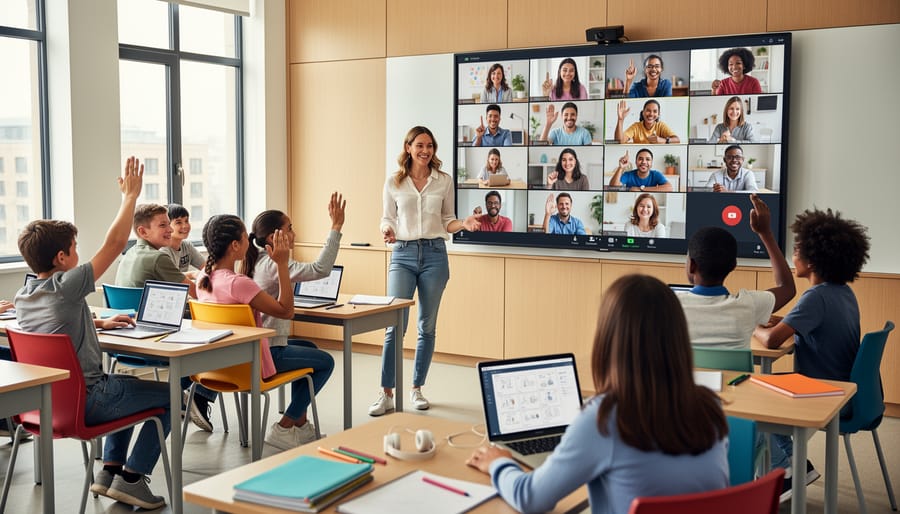
Troubleshooting Common Hiccups
Even the best-planned hybrid games hit snags, but quick fixes keep the fun rolling!
If remote students can’t see your screen clearly, pause and adjust. Share your screen in presentation mode so slides fill their view, and bump up font sizes to at least 24 points. Test visibility before game day by asking a remote student to snap a screenshot of what they see—you’ll spot issues immediately.
When classroom noise drowns out remote voices, designate a “remote voice monitor” among your in-person students. Their job? Raise a hand whenever they can’t hear their online classmates. Also, position your microphone closer to where you’re speaking and ask in-class students to use their “library voices” during remote turns. Simple awareness makes a huge difference.
One group dominating participation? Build in turn-taking rules from the start. Alternate between in-person and remote responses, or use a randomizer to call on students fairly. You can even assign point bonuses for teams that encourage quieter members to answer—gamifying inclusivity works wonders!
When internet connections fail, have a backup plan ready. Download your game slides beforehand so you can continue offline, or switch to a low-tech version using whiteboards. Keep a few printed question cards handy for emergency pivots.
Remember, troubleshooting is part of the learning curve. Your flexibility and positive attitude show students how to handle challenges gracefully—that’s a valuable lesson beyond any game!
Here’s the truth: hybrid-remote game orchestration doesn’t require fancy equipment or tech wizardry. What really matters is creating those magical moments where every student—whether they’re sitting in front of you or logging in from home—feels seen, included, and excited to participate. Your first attempt might feel a little clunky, and that’s completely okay! Start with one simple game during your next review session. Maybe it’s a basic quiz show format or a quick team challenge. Test your setup, see what works, and adjust from there.
Remember, your remote students aren’t looking for Hollywood-level production value. They’re looking for connection, fairness, and fun. When you give that camera-facing student a high-five or celebrate a correct answer from your remote team with the same energy, you’re building the inclusive classroom culture that makes learning stick.
So take a deep breath and dive in. Pick a template that excites you, gather your students (all of them), and let the games begin. You’ve got this, and your classroom—both the physical and virtual sides—will be better for it.