
Google Classroom Rostering Just Made Your Game Platform Setup 10x Easier
Managing classroom rosters manually wastes precious teaching time that could be spent on what matters most—engaging with your students. Google Classroom rostering automates the process of adding students to your digital classroom, syncing directly with your school’s Student Information System to eliminate tedious data entry and reduce errors.
When you integrate rostering with educational game platforms, student accounts are created automatically, class lists update in real-time, and you gain instant access to student progress data—all without lifting a finger. This means you can launch interactive learning activities the moment your semester begins, rather than spending hours typing in student names and assigning permissions.
The transformation is dramatic: what once took 30 minutes per class period shrinks to zero. Teachers report saving 3-5 hours each semester on administrative tasks alone. Better yet, automated rostering ensures students join the correct classes immediately, eliminating confusion and allowing you to dive straight into fun, customized learning experiences. Whether you’re introducing vocabulary games, math challenges, or collaborative projects, rostering integration removes the technical barriers and lets you focus on creating those magical learning moments your students deserve.
What Is Google Classroom Rostering (And Why Should You Care)?
Imagine clicking a button and having all your students automatically organized into your classroom game—no typing names, no manual invites, no hassle. That’s exactly what Google Classroom rostering does, and it’s kind of magical when you first see it work.
Here’s the simple version: Google Classroom rostering automatically syncs your class lists from your school’s student information system directly into the educational tools you’re using. When you connect a game platform through SIS rostering integrations, your students appear ready to play without you lifting a finger. No more asking kids to remember passwords or spending the first ten minutes troubleshooting logins.
So why should you care? Because every minute you spend on administrative tasks is a minute you’re not actually teaching. Rostering eliminates the boring stuff so you can focus on what matters—creating engaging learning experiences.
For classroom games specifically, the benefits are huge. Students can jump straight into the action without technical delays that kill momentum. You can easily track progress across your entire class because everyone’s properly enrolled from day one. Plus, when new students join mid-year or move between classes, the system updates automatically. No more awkward “wait, you’re not in my system yet” moments.
The best part? Once it’s set up, you barely think about it. Your game platforms just work, your students stay engaged, and you get your time back for lesson planning and actually connecting with kids. It’s the kind of behind-the-scenes support that makes interactive learning feel effortless instead of exhausting.
The Old Way vs. The New Way: A Real Classroom Scenario
Meet Ms. Johnson, a 4th-grade teacher with 28 students who wants to use an educational game platform for her math review session.
The Old Way: Manual Rostering
Ms. Johnson opens her game platform account and starts typing. She manually enters each student’s name, creates usernames, and generates passwords. Halfway through, she realizes she misspelled three names and needs to go back and fix them. Then she prints out the login credentials for each student, cuts them into individual slips, and distributes them during class. Two students immediately lose their papers. The whole process takes about 45 minutes, and she hasn’t even started the actual lesson yet.
The New Way: Google Classroom Rostering
Ms. Johnson connects her game platform to Google Classroom with just a few clicks. Her entire class roster syncs automatically in under a minute. All 28 students appear in her game dashboard with their correct names and information. Students log in using their existing Google credentials, so there’s nothing to print, cut, or lose. The setup takes less than 5 minutes total.
The Time Savings
That’s 40 minutes Ms. Johnson gets back to actually teach, customize games for her students, or just breathe between lessons. Multiply that across multiple classes or game platforms, and you’re saving hours every week. Even better, when new students join or leave throughout the year, the roster updates automatically without any extra work from you.
How Google Classroom Rostering Works with Game Platforms
The One-Time Setup Process
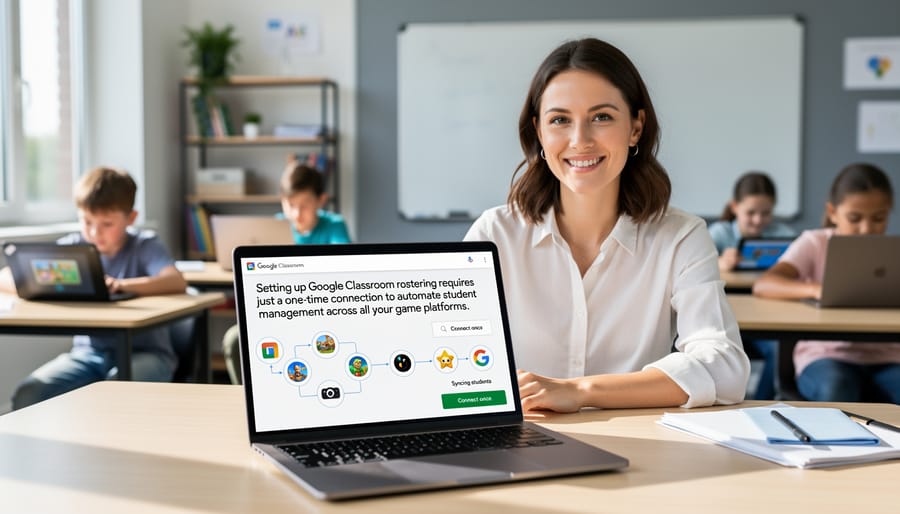
Getting started with Google Classroom rostering is easier than you might think! The initial setup typically takes just a few minutes and opens up a world of streamlined classroom management for your educational games.
First, you’ll connect your Google Classroom account to your chosen game platform. Most compatible platforms have a simple “Connect with Google Classroom” button right on their dashboard. Just click it, authorize the connection, and you’re halfway there!
Once connected, the platform will automatically pull your class rosters, student names, and group information directly from Google Classroom. No manual entry required! You’ll see your classes populate in real-time, which feels pretty magical the first time you watch it happen.
The best part? This is truly a one-time process. After the initial connection, your rosters update automatically whenever you make changes in Google Classroom. Add a new student? They’ll appear in your game platform instantly. Switch a student to a different class? The system adjusts on its own.
Most platforms also let you customize which classes you want to sync, giving you complete control over your setup. This flexibility means you can start small with one class and expand as you get comfortable.
Automatic Updates That Save You Hours
Here’s the magic part: once you connect your Student Information System to your game platform, you’re basically done! No more spending your precious prep time manually adding new students or removing those who’ve transferred. The system does the heavy lifting for you.
When a new student enrolls in your district and appears in your SIS, they automatically show up in your game platform roster too. Moving a student from one class to another? The change happens behind the scenes without you lifting a finger. If someone leaves your school, they’re removed from your game rosters automatically, keeping everything organized and secure.
This means you can focus on what really matters—teaching and engaging with your students. Instead of wrestling with spreadsheets or typing in student names one by one, you’ll have accurate rosters ready to go. Your students can jump straight into their learning games without waiting for you to set up accounts manually.
Think of it as having a helpful assistant who works 24/7, keeping your class lists perfectly updated. You’ll save hours each semester that you can invest in creating fun, personalized learning experiences for your students!
Real Benefits for Your Classroom Games and Activities
Launch Games in Seconds, Not Minutes
Imagine this: your students walk into class, you open your game platform, and boom—everyone’s name is already there, ready to go. No typing names one by one. No wondering who’s absent. No wrestling with spelling variations. That’s the magic of Google Classroom rostering!
When your rosters sync automatically, you can launch review games, quizzes, or team challenges in seconds flat. Students join with a simple click, and you’re off to the races. This means more time for actual learning and less time on administrative tasks that eat into your lesson.
Think about those precious minutes at the start of class. Instead of managing a virtual roll call, you’re diving straight into an exciting vocabulary challenge or math competition. Your students stay engaged because there’s no awkward waiting period. Plus, late arrivals can jump in seamlessly since their names are already loaded.
The best part? This instant-start approach keeps the momentum going. When students see you’re ready to play immediately, their energy and enthusiasm skyrocket, setting a positive tone for the entire activity.
Never Lose Student Progress Again
One of the most frustrating things about classroom games? When students lose all their progress because they logged in differently or used another device. With Google Classroom rostering, that headache disappears completely!
Here’s the magic: when students sign in through Google Classroom, their accounts automatically sync across every session. Whether they’re playing on a classroom Chromebook today and their home laptop tomorrow, their progress follows them everywhere. All their earned points, completed levels, and achievements stay right where they left off.
This means no more “Ms. Johnson, I lost everything!” moments. No more starting from scratch. Your students can jump right back into their learning adventure without missing a beat. Plus, you can track their genuine progress over time, making it easier to celebrate growth and identify where they might need extra support. It’s personalized learning that actually sticks with each student, creating a smoother and more motivating experience for everyone in your classroom.
Perfect for Substitute Teachers
Picture this: you wake up feeling under the weather, and the last thing you want to worry about is whether your substitute teacher can access your engaging classroom activities. Good news! With Google Classroom rostering already set up, your sub can jump right into your prepared games without missing a beat. All your students are automatically organized and ready to play, so learning continues seamlessly even when you’re away.
This ready-to-go setup is also a lifesaver when sharing activities with colleagues. When another teacher wants to borrow your fantastic game, they can easily use it with their own roster without complicated setup steps. No more scrambling to manually add student names or create new groups. Your thoughtful preparation means everyone benefits from smooth, stress-free game sessions that keep students motivated and engaged, whether you’re there or not.
Which Game Platforms Support Google Classroom Rostering?
The good news? Many popular gamified learning platforms already support Google Classroom rostering, making setup a breeze! Platforms like Kahoot, Quizizz, Gimkit, and Blooket all offer this integration, automatically syncing your class rosters so students can jump right into the fun.
When you’re exploring new game platforms for your classroom, keep an eye out for key features. Look for platforms that explicitly mention Google Classroom integration or Clever sync capabilities. Check whether they support automatic roster updates, not just one-time imports. You’ll also want to confirm that student progress and grades can flow back into Google Classroom if that matters for your teaching workflow.
Here’s a practical tip: many platforms offer free trials or teacher accounts. Test the rostering feature before committing! Sign in with your Google account and see how smoothly your classes appear. Does it capture all your students? Can you easily switch between classes? These small details make a huge difference in your daily routine.
Now, what about PowerPoint-based games? While PowerPoint itself doesn’t connect directly to Google Classroom rostering, you can still benefit from this technology! Use rostering-enabled platforms to organize students into teams or groups, then run your custom PowerPoint games with those perfectly organized rosters. It’s the best of both worlds: the personal touch of your customized games combined with the efficiency of automated class management.
The key takeaway? Choose tools that work with your existing Google Classroom setup, and watch how much smoother your game days become!
Getting Started: Your Quick Action Plan
Ready to give Google Classroom rostering a try? Let’s break this down into simple steps you can start today.
First, check if your classroom game platform supports Google Classroom integration. Visit the settings or admin section of your favorite educational game tool and look for phrases like “sync with Google Classroom” or “automatic rostering.” Many platforms make this feature easy to spot.
Next, connect your Google Classroom account. You’ll typically click a button that says “Connect” or “Authorize,” then sign in with your school Google account. The platform will ask permission to view your class lists—just click yes. Don’t worry, it only accesses roster information, not student work or grades.
Once connected, select which classes you want to sync. Start with just one class to test things out. Within minutes, you’ll see your students appear automatically in the game platform.
Finally, invite students to access the game through your Google Classroom stream. Post an announcement with the game link, and they’ll be able to join instantly without creating separate accounts.
Give yourself 15 minutes to explore these steps. You’ll quickly discover how much time this saves compared to manually entering student names. Plus, when new students join your class, they’ll automatically appear in your game roster too. That’s the magic of rostering integration working for you.
Automated rostering with Google Classroom truly is a game-changer for busy educators. By connecting your Student Information System to the platforms you already love, you’re freeing up precious time that belongs in the classroom, not behind a keyboard managing spreadsheets. Just imagine what you could do with those extra hours—design that creative project you’ve been dreaming about, add more interactive games to your lessons, or simply enjoy a well-deserved coffee break.
The best part? Setting up automated rostering is a one-time effort that keeps working for you all year long. Students get instant access to engaging learning experiences, you maintain complete control over your classroom setup, and everyone benefits from fewer technical headaches.
So why wait? Embrace this smart solution and watch your administrative burden shrink while your teaching impact grows. Your future self will thank you, and your students will love the extra energy you bring to making learning fun and memorable.