

Why Your Classroom Game Keeps Lagging (And How to Fix WiFi for Smooth Play)
Switch your classroom router to channels 36, 40, 44, 48, 149, 153, 157, or 161 on the 5GHz band—these channels don’t interfere with each other, giving your interactive games and classroom devices the clear connection they need. Unlike the crowded 2.4GHz network where neighboring classrooms compete for space, 5GHz offers multiple “lanes” that won’t bump into each other when configured correctly.
Ask your school’s IT department to dedicate one non-overlapping channel exclusively for your classroom, especially if students are streaming educational content or playing real-time learning games. If IT support isn’t immediately available, move your router closer to where students gather, ensure it’s elevated on a shelf rather than tucked behind furniture, and minimize the number of devices connected simultaneously during critical activities.
Download game files and educational resources ahead of time whenever possible, enabling offline modes that eliminate WiFi dependency entirely during lessons. Pre-cache videos, save interactive activities locally, and create backup plans using device storage rather than relying on constant streaming—this simple preparation prevents those frustrating mid-lesson freezes that derail student engagement and your carefully planned activities.
The Real Reason Your Classroom Games Keep Freezing
Picture this: It’s Friday afternoon, and you’ve planned the perfect interactive classroom games to review the week’s lessons. Your students are excited, devices are ready, but then it happens. The game freezes. Half the class can’t connect. The spinning wheel of doom appears on every screen.
Sound familiar?
Here’s what’s really going on. Think of your school’s WiFi like a crowded highway during rush hour. When every classroom tries to use the same WiFi channel at once, it’s like all the cars trying to squeeze into a single lane. The result? A traffic jam of data that brings everything to a crawl.
Most school routers automatically choose WiFi channels, but here’s the problem: they often pick the same popular ones. When Mrs. Johnson’s class next door is streaming a video, Mr. Martinez downstairs is running a Kahoot, and you’re trying to launch your game, all three classrooms might be fighting for space on the exact same channel.
This interference gets worse during peak times. Notice how games work fine at 7:30 AM but crash by 10:00 AM? That’s because more classrooms are online, creating more congestion.
The good news? Your school’s WiFi actually has multiple lanes available, called non-overlapping channels. On the 5GHz band, there are up to 25 channels that don’t interfere with each other. It’s like having separate highways instead of everyone crammed onto one road. When your IT team spreads classrooms across these different channels, each room gets its own clear path, and those frustrating freezes become much less common.
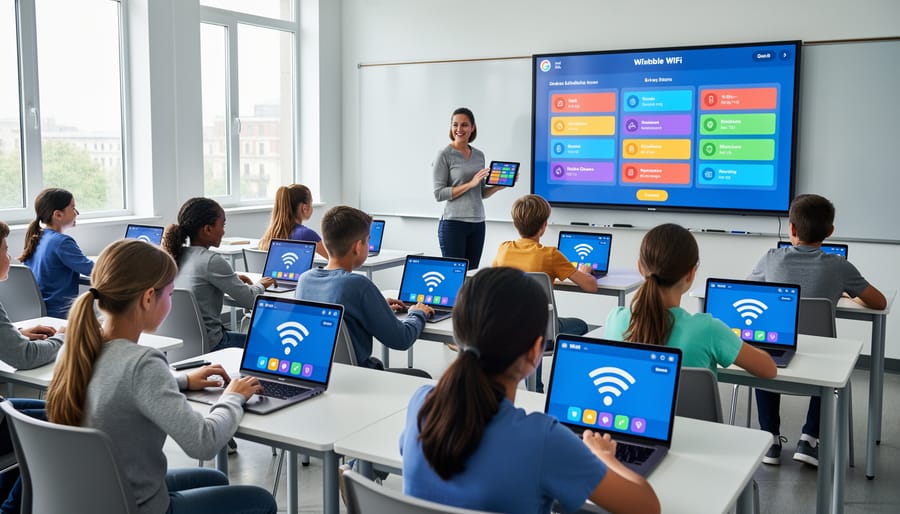
What Makes 5GHz Channels Different (In Plain English)
Think of your WiFi network like a highway system for your classroom devices. The 2.4GHz band is like a two-lane road that everyone in your building is trying to use at once. Every classroom, every phone, even your microwave and baby monitors crowd onto this same narrow path. No wonder your interactive quiz games stall when 30 tablets try to connect simultaneously!
The 5GHz band, on the other hand, is like having a whole new multi-lane expressway built just for you. It offers significantly more channels (or lanes) for your devices to travel on, meaning less congestion and smoother sailing for your classroom activities. While 2.4GHz offers only three non-overlapping channels, 5GHz provides up to 25 non-overlapping channels depending on your location and router settings.
Here’s the best part for your classroom: 5GHz is less crowded because older devices don’t support it. That means fewer neighbors accidentally jamming your signal when you’re running that exciting vocabulary game or displaying student presentations. The trade-off? The signal doesn’t travel quite as far through walls, but for a single classroom setting, this actually works in your favor by reducing interference from other rooms.
When your students’ devices connect to 5GHz, they get their own dedicated space to communicate without fighting through the traffic jam happening on the 2.4GHz band.
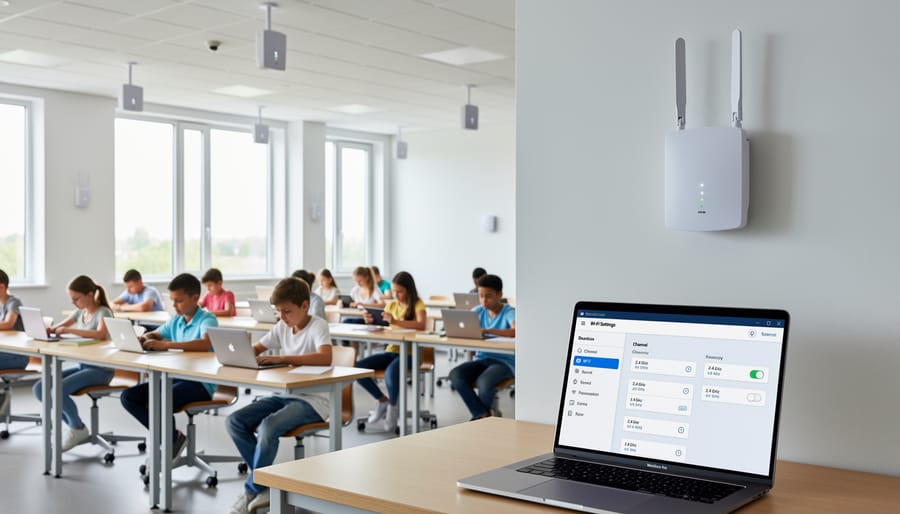
The Magic of Non-Overlapping Channels for Classroom Gaming
Which 5GHz Channels Work Best for Schools
Great news! Your school’s WiFi router likely supports several non-overlapping 5GHz channels that won’t interfere with each other. Think of these as separate highways for your classroom devices to travel on without traffic jams.
The main channels to know about are: 36, 40, 44, and 48 (often called the lower band), and 149, 153, 157, and 161 (the upper band). These channels are like dedicated lanes that keep your interactive classroom games running smoothly without bumping into each other.
Here’s a friendly tip for choosing: Start with channels 36, 44, 149, or 157. These give you the most breathing room between connections. If you have multiple classrooms using WiFi on the same hallway, ask your tech coordinator to assign different channels to each room – like giving each classroom its own express lane!
The upper band channels (149-161) often work especially well because fewer devices use them. However, some older devices might not connect to these, so the lower channels (36-48) are your reliable go-to options that work with almost everything.
Can’t access your router settings? No worries! Simply knowing these numbers helps when chatting with your IT team about connectivity issues.
How This Helps Your Review Games Run Smoother
Here’s the thing: when your WiFi is running on non-overlapping channels, your review games actually work the way they’re supposed to! You know those frustrating moments when students are mid-game and everything freezes? Or when it takes forever for images to load during a fast-paced quiz? Those issues often disappear when you’re using the right channels.
With cleaner WiFi signals, game questions pop up instantly, student answers register without delay, and those fun animations and sound effects actually play when they should. Your students stay focused and excited because the technology isn’t getting in their way. No more groans when the leaderboard won’t update or students lose their progress mid-round.
Think of it like this: overlapping channels are like having five teachers talking at once in the same room. Non-overlapping channels give everyone their own space to communicate clearly. The result? Smoother gameplay, happier students, and you can actually use those awesome interactive features without holding your breath. When the tech works seamlessly, students stay engaged and learning becomes the fun experience you planned for.
Quick Fixes When You Can’t Control the WiFi
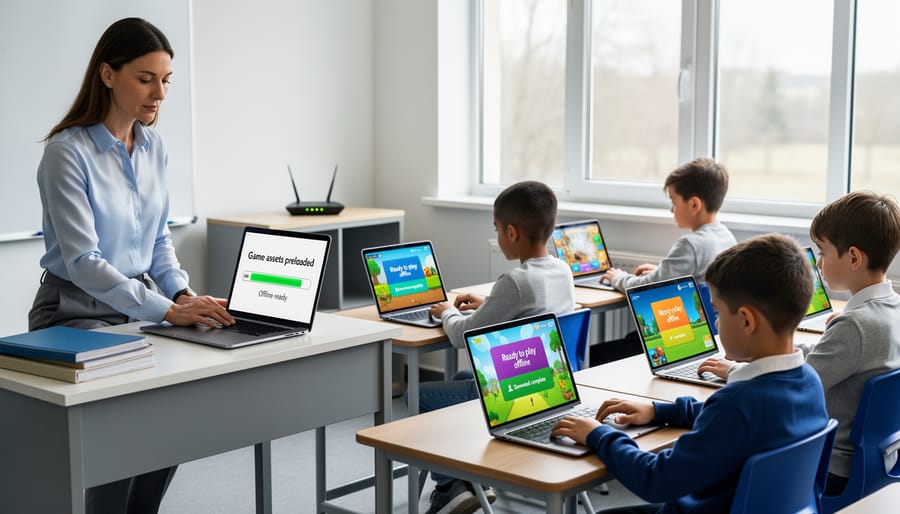
Download Your Games Before Class Starts
Here’s the smartest workaround of all: download your PowerPoint games before class even begins! This simple step eliminates WiFi stress completely. When you save games directly to your computer or classroom device, you’re running them offline without any internet dependency.
Before the school day starts, visit your favorite game templates and click that download button. Store them in a dedicated folder on your desktop for easy access. Pro tip: organize them by subject or unit so you can grab exactly what you need in seconds.
Running games offline means no buffering, no dropped connections, and no mid-lesson interruptions. Your students stay engaged, and you stay calm. Plus, you can customize downloaded games with your own content, adding that personal touch students love.
Think of it as meal prepping for your classroom tech. A few minutes of preparation saves you from scrambling when the WiFi decides to take an unscheduled break. Download once, use anytime, and watch your tech confidence soar!
Reduce File Size for Faster Loading
While you’re troubleshooting your WiFi connection, here’s a super quick fix that can make a world of difference right now! Large PowerPoint files with high-resolution images and embedded sounds can struggle to load, especially on slower connections. The good news? You can slim down those files in just a few clicks.
Start by opening your PowerPoint template and clicking on any image. Select “Picture Format” at the top, then click “Compress Pictures.” Choose the option for “Email” quality, which still looks great on projector screens but cuts file size dramatically. Don’t forget to check the box that says “Apply to all pictures in this file” to save time.
For audio files, consider using shorter sound clips or converting them to MP3 format before adding them to your slides. You can also delete any hidden slides or unused layouts that might be hiding in your template.
Here’s a fun tip: after making these changes, save your file as a compressed ZIP folder. Just right-click the file, select “Send to,” and choose “Compressed folder.” This can reduce file size by an additional 20-30 percent, making downloads and loading times much faster for everyone in your classroom.
How to Ask Your IT Department for Help (Without the Tech Talk)
You don’t need to speak tech to get tech help! Here’s a friendly email template you can send to your IT department that focuses on what matters most: your students’ learning experience.
Subject: Quick WiFi Question to Help with Classroom Activities
Hi [IT Contact Name],
I hope you’re doing well! I wanted to reach out because I’ve been using some amazing interactive digital games and activities in my classroom, and my students absolutely love them. However, we’ve been experiencing some connectivity hiccups when multiple devices try to connect at once.
I recently learned that optimizing our WiFi channels (specifically using something called non-overlapping 5GHz channels) might help improve the connection for my classroom. Would it be possible for you to check if our classroom WiFi is set up this way? I’d love to ensure my students can participate without interruptions during our interactive learning sessions.
This would really make a difference for:
– Real-time quiz games where all students participate simultaneously
– Interactive presentations and collaborative activities
– Smoother video streaming during lessons
I know you’re busy, so whenever you have a chance would be great! If there’s anything you need from me, just let me know.
Thanks so much for all you do to keep our technology running smoothly!
Best,
[Your Name]
This approach emphasizes student engagement rather than technical specifications, making it easier for your IT team to understand the real-world impact and prioritize your request.
Setting Up Your Classroom for the Best WiFi Connection
Getting your classroom ready for smooth WiFi doesn’t require a degree in computer science! A few simple tweaks can make a world of difference when your students are playing interactive games.
Start with smart device placement. Position your router or access point in a central location, preferably elevated on a shelf or mounted high on a wall. Keep it away from metal filing cabinets, concrete walls, and large aquariums, which can block signals. If your classroom WiFi comes from a router in the corner, try rearranging your game stations closer to that area.
Timing matters too! Schedule your most connection-heavy activities during off-peak hours when possible. Early morning or late afternoon sessions often experience less network congestion than midday when the entire school is online. If you notice lag during certain times, consider switching to offline game modes during those windows and saving live multiplayer activities for quieter periods.
When setting up for game day, spread devices out rather than clustering them all in one corner. This helps distribute the WiFi load more evenly. Close unnecessary browser tabs and applications on student devices to free up bandwidth for your games.
Remember, you can always download game files ahead of time when the network is less busy, then run them locally during your lesson. This proactive approach keeps the fun rolling even if connectivity isn’t perfect!
WiFi hiccups don’t have to derail your classroom review games! While switching to non-overlapping 5GHz channels can seriously boost your connection stability, you’re not stuck waiting for IT support to save the day. Whether you optimize your router settings, switch to offline mode for your favorite games, or download activities ahead of time, you’ve got plenty of options to keep the fun rolling. The best part? Once you’ve found what works in your classroom, those laggy interruptions become a thing of the past. Your students stay engaged, the competition stays fierce, and you can focus on what matters most—making learning exciting. With these technical tweaks and practical backup plans in your teaching toolkit, you’re ready to run smooth, energetic review sessions every single time.