

Keep Your Classroom Game Platform Safe Without IT Headaches
Request access to classroom gaming sites by scheduling a brief conversation with your IT department—come prepared with specific URLs, explain the educational value, and ask about security concerns they can help you address. Most IT teams appreciate proactive teachers and will whitelist approved educational tools within 24-48 hours.
Download game templates directly to your computer instead of relying on browser-based platforms that trigger firewall blocks. PowerPoint games, Google Slides activities, and PDF-based challenges bypass network restrictions entirely because they run locally on your device, giving you complete control over classroom content without waiting for IT approval.
Test your chosen gaming platform before lesson day by accessing it from your classroom computer during prep time. Firewalls often behave differently across school networks, and what works in the teacher’s lounge might not work in Room 204. This five-minute check prevents those awkward moments when 25 students are ready to play and the site won’t load.
Communicate the difference between entertainment gaming and educational gaming to administrators who may not understand the distinction. Share specific learning outcomes, student engagement data, and curriculum connections to build trust. When decision-makers see how game-based learning supports academic goals rather than distracting from them, they become your strongest advocates for expanded technology access.
Why School Firewalls Block Your Favorite Classroom Games
If you’ve ever planned an exciting lesson around interactive games only to discover they won’t load on school computers, you’re definitely not alone! School firewalls are actually your digital bodyguards, working behind the scenes to keep students safe online.
Think of your school’s firewall as a careful gatekeeper. Its primary job is protecting students from inappropriate content, preventing malware from sneaking into the network, and ensuring bandwidth isn’t hogged by non-educational activities. Schools are legally responsible for maintaining safe digital environments, so these security measures aren’t optional.
Here’s the tricky part: firewalls use automated filters that sometimes can’t distinguish between a gaming website designed for entertainment and gamified learning platforms created specifically for education. When a site contains words like “game” or “play,” the firewall might automatically block it, even if it’s packed with educational value. Additionally, some platforms require student accounts or external logins, which trigger additional security protocols.
Bandwidth management also plays a role. Schools have limited internet capacity shared across hundreds of devices, so resource-heavy platforms with videos or animations might get restricted during peak hours.
The good news? This isn’t a roadblock—it’s just a speed bump! Your IT department isn’t trying to make teaching harder. They’re balancing security requirements with educational needs, and they genuinely want to help you access quality teaching tools.
Understanding why these blocks happen empowers you to work with your tech team rather than around them. Plus, many solutions exist that respect security protocols while bringing engaging, game-based learning right into your classroom. You’ve got this!
What Your IT Department Needs to Hear
Approaching your IT department doesn’t have to be intimidating! Think of it as a partnership where you’re both working toward the same goal: keeping students safe while providing amazing learning experiences. Here’s how to make that conversation productive and positive.
Start by scheduling a quick meeting or sending a friendly email. Keep it simple and focused. Begin with something like: “Hi! I’m planning to use an interactive gaming platform in my classroom to boost student engagement, and I wanted to check in about access requirements.”
Here’s the key information your IT team will appreciate:
First, provide the specific website or platform name you want to use. Include the exact URL and explain what it does. For example, mention that it’s an educational gaming tool designed for creating review activities and interactive lessons.
Next, highlight the educational benefits clearly. Explain how this tool supports your curriculum objectives, increases student participation, and provides valuable formative assessment data. Your IT staff wants to know this isn’t just entertainment – it’s purposeful learning.
Be ready to share security information. Most reputable educational platforms have privacy policies and compliance certifications. If the platform offers downloadable templates, emphasize this feature since downloaded materials typically bypass firewall restrictions entirely while keeping student data secure.
Ask specific questions: “Would this platform work on our network?” or “Is there a whitelisting process I should follow?” This shows you respect their protocols and expertise.
Emphasize flexibility by mentioning alternative solutions. If certain online features won’t work, can students access downloaded versions? This demonstrates you’re solution-oriented and willing to work within existing security frameworks.
Finally, express appreciation for their time and expertise. A little gratitude goes a long way in building positive relationships with your IT department. Remember, they’re your allies in creating the best possible learning environment for your students!

Setting Up Classroom Game Platforms the Smart Way
Downloaded vs. Online Game Templates
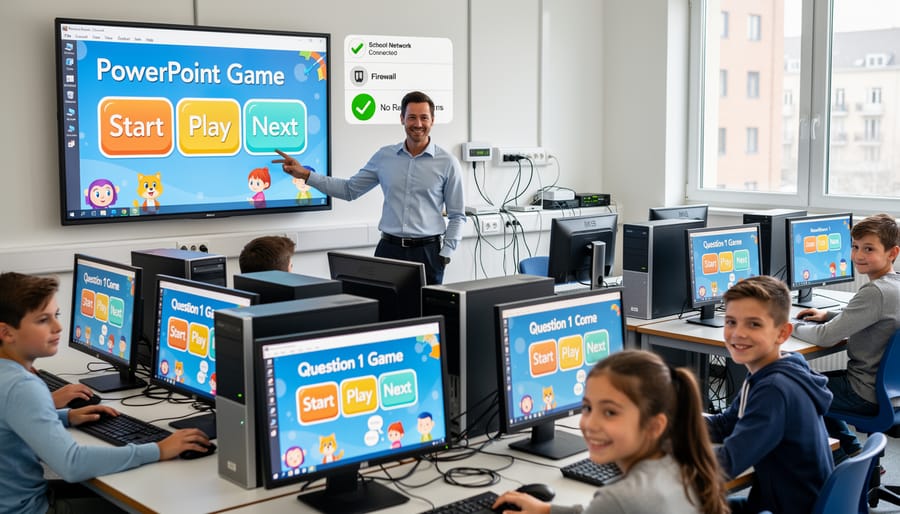
Here’s some great news that’ll make your life easier: PowerPoint game templates have a huge advantage when it comes to school firewalls. Unlike browser-based gaming platforms that constantly need internet access and can trigger security blocks, downloadable templates work right from your computer.
Think of it this way. When you download a game template to your device, you’re bringing the fun directly into your classroom without needing to pass through the firewall gatekeepers every single time. No more crossed fingers hoping the website loads, no mysterious error messages, and no frustrating moments when your perfectly planned lesson hits a digital roadblock.
Browser-based platforms require ongoing internet connections and often access multiple servers, which can set off alarm bells in your school’s security system. But once you’ve downloaded a template, it lives on your computer just like any other PowerPoint file. You can customize it at home, save it to a USB drive, or store it in your school’s shared drive without any network concerns.
This means you get consistent, reliable access to engaging classroom games regardless of how strict your school’s firewall settings are. You can focus on what matters most: creating exciting learning experiences for your students rather than wrestling with technology barriers. It’s the perfect solution for teachers who want interactive games without the technical headaches.
Quick Security Checks Before Game Day
Before you launch into game day, take five minutes to run through this simple checklist. It’ll save you from those dreaded “Why isn’t this working?” moments right when your students are bouncing with excitement!
First things first: test everything on the same network your students will use. What works on your phone’s hotspot might not work on the school WiFi. Log in as if you’re a student and click through your game to make sure all features load properly.
Next, check if your game requires any plugins or downloads. If you’re using a browser-based game, make sure it runs on your school’s default browser. Some districts block Chrome extensions or Flash content, so knowing this ahead of time means you can switch to downloadable alternatives that work offline.
Take a peek at your game’s sharing settings too. Will students need to create accounts? Some schools block new account creation on unfamiliar websites. If that’s the case, consider games you can download and run locally, or ones where you control all the access.
Here’s a pro tip: bookmark or download your game materials at least a day before you need them. This gives you time to reach out to IT if something’s blocked, rather than sending an emergency email five minutes before class starts.
Finally, have a backup plan ready. Keep a downloaded version of your game or a non-digital alternative on hand. Sometimes tech hiccups happen despite our best planning, and having a Plan B keeps the learning flowing smoothly.
Backup Plans When the Network Says No
Even with the best planning, technology sometimes has other ideas! Here’s how to keep your lesson running smoothly when the network decides to take a coffee break.
Your first lifesaver is downloadable content. Before class starts, save game templates and interactive activities directly to your computer. This way, you’re not dependent on internet access once you’re in teaching mode. Many educational gaming platforms offer offline options that work perfectly without touching the network.
Create a “Plan B” folder on your desktop with pre-downloaded materials. Think of it as your emergency teaching toolkit! Include printable versions of digital games, standalone activities, and any resources you might need when connectivity disappears.
Consider using a personal hotspot if your school allows it, though always check your district’s policies first. Some teachers keep a few low-tech versions of their favorite games ready to go, transforming digital activities into hands-on learning experiences.
The key is staying flexible and creative. When one door closes, another opens, and sometimes those backup plans turn into the most memorable lessons! Keep your IT department’s contact info handy, communicate any recurring issues, and remember that a little preparation goes a long way in creating a stress-free classroom environment.
Making Your Case: Educational Value Meets Network Safety
Getting approval for interactive classroom games doesn’t have to feel like navigating a maze. The key is showing administrators and IT staff how these tools support your curriculum while keeping student data safe.
Start by documenting specific learning objectives. Rather than saying “students will have fun,” explain how game-based activities reinforce standards. For example, “This vocabulary game helps students master 20 tier-two words from our current unit, with built-in repetition that supports retention.” When you connect games directly to measurable outcomes, you’re speaking the language administrators understand.
Next, address security concerns proactively. Downloadable game templates that run offline or through PowerPoint are your best friends here. They bypass most firewall issues entirely because they don’t require constant internet access or student data collection. Mention this advantage when making your case: “These games run directly from my computer, so there’s no web browsing, account creation, or data sharing involved.”
Create a simple one-page proposal that includes your learning goals, the specific tool you want to use, how it works technically (keep it brief), and why it’s safer than streaming video or open web browsing. Add a line about how you’ll monitor student engagement to ensure appropriate use.
Consider timing your request strategically. Approaching IT staff during less busy periods, like mid-semester rather than the hectic start of school, often yields better results. Be open to their feedback and willing to demonstrate how the games work.
Remember, IT departments want to support teaching. They’re protecting the network, not blocking innovation. When you show respect for security policies while clearly demonstrating educational value, most administrators will work with you to find solutions that benefit everyone.
Common Firewall Questions Teachers Actually Ask
Let’s tackle those questions that pop up in the teachers’ lounge and late-night planning sessions!
Can I turn off the firewall for my classroom? Short answer: nope! And honestly, that’s a good thing. Firewalls protect your entire school network from security threats, and they’re managed at the district level. Think of them like the school’s front door locks – individual teachers can’t remove them, and you wouldn’t want that responsibility anyway.
What can I actually control? While you can’t change firewall settings, you absolutely have a voice! You can request specific websites be unblocked, report when educational tools aren’t working, and suggest solutions that meet both teaching needs and security requirements. Your IT team wants to help – they just need clear information about what you’re trying to accomplish.
Why does everything fun seem blocked? Here’s the thing: most firewalls use broad categories to filter content. Gaming sites might be blocked wholesale, even if your specific game is totally educational. It’s not personal – it’s just an automated system doing its job.
When should I contact IT? Reach out when you’ve found an awesome educational resource that’s blocked, when something that worked yesterday suddenly doesn’t, or when you need guidance on safe alternatives. Be specific about what you’re trying to teach and why the tool matters for your lesson.
What’s the easiest workaround? Downloaded resources that run directly on your computer typically bypass firewall restrictions entirely. No internet connection required means no firewall concerns – plus, you’ll have reliable access even when the Wi-Fi acts up!
You’ve got this! Navigating school firewalls doesn’t have to be a headache when you choose the right approach. The beauty of downloadable game templates is that they work alongside your school’s security framework, not against it. By downloading resources directly to your computer, you’re bypassing most firewall restrictions while keeping everything safe and secure.
Remember, classroom gaming platforms are designed to enhance learning, and with downloadable options, you can bring that excitement into your classroom worry-free. Keep those communication lines open with your IT team, and don’t hesitate to share how these tools boost student engagement. You’re creating an interactive, dynamic learning environment that respects school policies while making lessons memorable. Ready to level up your classroom?